Display & Cine Review 6-5
Tips: you can perform cine review on each image window in the dual/ quad splitting
mode, and set auto review region for each window.
6.2.3 Cine Review in M/ PW /TVD Mode
After entering the cine review of M/ PW/ TVD mode, rolling the trackball or rotating the
multifunctional knob will display the cine images on the screen one by one.
Roll the trackball to the left, the review progress slider moves to the left, the images moves
to the right, and the earlier stored images are invoked. Whereas, roll the trackball to the right,
the review progress slider moves to the right, and the images move to the left, the recently
stored images are invoked. When you review the images until the earliest or the latest frame,
further rolling the trackball will display the last or first frame.
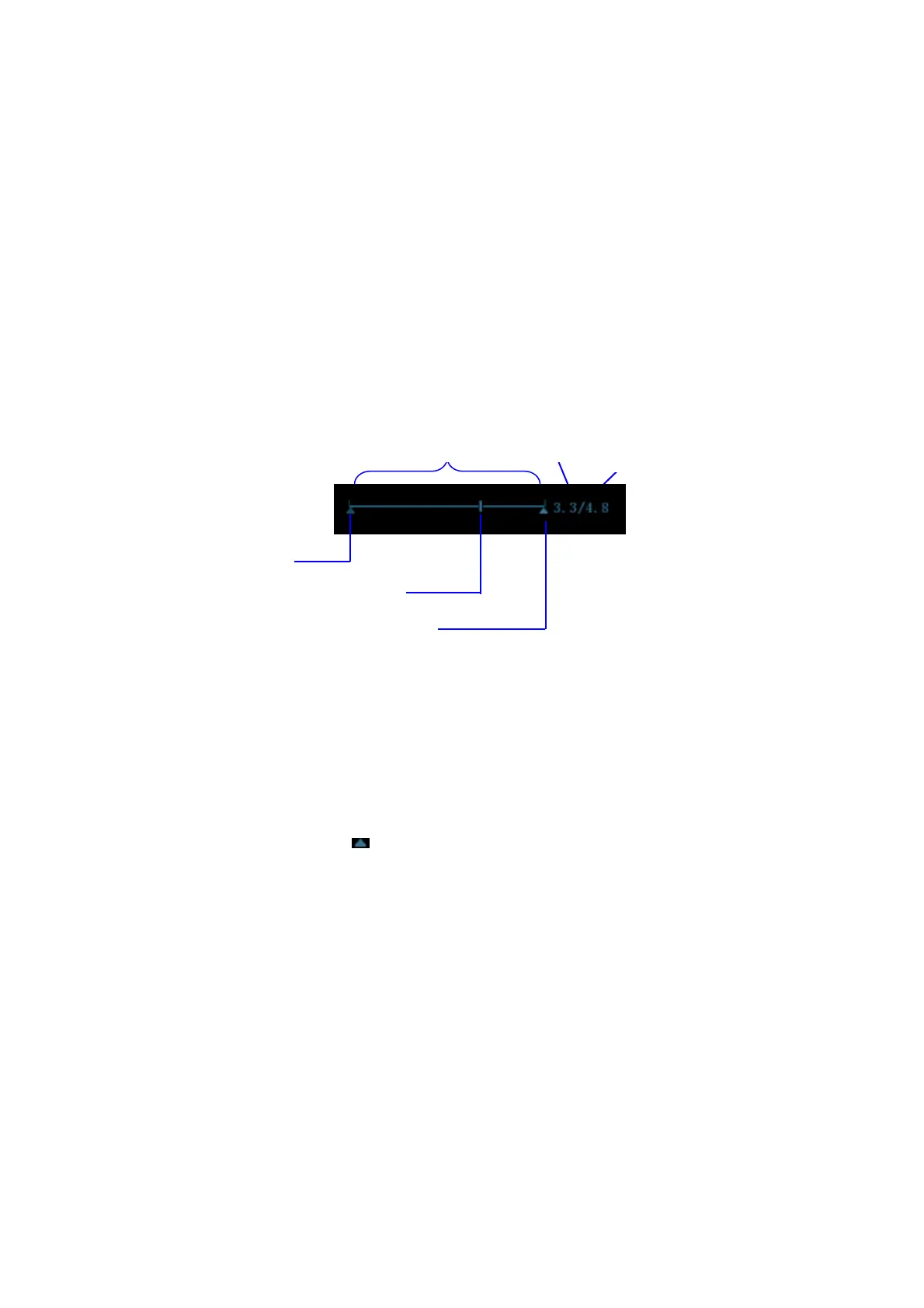
The cine progress bar at the bottom of the screen (as shown in the figure below):
Cine review operations are the same as those of 2D mode.
Tips: There is no audio when the spectrum is reviewed in manual status but audio
synchronization can be realized in auto review status with speed of ×1.
6.2.4 Linked Cine Review
The linked cine review refers to review of the images captured at the same moment.
There displays the frame mark on the time mark of M/ PW image indicating the current
2D image.
In dual or quad split display mode, you can only review images of the current active window,
use <Dual> or <Quad> to switch the window.
6.3 Image Compare
6.3.1 Image Compare in Review Mode
1. Press <Review> to enter Review screen, press <Ctrl>+<Set> to select files to be
compared.
Tip: for B/ B+Color/ B+Power mode image, you can select at most 4 images; for PW/M
mode image, you can select at most 2 images.
2. Click [Compare] to enter image compare mode.



 To Next Page