Patient Data Management 9-3
Multi-medium files (AVI)
Multi-frame file format, general cine file format.
DICOM files (DCM)
DICOM standard files format, single-frame or multi-frame format, used to record
patient information and images.
9.2.3 Image Storage Preset
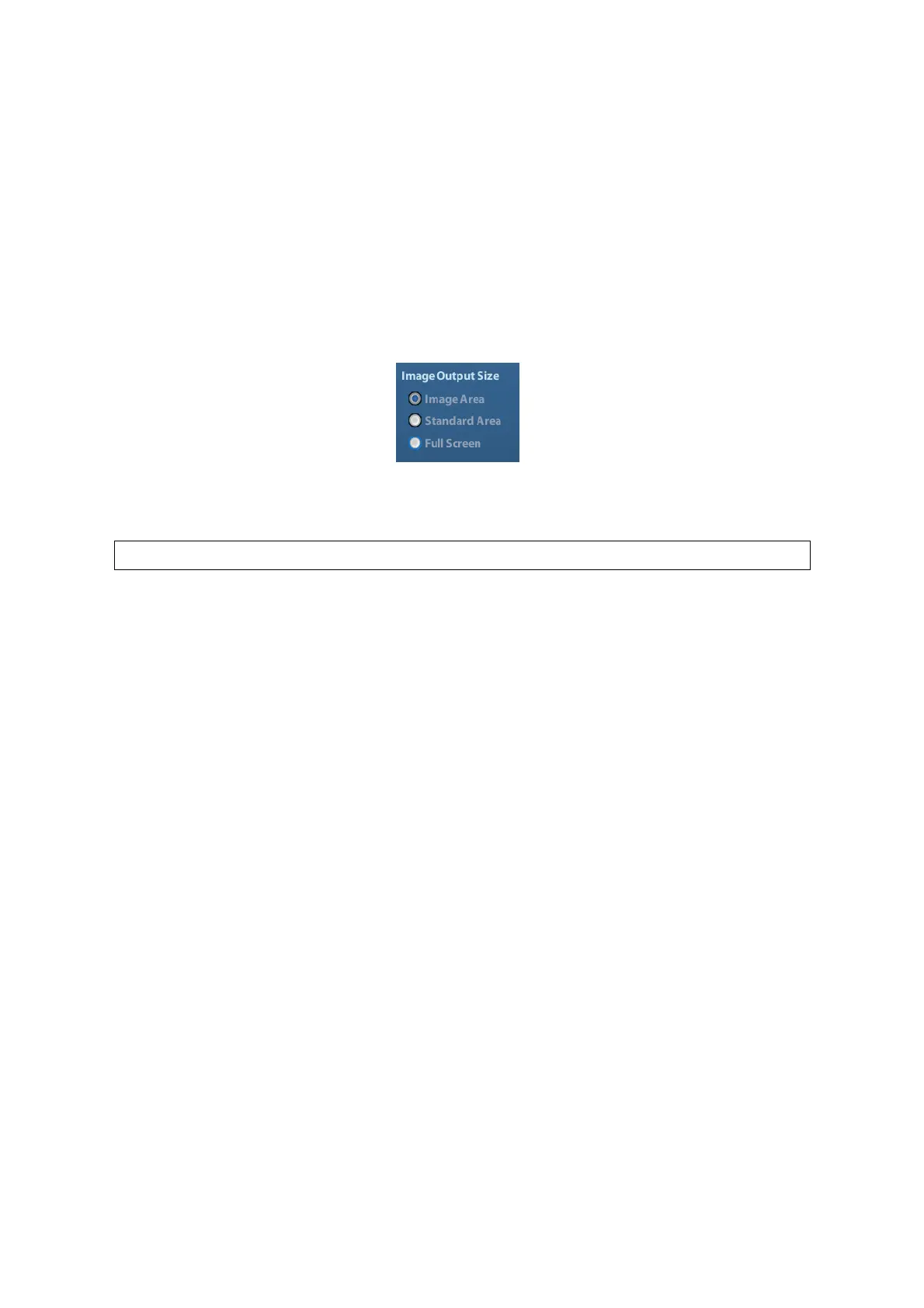
Set image size
You can set the image size via [Setup] →[System Preset]→ [General]. The items are
shown as follows:
Set single frame export format
Format
You can select the image export format in the Send To dialogue box.
Compression in a JPEG format may result in image distortion.
Set cine saving length
For details, please refer to “6.5 Preset”.
9.2.4 Saving Images to the System
To save a single-frame image in the system:
(1) Enter [Setup]-> [System Preset] -> [Key Config]-> [Output], set a user-defined key
for function “Save image”.
(2) Press the user-defined key to save the image.
In the image screen, press the shortcut key to save the current single-frame image
with the image frozen, and the image is saved with the default file name in the default
file directory in FRM format. The thumbnail of this image will appear in the thumbnail
area on the right side of the screen. When you move the cursor onto the thumbnail,
its filename with suffix will be displayed.
When a dialog box is displayed on the current screen, press the user-defined key to
save the screen in the BMP format.
To save cineloop image in the system:
(1) Enter [Setup]-> [System Preset] -> [Key Config]-> [Output], set a user-defined key for
function “Save cine”.
(2) Freeze an image. Click the user-defined key to save the current image file in the
default file directory in the dynamic image format .CIN.
The thumbnail of this image will appear in the thumbnail area on the lower side of the
screen. When you move the cursor onto the thumbnail, its file name with suffix will be
displayed.



 To Next Page