86
EN
B CLASSIC / B FUTURA / S CLASSIC - TECHNICAL MANUAL
TECHNICAL DATASHEET
5.7 FIRMWARE UPDATE
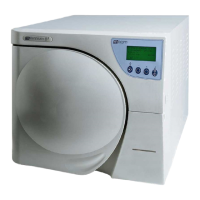
CLASSIC AUTOCLAVES FIRMWARE UPDATE
The rmware is updated automatically as the new rmware is uploaded to the autoclave from a USB pendrive.
Following is the proper update procedure after receiving the Firmware updated les as e-mail attachments.
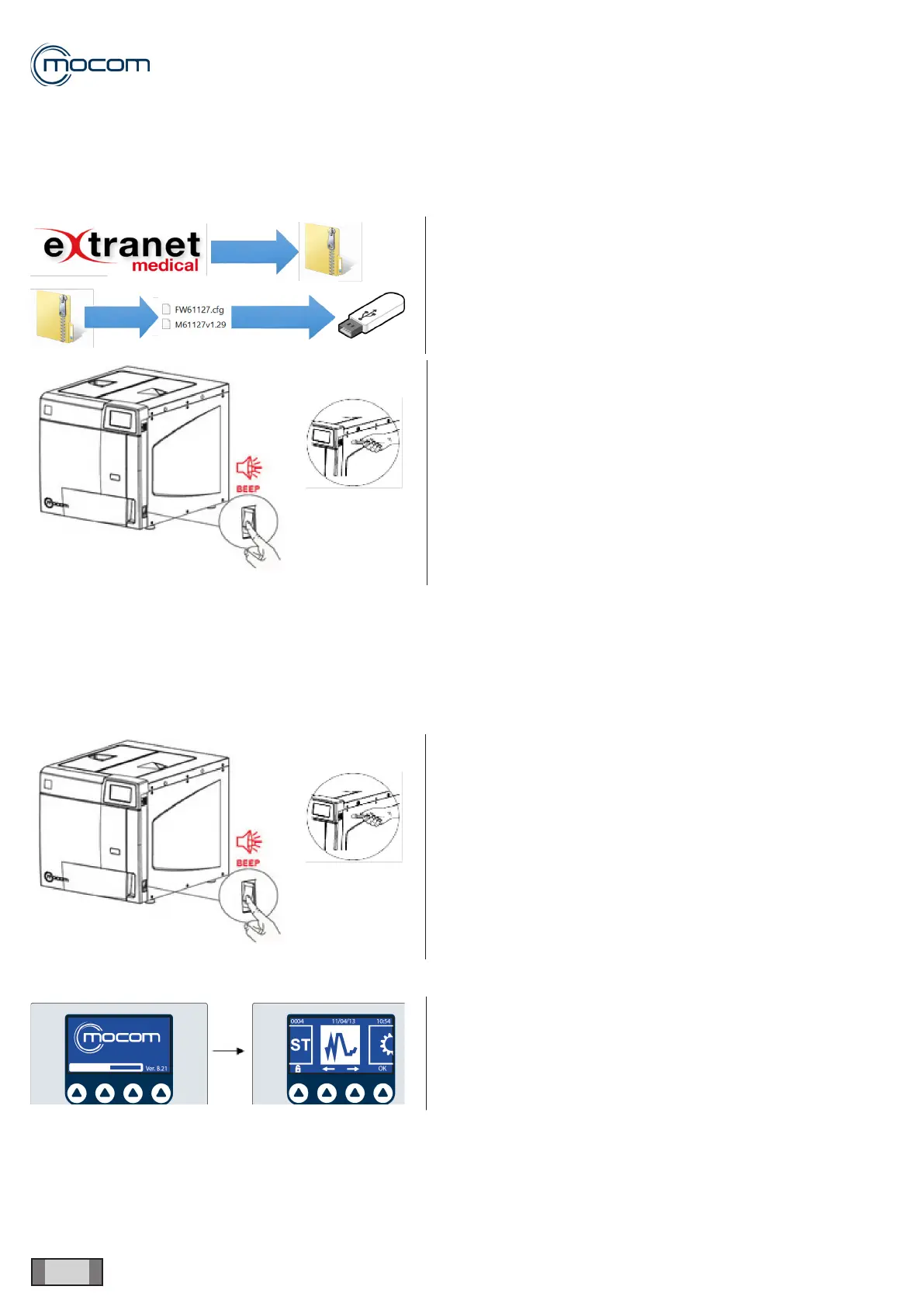
- Download the compressed folder (.zip) available on the
Extranet.
- Extract the 2 les contained in the folder.
- Copy the 2 les to an empty USB pendrive.
- Switch off the autoclave.
- Insert the USB pendrive into the port on one side of the
display.
- Switch on the autoclave.
The update process will start automatically and take about 2 minutes; depending on the number of cycles performed,
the process may last up to 7-8 minutes.
The update process is indicated by certain warning sounds.
During the initial phase, the display screen will turn BLACK, and then the wording “WAIT” is displayed.
A message reading “USB error” may appear for a few moments, please disregard it
Do not remove the USB pendrive while the update process is running.
- Switch off the autoclave.
- Insert the USB pendrive into the port on one side of the
display.
- Switch on the autoclave.
When the updated is completed, the autoclave is restar-
ted automatically and the display screen will default to the
standard START menu.



 To Next Page