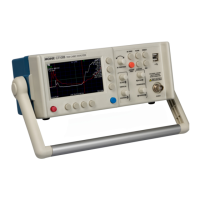
Operating Instructions
Setting up the CT100
Setting up the CT100
Setting date and time
The date, time, and time zone must be accurately set for saved data in the CT100 to be
correctly time-stamped.
Change the date and time by pressing the blue (MENU) button. This calls up the Main menu.
Select the Info menu option using one of the eight menu hot keys, as labeled on the screen.
The Info menu appears.
Select the Time menu option. The Time menu appears.
Select the Set Time Zone menu option. A dialog box listing all time zones appears on the
screen.
Use the M-FUNCTION knob to scroll through the list of time zones. Highlight the correct time
zone.
Choose the Select menu option. The CT100 will prompt you to restart. After doing so, the
CT100 will be set to the correct time zone. Note that daylight savings should be turned on,
and it will automatically adjust for daylight savings on the correct dates.
After restarting the CT100, the time may already be correct, but if not, return to the Time menu
by pressing the blue (MENU) button, selecting Info, then selecting Time.
Select the Time/Date menu option. A dialog box used to set the date and time appears. See
the next section for methods of navigating and entering data into a dialog box.
Press the OK menu option when the correct time and date have been entered.
Navigating dialog boxes
Scroll through the different entry boxes with the M-FUNCTION knob. With an entry box
selected, press the Keyboard menu option to call up an on-screen keyboard.
With the on-screen keyboard chosen, select the desired characters with the M-FUNCTION
knob, pressing the Select menu option for each one. Get more character options by selecting
the Shift menu option. Delete the character before the cursor with the Back menu option.
With the keyboard open, accept the current entry with the OK menu option or revert to the
original entry with the Cancel menu option.
With the keyboard off the screen, select the OK menu option to accept all changes to the
current dialog box and close the dialog box. Select the Cancel menu option to close the dialog
box while canceling all changes.
With a USB keyboard attached, entries can be changed directly. Use the tab key to scroll
down through entry boxes and hold down shift and press tab to scroll up through entry boxes.
16 Mohr CT100 / CT100HF Operator's Manual



 To Next Page