Page 30 of 110
Rev. G
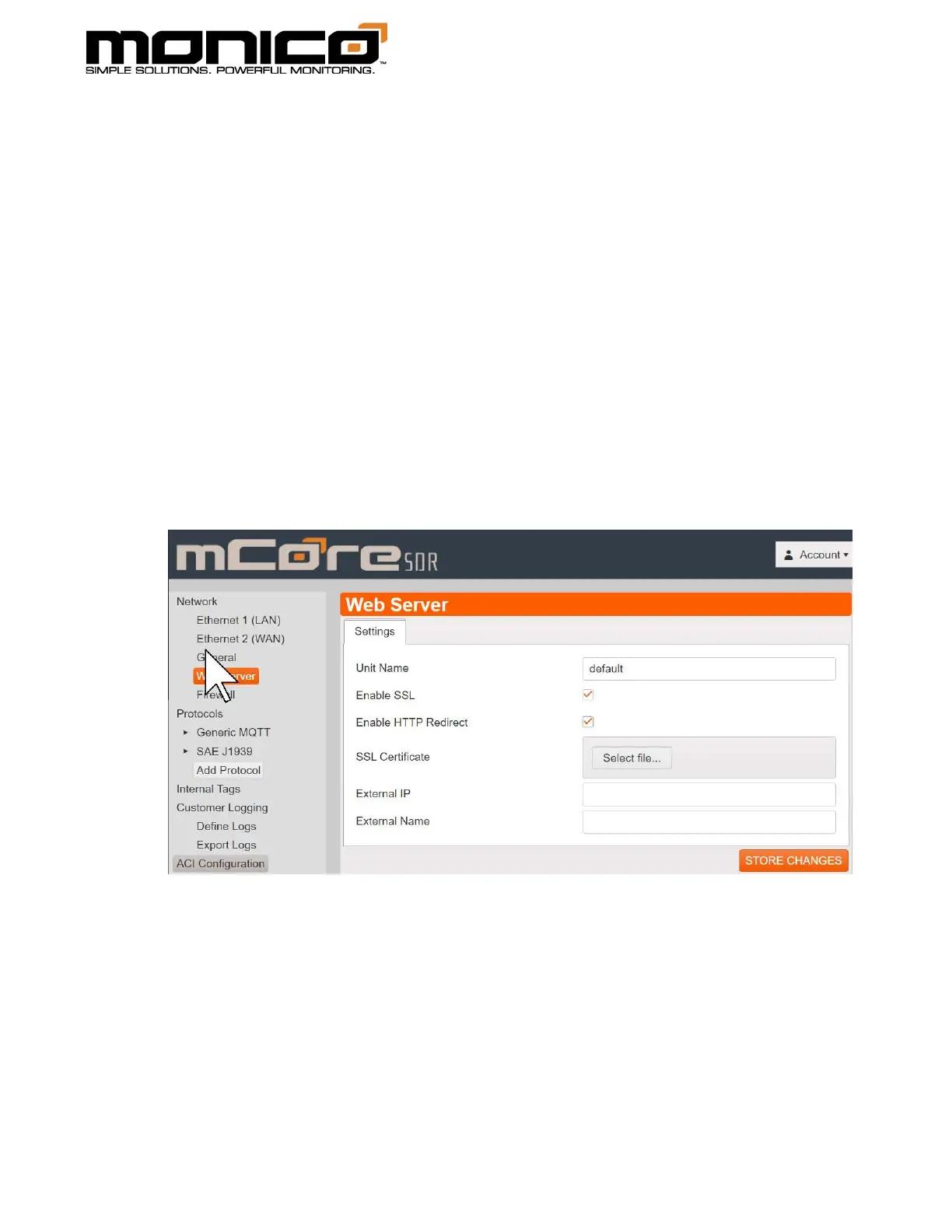
2. Enter the new name in the Unit Name box. Click the Store Changes button in
the center menu when done.
3. To activate the changes, you will have to click the Commit All Changes button
in the left menu towards the bottom. It will show a pop box. Click Ok to
continue. mCore will reboot and the new Unit Name will now be active.
Section 7.2: SSL and HTTP Redirect
1. By default, SSL will come enabled. Since the Enable HTTP Redirect is not
checked, you will be able to access the UI via both http and https. To disable,
uncheck the Enable SSL box. When done, click the Store Changes button in the
center menu.
2. If you want your computer to always go to https, you can check the Enable
http Redirect check box. So, if you enter http:// to connect to mCore’s UI (User
Interface), you will be redirected to https://. When done, click the Store
Changes button in the center menu.
3. To activate the changes, you will have to click the Commit All Changes button
in the left menu towards the bottom. It will show a pop box. Click Ok to



 To Next Page