Page 31 of 110
Rev. G
continue. mCore will then reboot.
4. Reconnect to the mCore using https:// instead of http:// with either the serial
number, the IP address, or the Unit Name if changed from default.
Section 7.3: Upload SSL Certificate
SSL connections require a certificate that proves to the web browser that the unit
to which you are connecting is what it claims to be. This is to avoid, for example,
you’re sending a password to another device that is pretending to be your mCore.
You can either provide your mCore with a certificate file manually using the
Certificate setting, or you can allow it to generate its own. If you provide a
certificate, the file you provide must contain both the certificate itself and the
associated private key. If these are in separate files, you can combine them by
simply concatenating them into a single text file. If allow the mCore to generate
its certificate, it will sign this certificate using its own copy of the Monico Local
Root certificate. This means that downloading the Monico Local Root and
installing on your PC as a Trusted Root will allow your web browser to accept any
certificate created by an mCore device.
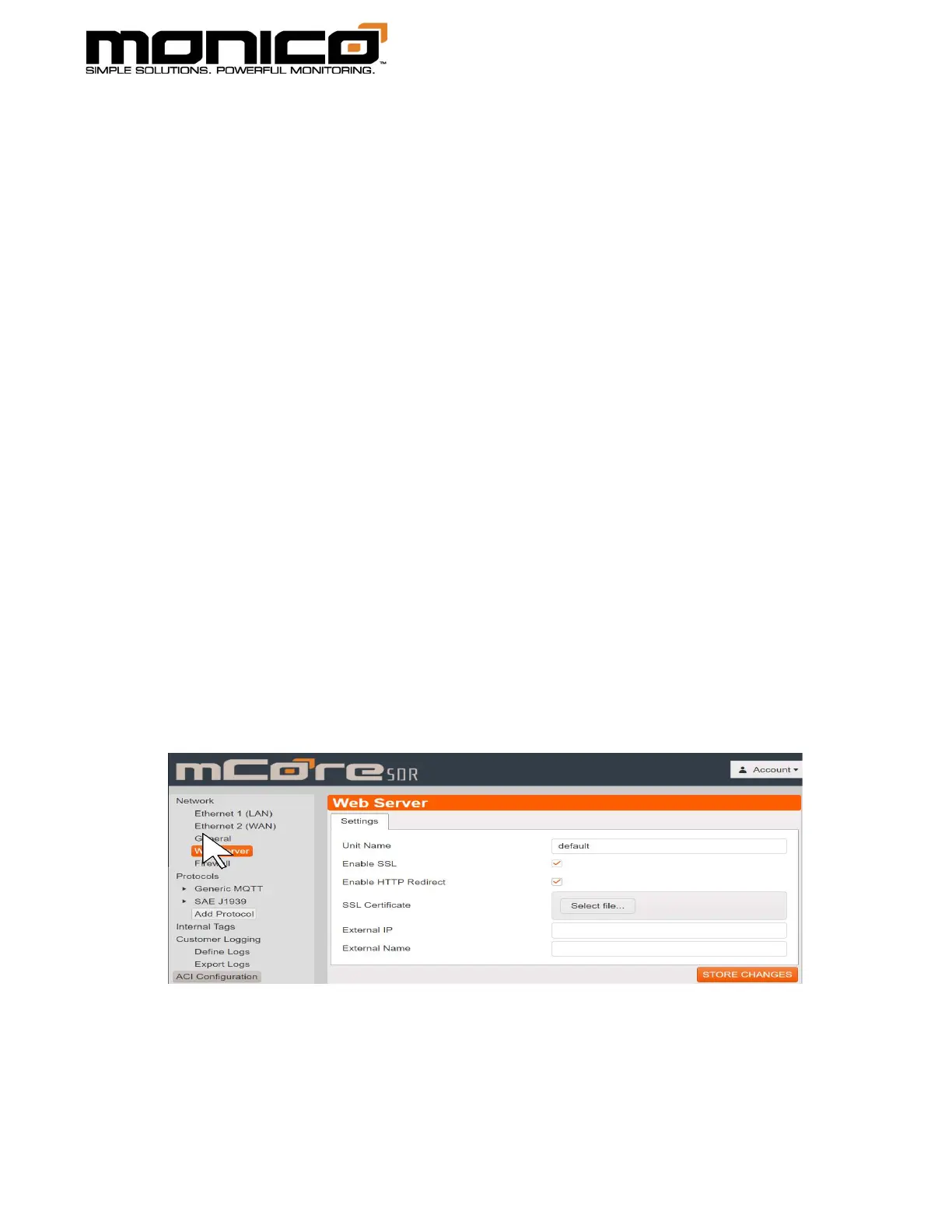
1. To upload an SSL Certificate, click the Web Server button in the left menu
toward the top. The following screen will appear.
2. Next to the SSL Certificate label in the center menu, click the Select file button.
A pop-up window will appear. Navigate to the SSL file and then click Open.


 To Next Page