Page 79 of 110
Rev. G
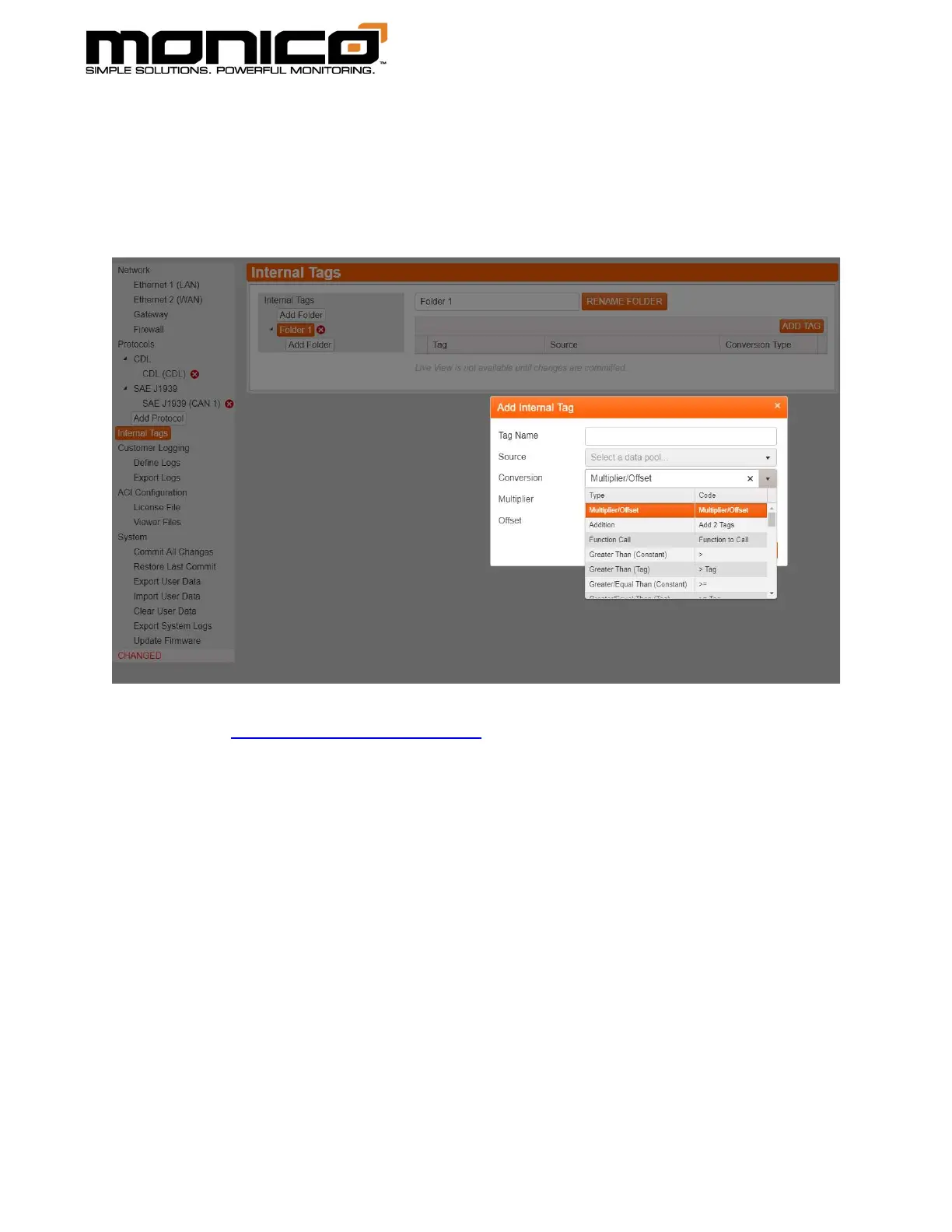
3. Once you’ve clicked Add Tag, the following pop up will appear. Click the
Conversion drop down menu to see all the different functions that can be used
including multiplier/offset for scaling and unit conversion, add 2 tags together,
etc. When done, click the Store Changes button in the pop-up window.
Note: See Section 10.1: Function Table for examples and full list of functions.
Contact Customer Support if you have questions about any of the functions.
4. Once you’ve stored that change, you will see the internal tag in the folder’s line
up. Repeat Step 3 to add as many internal tags as desired.
5. In order to create multiple step logic, take the resulting tag from the first step and
use it as the source for the second step and so on.



 To Next Page