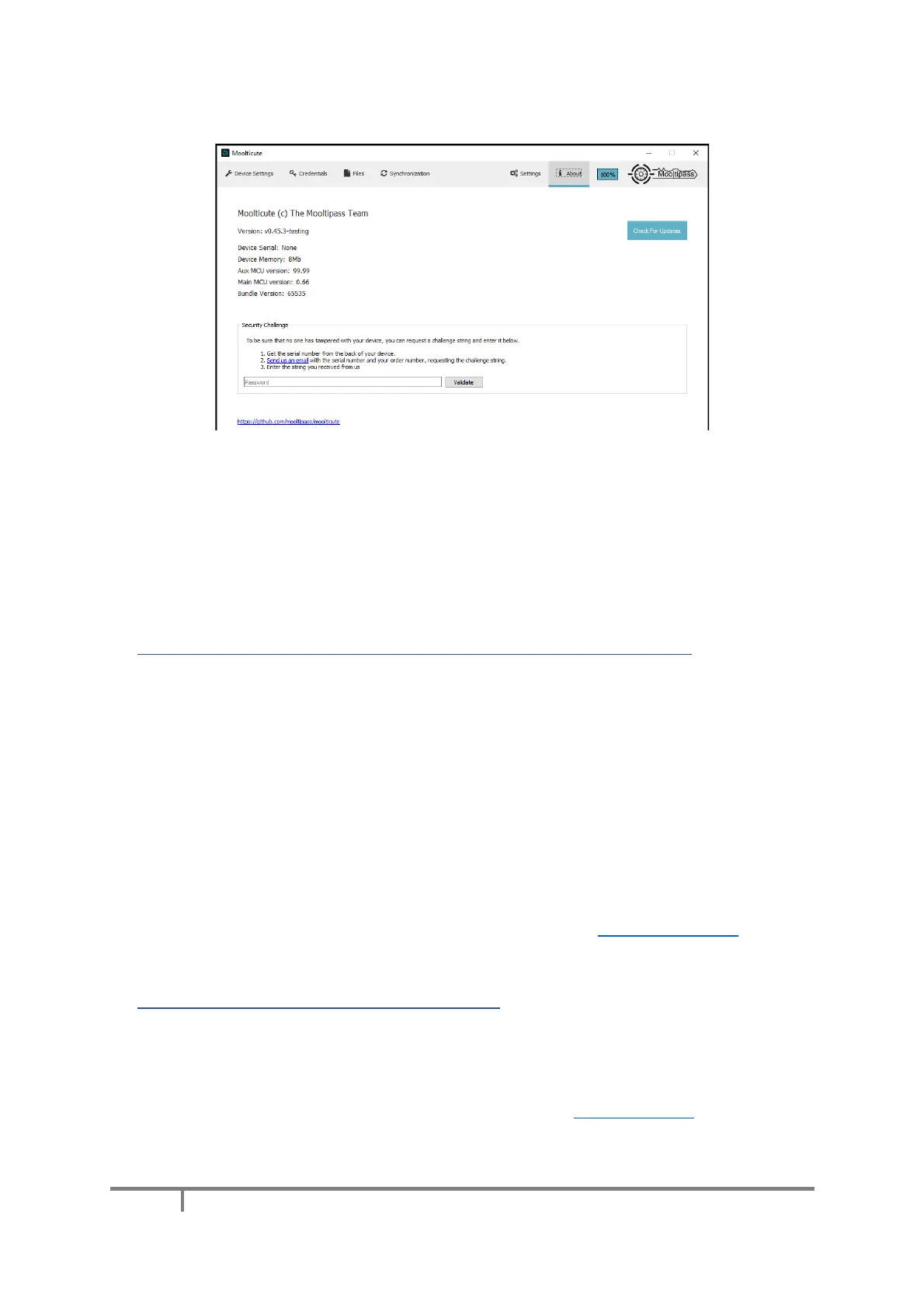
I) About Tab
Finally, the ‘About’ tab provides you with general information about your device and app. It
allows you to check that you are running the latest version of Moolticute.
In this tab, you can use the security challenge feature that lets you make sure your device’s
firmware hasn’t been tampered with. To use it, send us an email with your serial number. We’ll send
you a cryptographic token that lets you to check the unique identifier stored inside your Mooltipass
Mini BLE.
IV. Importing Existing Profiles Into New Mooltipass Devices
The Mooltipass Mini BLE is fully compatible with the cards used on our previous generation
devices. To export your user profile into one or more additional Mooltipass devices, please use the
following steps:
1) Connect your existing device to your computer, use Moolticute to make a backup of your
current user profile
2) Remove the smartcard from your existing Mooltipass device
3) Insert the same smartcard into your new Mooltipass device
4) Your new device will display “unknown card”
5) Use Moolticute to import the backup file you have made on step 1
When you use more than one Mooltipass device, you can use the different options in the
‘Synchronization’ tab to keep your Mooltipass units synchronized. See Synchronization Tab for more
information on backup monitoring files.
V. Native Integration without Browsers
The Mooltipass team is working to support other browsers and applications besides Google
Chrome, Firefox and Opera. As this project is mostly built by volunteer contributors, you are
welcome to contact us at #mooltipass on freenode.net if you are interested in giving us a hand.
In the meantime, you can use manual login as explained in the previous sections of this user
manual. With manual login you can use the Mooltipass as a keyboard to type your credentials for
you, without needing to install any additional applications or extensions.


 To Next Page