E) Files Tab
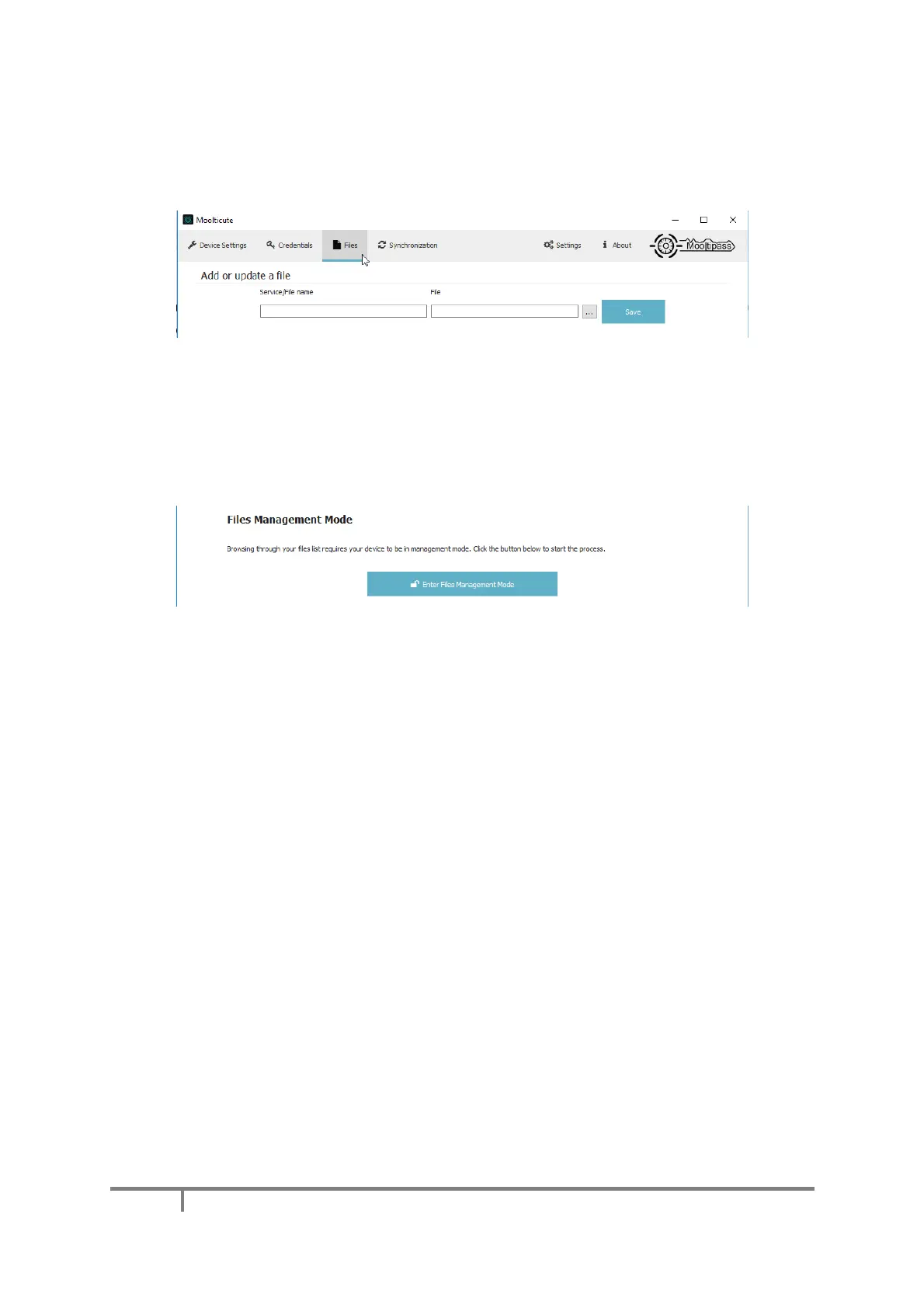
The Mooltipass device can operate as a flash drive. The ‘Files’ tab allows you to add, store and
access files on your Mooltipass.
The first subsection of the ‘Files’ tab allows you to add a file. Click on the ‘Save’ button and
confirm the request on the Mooltipass device. If the file’s name matches a file already stored in the
Mooltipass, the device will ask you if you want to update it. If you confirm the request, the file
already stored will be replaced by the one you specified.
Click on the 'Enter Files Management Mode' button to manage the files stored in your Mooltipass.
You will need to confirm the request on the Mooltipass device. You can then access or delete files
stored on your device.
When you are done, click on the ‘Save & Quit’ button and approve the modification requests on
the Mooltipass – or hold the ‘Discard deletions’ button, if you need to cancel.
F) Synchronization Tab
▪ The different buttons in the synchronization tab will allow you to backup and restore the
credentials you have stored inside the memory of your Mooltipass.
▪ You can also select a backup monitoring file to make sure your Mooltipass database is always in
sync with it. Once set up you will be prompted for import or export operations when changes to your
Mooltipass database or to the monitored file are detected. It can be especially helpful to monitor a
file in cloud storage (for instance, using the Dropbox™ service) that you can access on any computer.
When you use more than one Mooltipass device, backup monitoring allows you to keep your
Mooltipass units synchronized. Just set them all up to monitor the same cloud-based backup file.


 To Next Page