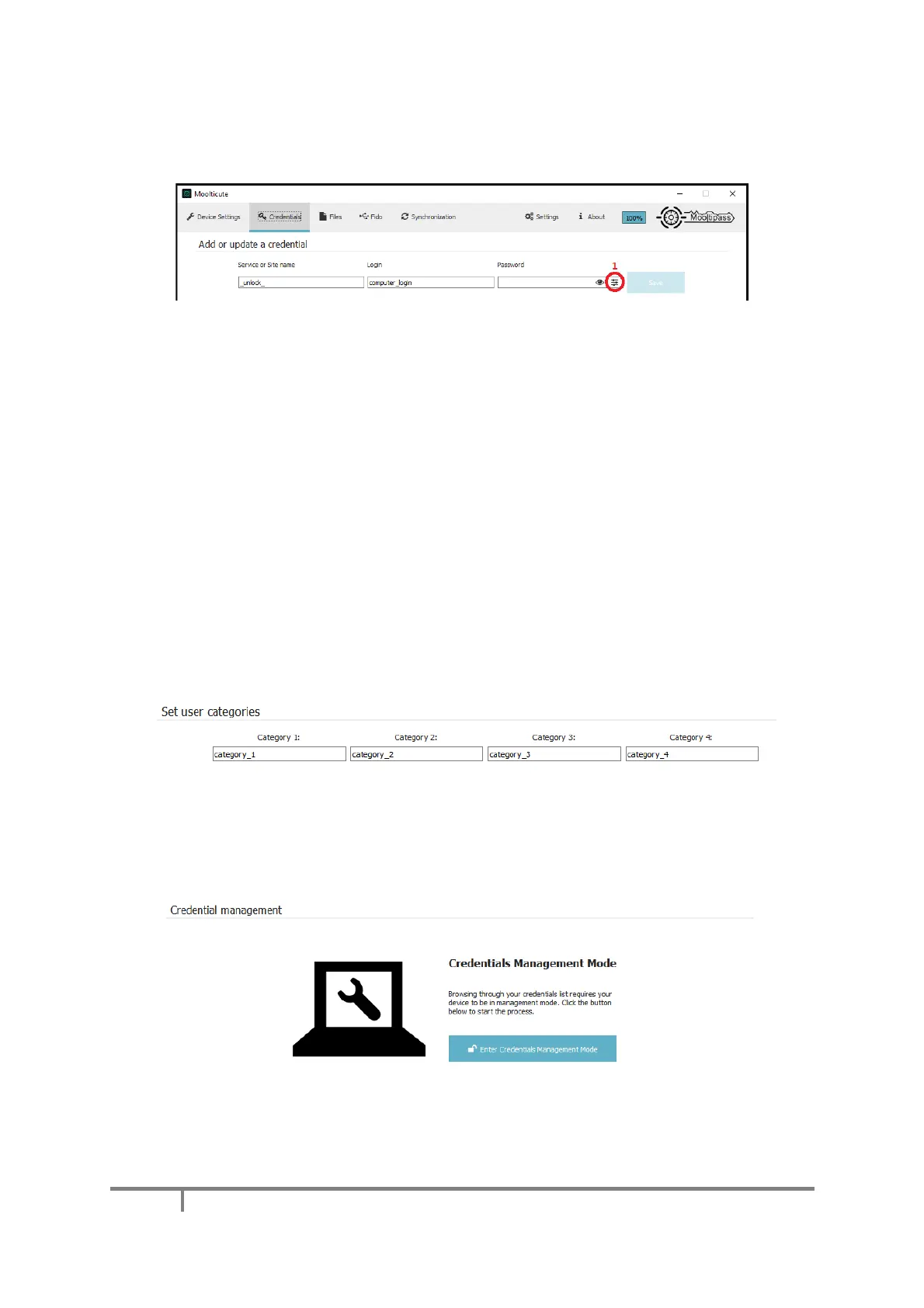
D) Credentials Tab
a) Adding or Updating a Credential
This tab allows you to manually add credentials to your database. You can, for instance, add the
‘_unlock_’ service of the Lock/Unlock feature (see Advanced Settings – Lock Unlock Feature).
Enter the website URL or service name, for example, ‘_unlock_’, in the ‘Service or Site name’ field,
then enter your login and your password in their fields. Click on the ‘Save’ button and approve the
request on your Mooltipass device. If the service/site and login are already stored in the Mooltipass,
it will simply update the credential with the new password.
You can let the Mooltipass Mini BLE generate and store a random password locally by not filling
the ‘password’ field, pressing your keyboard ‘Alt’ key, and then clicking the save button.
Clicking on the (1) icon allows you to bring up Moolticute’s password generator (described in
Credential Management). If you prefer letting the Mini BLE device internally generate a random 32
characters password for you, leave the password field empty, press the Alt key and click on the ‘Save’
button.
b) User Categories Names
If your device is in advanced mode (see Enabling Advanced Mode / Enabling Simple Mode), this
section lets you edit and save the four category names.
c) Credential Management
Click on the 'Enter Credentials Management Mode' button to manage the credentials stored
inside your Mooltipass. You will need to confirm the request on the Mooltipass device.


 To Next Page