Mooltipass Mini BLE User Manual – 2021/08/25
E) Credentials Storage and Recall
a) Credentials Storage
While the Mooltipass works with any device
right out of the box, our app and extension make
things even easier when using your favorite web
browser.
For extension & app installation files, visit
http://www.themooltipass.com/setup
After installing, simply visit any website login
page and enter your login and password. The
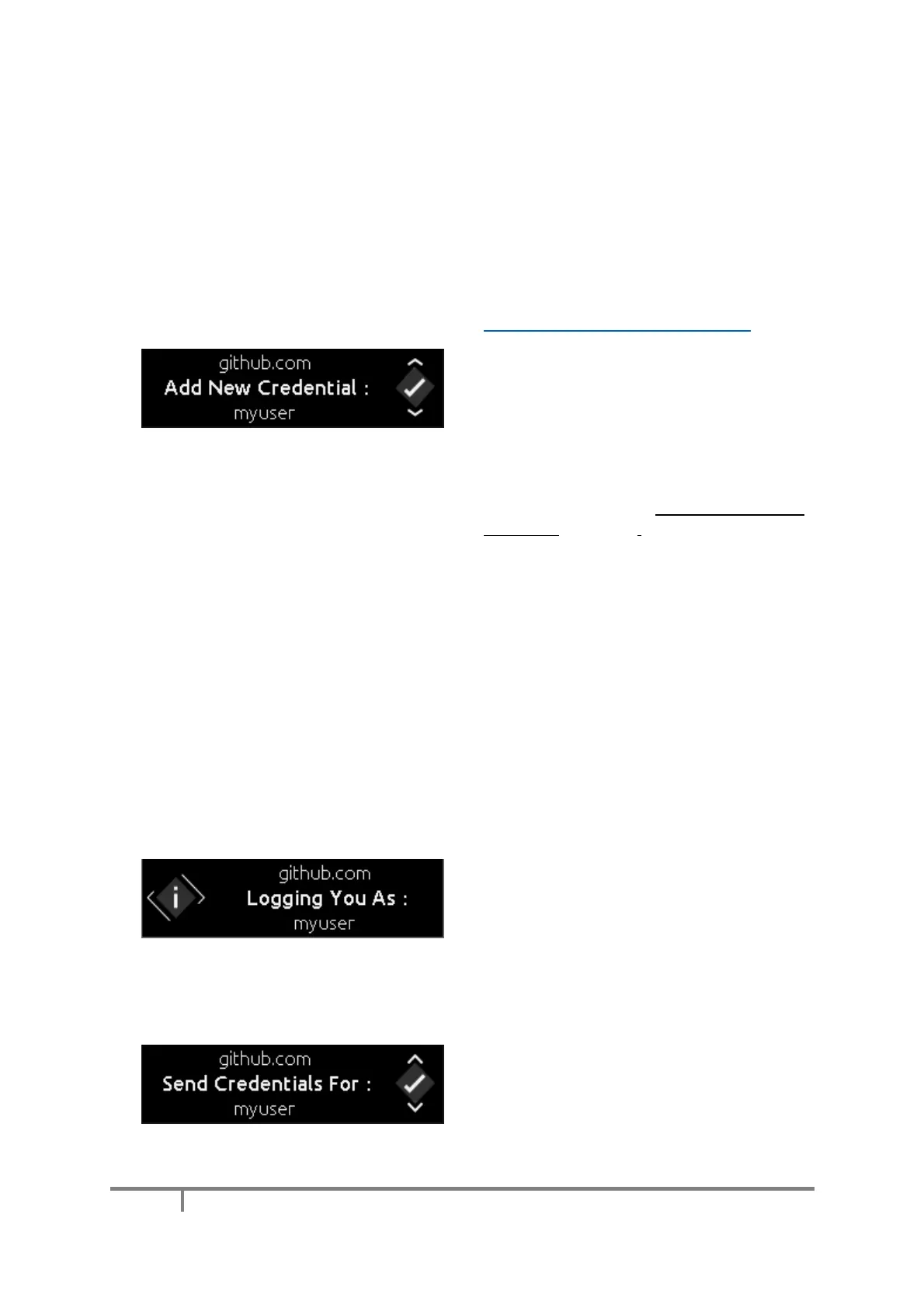
Mooltipass Mini BLE will detect this and ask if
you want to store the website, login and
password. Click the wheel to approve storing
your credentials.
Credentials can also be added directly using the
Moolticute App (see the Adding or Updating a
Credential Credentials section of the Moolticute
User’s Guide).
b) Credentials Recall
Typically, you login to a website by typing your username and password for that site. Some
websites use FIDO2 / WebAuthn or Time-Based One Time Password to login, either in addition to or
instead of a username and password. Mooltipass supports all three methods.
For username and password login, your Mooltipass device will behave in one of two ways
depending on how it is configured. (See Enabling Advanced Mode / Enabling Simple Mode and Login
Notification / Prompt).
Notification Mode
In Simple Mode or with login prompts disabled in
Advanced Mode, the Mooltipass Mini BLE will
inform you when automatically logging you into
websites.
In Advanced Mode with login prompts enabled,
the Mooltipass Mini BLE will prompt you to
approve sending credentials.


 To Next Page