74
D
r
a
f
t
Getting More Out of Your
Communicator
Connecting to a Computer
Important:
Before connecting your communicator to a
computer, ensure the A1000 Desktop Suite, located on the
in-box CD has been installed.
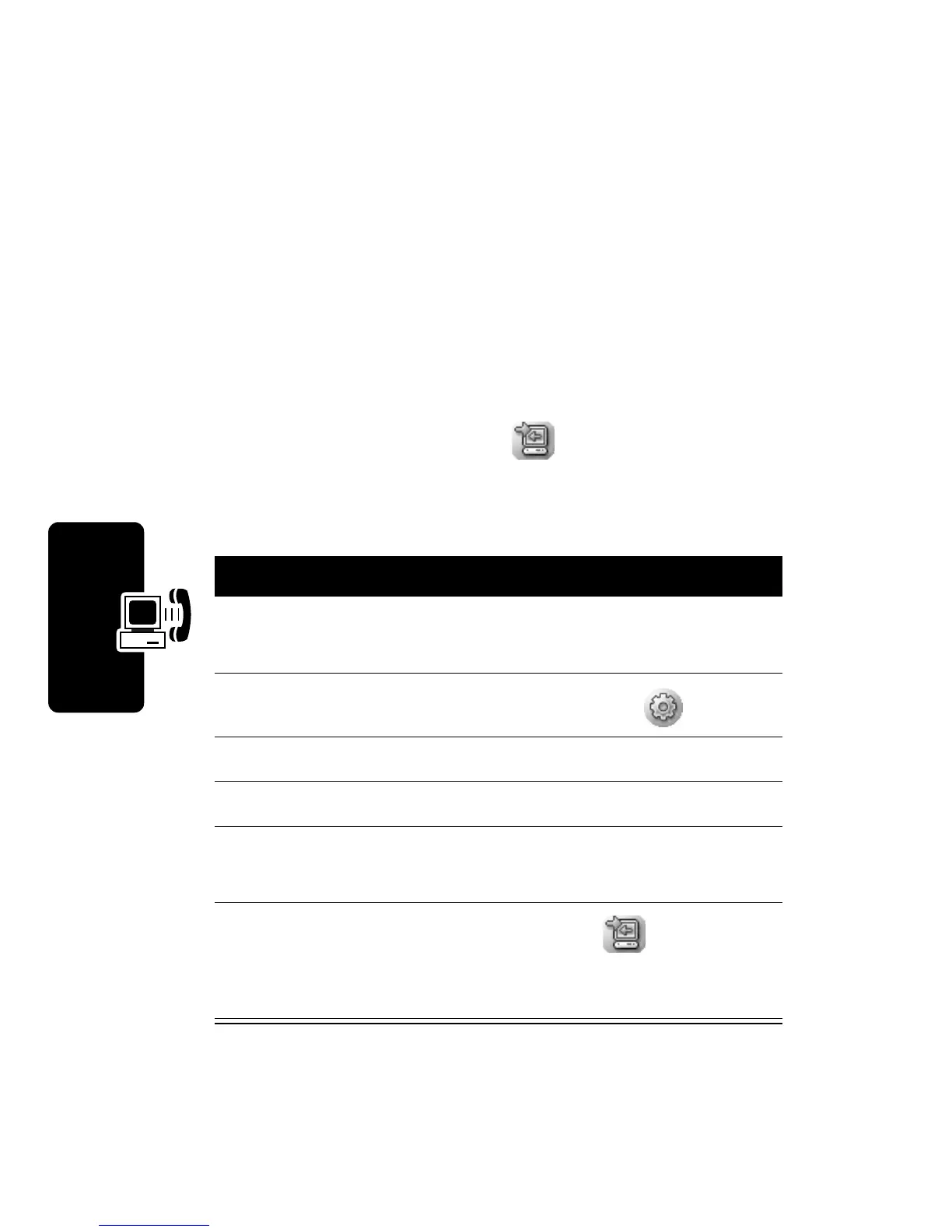
Setting Up a USB Cable Connection
Connect the USB cable from the accessory port on the
bottom of the communicator to the USB port on the
computer.
To complete the connection, tap (
Desktop Suite
) in the
Application Launcher, then tap
Connect
.
Setting Up a Bluetooth Connection
Action
1
Make sure the PC is Bluetooth enabled, then
establish a connection as described on page 72.
2
Open Control Panel application ( )
3
Tap
Connections
tab >
Desktop Suite
.
4
In the
Link using
, field tap
Bluetooth
.
5
To se lec t a
Preferred PC
, tap the box next to it,
then tap
Done
.
6
To complete the connection, tap (
Desktop
Suite
) in the Application Launcher and tap
Connect
.


 To Next Page
 Loading...