First-time Installation and Configuration
Before installing the TAP-125-U-W-X-Z (YYYYYYYY), make sure that all items in the Package Checklist are in
the box. You will need access to a notebook computer or PC equipped with an Ethernet port. The TAP-125-U-
W-X-Z (YYYYYYYY) has a default IP address that must be used when connecting to the device for the first
time.
• Step 1: Power on the device.
The TAP-125-U-W-X-Z (YYYYYYYY) can be powered by a DC power input.
• Step 2: Connect the TAP-125-U-W-X-Z (YYYYYYYY) to a notebook or PC.
• Step 3: Set up the computer’s IP address.
Choose an IP address on the same subnet as the TAP-125-U-W-X-Z (YYYYYYYY). Since the TAP-125-U-W-X-
Z (YYYYYYYY)’s default IP address is 192.168.127.253, and the subnet mask is 255.255.255.0, you
should set the IP address of the computer to 192.168.127.xxx.
• Step 4: Use the web-based manager to configure the TAP-125-U-W-X-Z (YYYYYYYY)
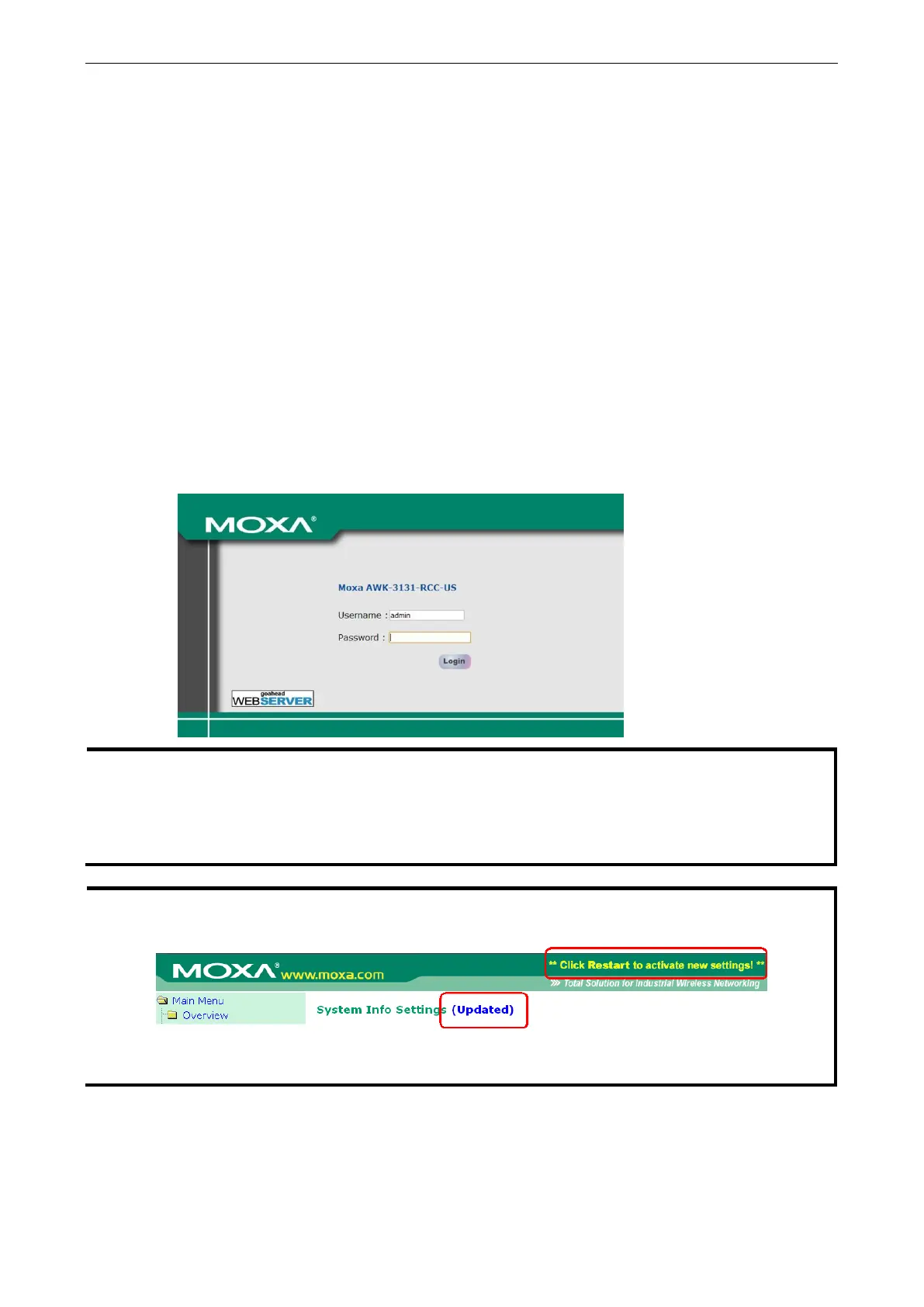
Open your computer’s web browser and type http://192.168.127.253 in the address field to access the
homepage of the web-based Network Manager. Before the homepage opens, you will need to enter the user
name and password as shown in the following figure. For first-time configuration, enter the default user
name and password and then click on the Login button:
Default user name and password:
User Name: admin
Password: moxa
For security reasons, we strongly recommend changing the default password. To do so, select Maintenance
Password, and then follow the on-screen instructions to change the password.
After you click Submit to apply changes the web page will refresh (Updated) will appear on the page and a
blinking reminder will be shown on the upper-right corner of the web page:
To activate the changes click Restart and then Save and Restart after you change the settings. About 30
seconds are needed for the TAP-125-U-W-X-Z (YYYYYYYY) to complete the reboot procedure.
• Step 5: Select the TAP-125-U-W-X-Z (YYYYYYYY) operation mode.
By default, the TAP-125-U-W-X-Z (YYYYYYYY)’s operation mode is set to AP. You can change to Client mode
in
Wireless Settings Basic Wireless Settings. Detailed information about configuring the
TAP-125-U-W-X-Z (YYYYYYYY)’s operation can be found in Chapter 3.



 To Next Page
 Loading...