To Next Page

R
Ryan OnealSep 2, 2025
Why the fibre activity light is not on MST NS50?
- JJames KingSep 2, 2025
If the fibre activity light isn't on, it means the NS50 fibre connector isn't properly connected. Make sure the fibre link is connected and active.

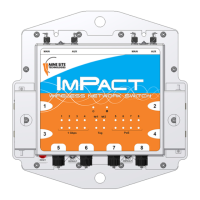
Why the fibre activity light is not on MST NS50?
If the fibre activity light isn't on, it means the NS50 fibre connector isn't properly connected. Make sure the fibre link is connected and active.
How to fix signal loss in the fibre optic cable on MST Impact NS5004 Switch?
If you're experiencing signal loss in the fibre optic cable of your MST Switch, it might be due to a dirty composite connector or fibre port. Inspect the connectors and fibre ports to ensure they are clean. Use alcohol wipes or fibre optic cleaning kits to clean them. Avoid using air spray, as the compressor oil can leave residue.
What to do if WDS link fails to establish on MST Impact NS5004?
If the WDS link on your MST Switch isn't establishing, the MAC address might be incorrect. Verify the MAC addresses configured on the NS50 using the web browser interface.
Why is the power light on my MST NS50 blinking dimly?
If the power light on your MST NS50 is blinking on and off and appears dimly lit, it indicates that the NS50 isn't getting enough power. To fix this, you'll need an additional DC power supply to boost the power to the network switch. It's recommended to conduct a site survey to determine the power requirements during system design or modifications.
How to resolve power supply instability on MST Impact NS5004 Switch?
If you're experiencing power supply instability with your MST Switch, it could be due to a couple of things: * Incorrect earthing scheme: Check that antennas are insulated from ground and that the PCB in the network switch has a floating earth (not grounded). * Too many network devices on one power supply: Add additional power supplies or isolate network segments to prevent overload in case of a power supply failure.
What to do if LEDs on MST wireless network switch are not on?
If the LEDs on your MST wireless network switch aren't lighting up, it probably means the NS50 isn't getting any power. To resolve this: * Check that power is connected from either the composite cable or the test / configuration jig to the NS50. * Make sure the network switch is connected to a working power supply. * Test that the power supply is providing the correct voltage/current for the NS50. * If you've extended the NS50 infrastructure, ensure there's enough power available.
How to fix internet or LAN access issues with a wireless-capable PC on MST Impact NS5004?
If you're having trouble accessing the Internet or LAN with a wireless PC connected to the MST Switch, there are a few things to check: * First, reboot your computer. The wireless adapter may not have the correct TCP/IP settings to communicate with the network. * Ensure the port on the NS50 is enabled by checking the port activity light. If it's off, connect a PC to the network switch, access the web browser interface, and check the port is enabled in the Basic > Switch screen. * Also, verify that VLANs on the port are properly configured. Connect a PC to another port on the network switch to access the network and check that VLAN membership is assigned to the port for Internet / LAN access in the web browser interface.
Details the NS50 unit's physical components and features.
Illustrates NS50 network setup and connection schemes within a mine.
Explains the types of network connections supported by the NS50 unit.
Describes wireless coverage strategies and types for mine environments.
Outlines voltage and power supply considerations for the NS50 unit.
Guides antenna selection based on coverage requirements and site conditions.
Provides recommendations for optimal physical placement of NS50 units in tunnels.
Details recommended methods for positioning antennas for effective signal coverage.
Explains how to estimate and set distances between NS50 units for consistent coverage.
Describes standard methods for physically mounting the NS50 unit.
Details options for mounting antennas in mine tunnel environments.
Illustrates installation configurations for NS50 units in various mine layouts.
Provides instructions for connecting the DC power supply to the NS50 unit.
Offers precautionary measures for handling the composite cable during installation.
Guides on connecting the composite cable to the NS50's fibre port.
Lists standard cable part numbers and their lengths supplied by MST.
Details the procedure for connecting Ethernet cables to the NS50 ports.
Explains connecting F-LINK terminated composite cables using a JB14 adapter.
Provides procedure for connecting coaxial cables to the NS50's antenna ports.
Describes how to perform manual reset and reboot operations on the NS50 unit.
Explains function and differences between trunk and access ports in VLAN configuration.
Illustrates how VLANs associate with wireless SSIDs and WACs.
Describes the function of the Native VLAN and its role in network switch access.
Details accessing and logging into the NS50's web-based configuration interface.
Provides overview of the main configuration screen and its tabbed sections.
Explains viewing device info, wireless clients, logs, and network statistics.
Covers admin settings, time, rebooting, and firmware upgrade configurations.
Details wireless radio, network, security, and tracking configurations via web interface.
Introduces ICA Admin Console for managing Access Point configuration templates.
Explains TFTP use for centralised configuration management of network devices.
Lists and describes configurable parameters for NS50 devices managed via TFTP.
 General