Nasuni Edge Appliance Initial Configuration Guide 8.3 32
Configuring the Nasuni Edge Appliance Network Settings
2. In the Host Name box, a default hostname for the Nasuni Edge Appliance appears. You can
accept the default hostname or change it to a customized hostname. Enter the hostname (15
characters or less) or Fully Qualified Domain Name (64 characters or less) for this Nasuni Edge
Appliance. The name that you enter is the name that you provide to users so they can access
the Nasuni Edge Appliance. You can use ASCII letters a through z, digits 0 through 9, and
hyphens.
Note: If joining a Nasuni Edge Appliance to Active Directory, Nasuni recommends using the
fully qualified domain name with the hostname, using lower-case letters, such as
filer.domain.com.
If the Nasuni Edge Appliance would never join Active Directory, you can use the
hostname without the domain name.
Note: The Nasuni Edge Appliance attempts to register the hostname in the DNS server, so
that users can access this host by name.
To change this name later, see “Network Configuration” in the Nasuni Edge Appliance
Administration Guide.
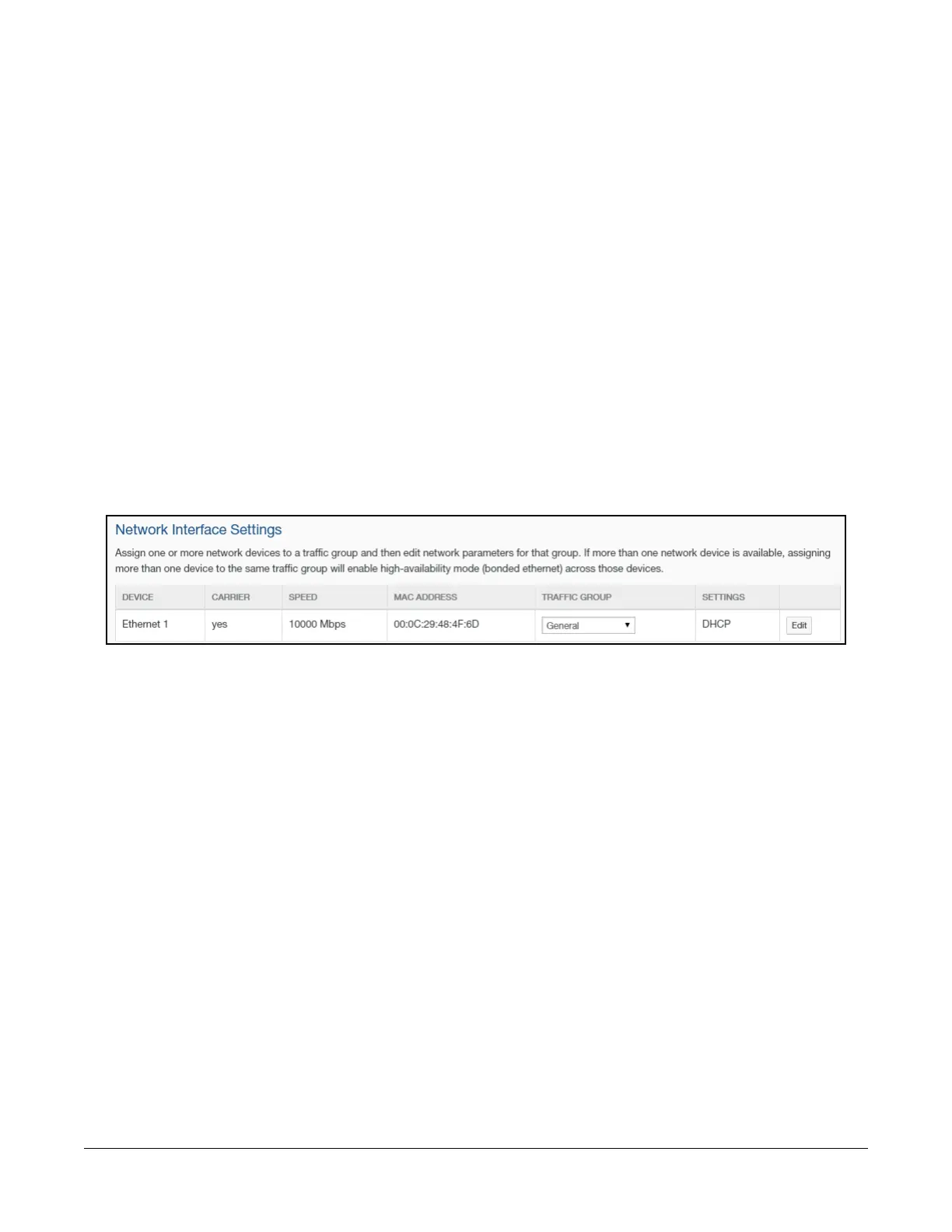
3. In the Network Interface Settings area, for each Device in the list, select the Traffic Group
from the drop-down list.
Figure 1-12: Network Interface Settings area.
You can define your own traffic groups. See step 4 below. See “Traffic Groups” on page 26 for
details about traffic groups.
Tip: If any network interfaces are not in use, set them to “Disabled”.



 To Next Page