Nasuni Edge Appliance Initial Configuration Guide 8.3 63
Accessing Volumes Web Access
Creating internal links to files or folders
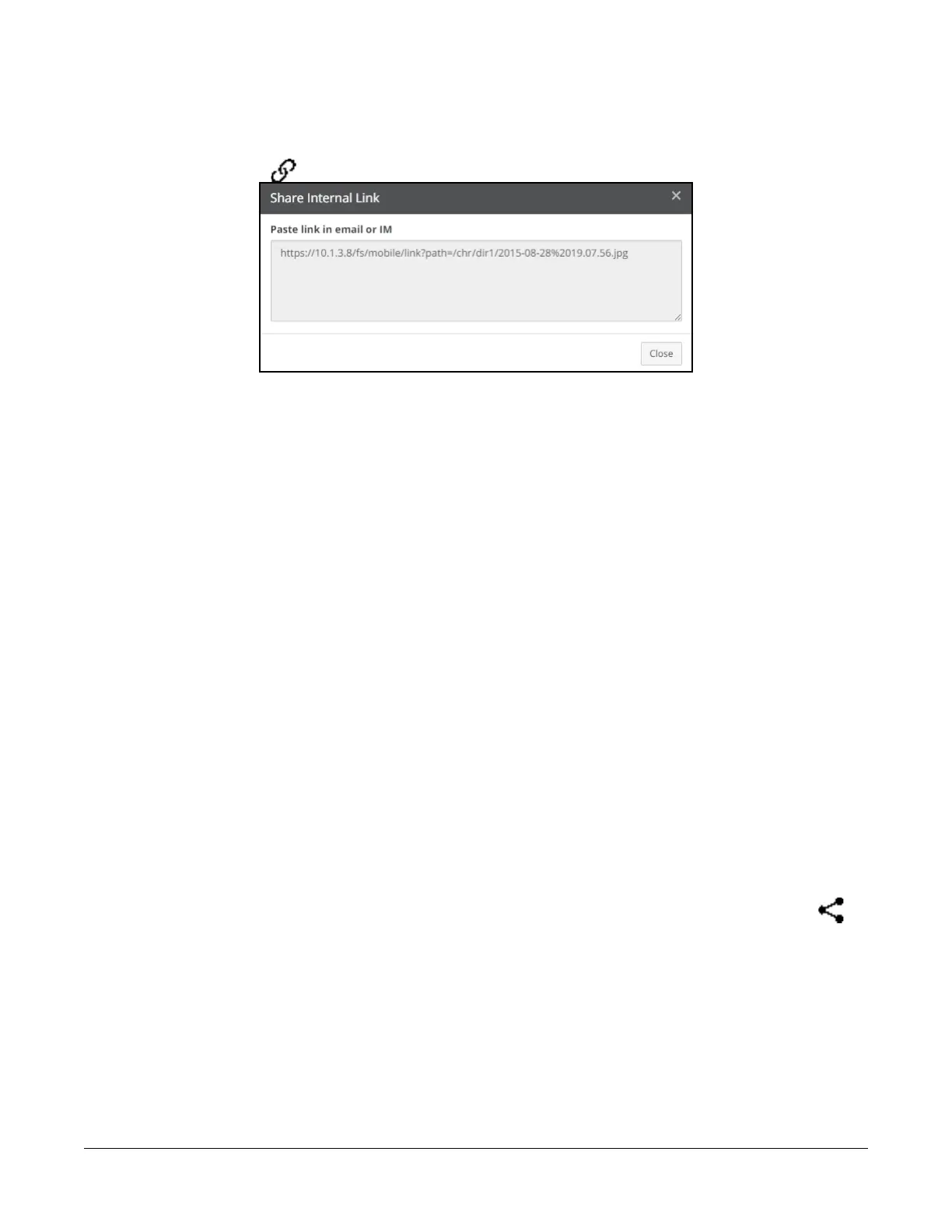
To create an internal link URL to a file or folder in Web Access, select the file or folder, then click the
Get internal link button
above the list on the right. The Share Internal Link dialog box appears.
Figure 2-12: Share Internal Link dialog box.
You can copy the text of the internal link URL for use elsewhere. The link opens an instance of Web
Access and displays the linked object.
Tip: You cannot create an internal link to folders created by using the "%U" wildcard in the CIFS
share name.
Shared Links
A shared link is a URL that points to a specific file or folder within Web Access. This can be useful for
providing a trusted partner or contractor with access to a folder or file that they do not have credentials
to access directly.
Shared links are only available for CIFS shares.
Tip: After a recovery, if any of the original source Nasuni Edge Appliance’s CIFS shares had
Shared Links defined, these links must be regenerated. Use Web Access to view links that
must be regenerated, and regenerate them.
You can control how long until the shared link expires, whether a password is required, and who is
allowed to create shared links. All access through shared links is audited, if auditing is enabled for the
volume. See
“File System Auditing” on page 106 in the Nasuni Edge Appliance Administration Guide.
To create shared links, Shared Links must be enabled for the CIFS share, and the user must have
permission. See
“Web Access Settings” on page 158 in the Nasuni Edge Appliance Administration
Guide.
To create a shared link to a folder or file, select the item, then click the Share public link button
above the list on the right. If the button does not appear, either Shared Links is not enabled for the CIFS
share, or the user does not have permission. See
“Web Access Settings” on page 158 in the Nasuni
Edge Appliance Administration Guide.



 To Next Page