Nasuni Edge Appliance Initial Configuration Guide 8.3 75
Accessing Volumes Nasuni Mobile Access
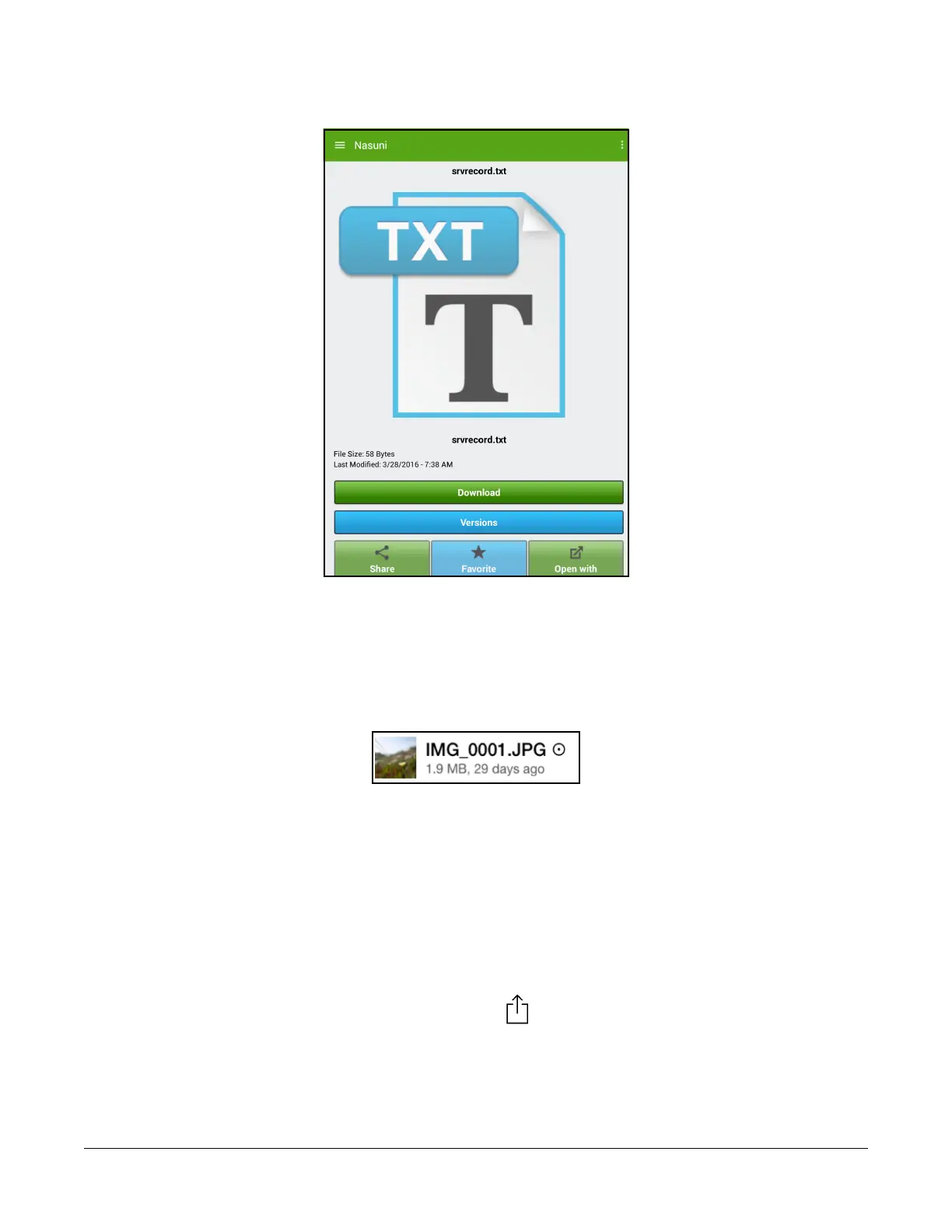
Tap Details. A page appears showing information including the name, size, and date modified.
Figure 2-27: File information.
Note: Nasuni’s display of size might differ from other indications of size, such as Windows
Explorer and other utilities. Typically, such utilities display only the size of the data currently
present in the local cache, while Nasuni displays the full size, regardless of where the data
is.
Note: For iOS, if a file is in the cache, a symbol appears next to the file name.
Figure 2-28: Symbol indicating file in cache.
Buttons are available to perform the following operations:
• View File, if the mobile device can handle the file format. Otherwise, Download the file. See
“Opening a file” on page
76.
• Versions: view any available previous versions of the file. See “Viewing and restoring previous
versions of a file” on page
77.
• Share: Sharing the file as either an attachment or a link. See “Sharing a file as an attachment”
on page
80 and “Sharing a file as a link” on page 80.
Tip: For iOS, tap the share icon at the top right.
• Favorite: To tag a file as a favorite. See “Tagging a file or folder as favorite” on page 82.
Tip: For iOS, tap the star icon above the file name.



 To Next Page