Nasuni Edge Appliance Initial Configuration Guide 8.3 76
Accessing Volumes Nasuni Mobile Access
• Open with: To select an app to open a file with. See “Opening a file with a specific app” on
page
78.
Tip: For iOS, tap the share icon at the top right.
Opening a file
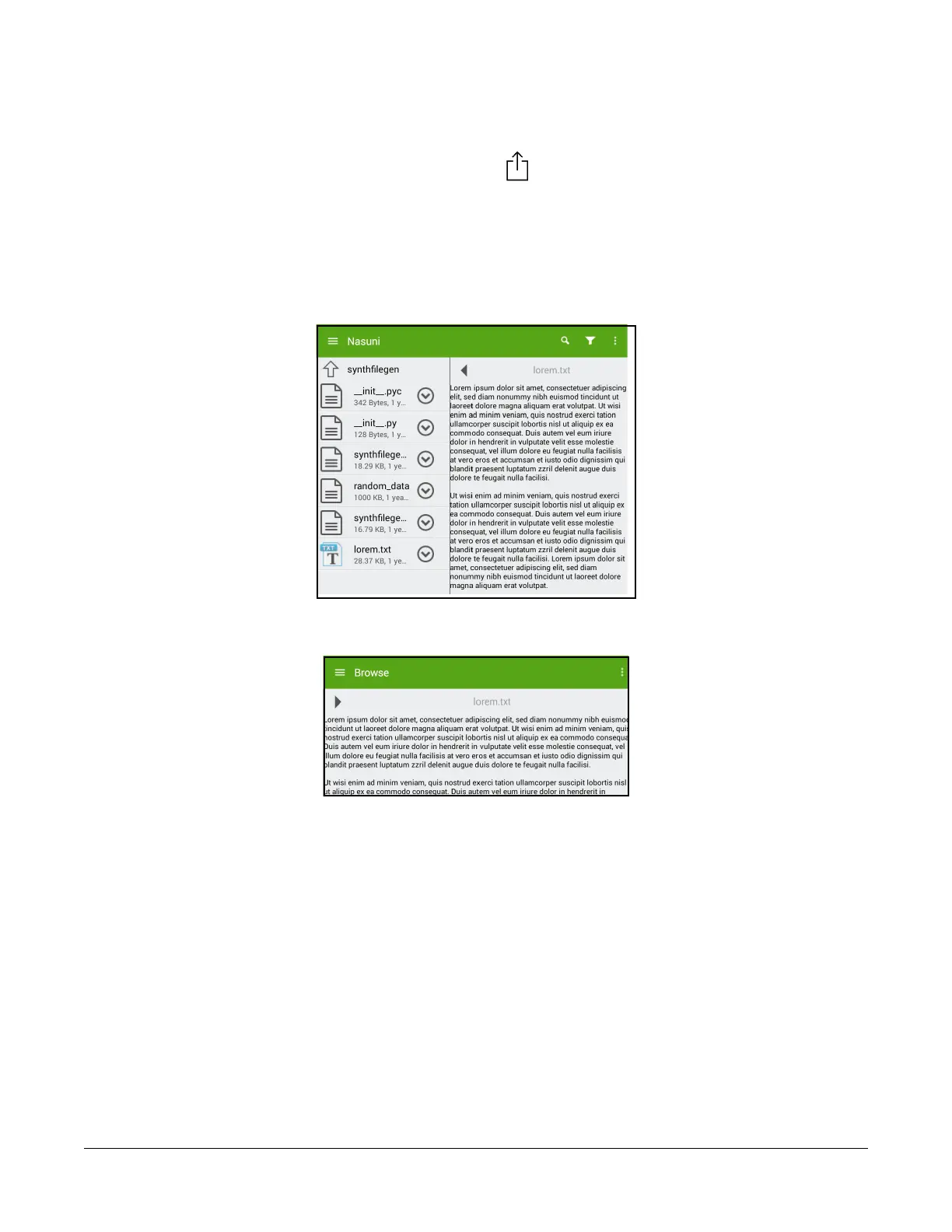
To open a file, tap the file name. If the file is of a format that the mobile device can handle (such as
graphics, text, or PDF), a preview of the file opens. (On some mobile platforms, a new display opens on
which you can choose an action.)
Figure 2-29: Open file preview.
To see a full-screen version of the file, tap the arrow at the upper left of the preview pane.
Figure 2-30: Open PDF file.
You can perform additional actions by tapping the three-dot icon in the upper right corner. For some
file formats, such as videos, this icon might not be available.
If the file is an image file, such as a .JPG or .PNG file, among other image files, you can move from one
image to the next in a folder by swiping left or swiping right.



 To Next Page