Nasuni Edge Appliance Initial Configuration Guide 8.3 77
Accessing Volumes Nasuni Mobile Access
Viewing and restoring previous versions of a file
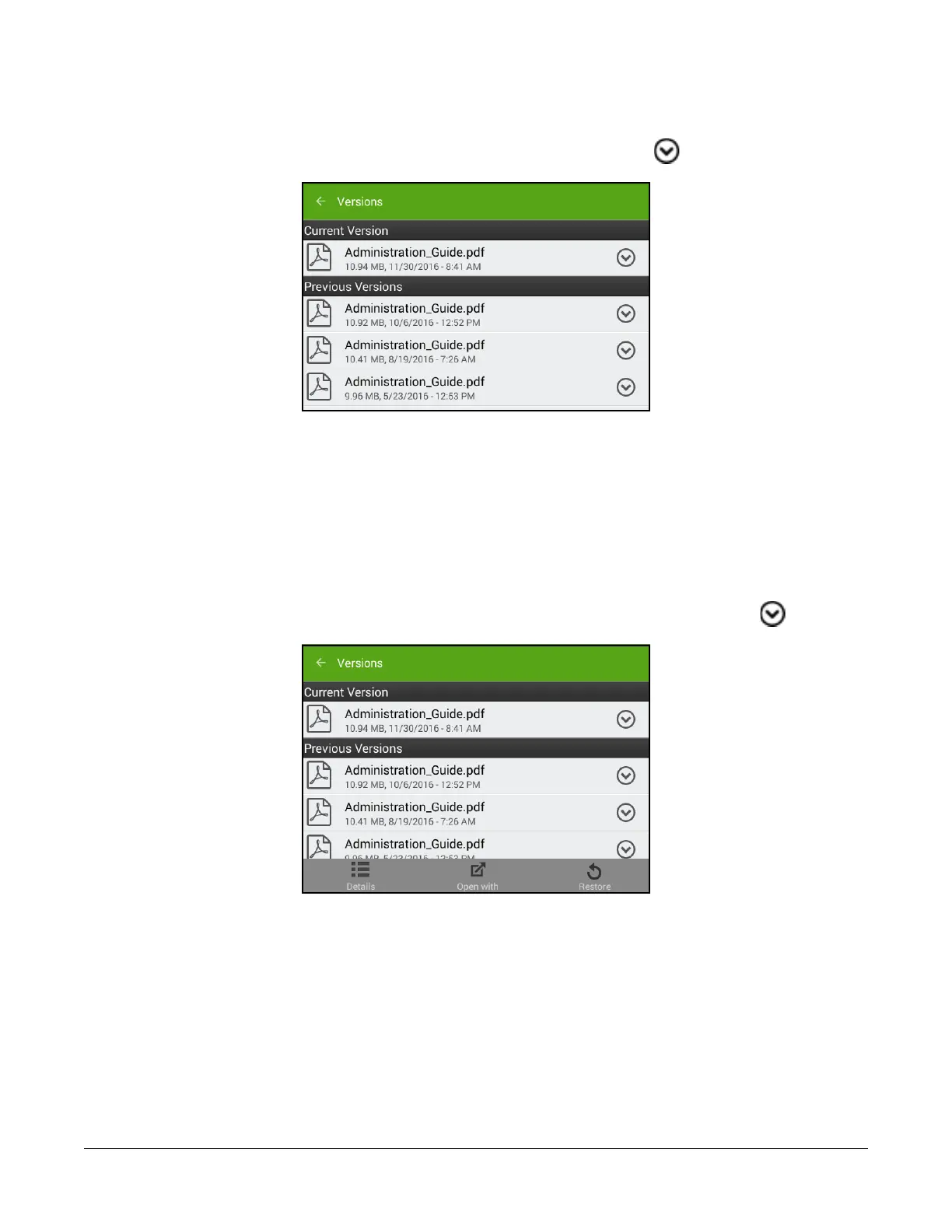
To view any available previous versions of the file, tap the drop-down icon beside its name, then
tap Versions. If any previous versions of the file are available, they appear in a list.
Figure 2-31: Versions of file.
The different versions include the file name, file size, and file date and time.
Note: Nasuni’s display of size might differ from other indications of size, such as Windows
Explorer and other utilities. Typically, such utilities display only the size of the data currently
present in the local cache, while Nasuni displays the full size, regardless of where the data
is.
To view one of the previous versions, tap the file name.
To view a menu of other available actions for a previous version, tap the drop-down icon beside its
name.
Figure 2-32: Available actions for versions of file.
To view details of a previous version, tap Details.
To open a previous version with a specific app, tap Open with and select the app from the list. The file
opens in the selected app.
To replace the current version of the file with the selected previous version, tap Restore. To verify that
you want to restore the selected previous version as the current version, tap Restore. The selected
previous version of the file becomes the current version.



 To Next Page