4.4 Setting a New IP Address over the Network
The iServer is shipped with a default IP address of 128.100.101.254 and Subnet Mask of
255.255.0.0. You can configure your PC’s Network connection with an IP address that is
in the same range as the iServer’s IP address (128.100.x.x) and connect to the iServer
using a crossover network cable between your PC and the iServer.
With this completed, you can go to the DOS-Prompt and ping 128.100.101.254. If you
receive responses back (Figure 4.15), you can go to the Web browser and type in
http://128.100.101.254 and it will take you to the Device Type page and then to the Home
Page.
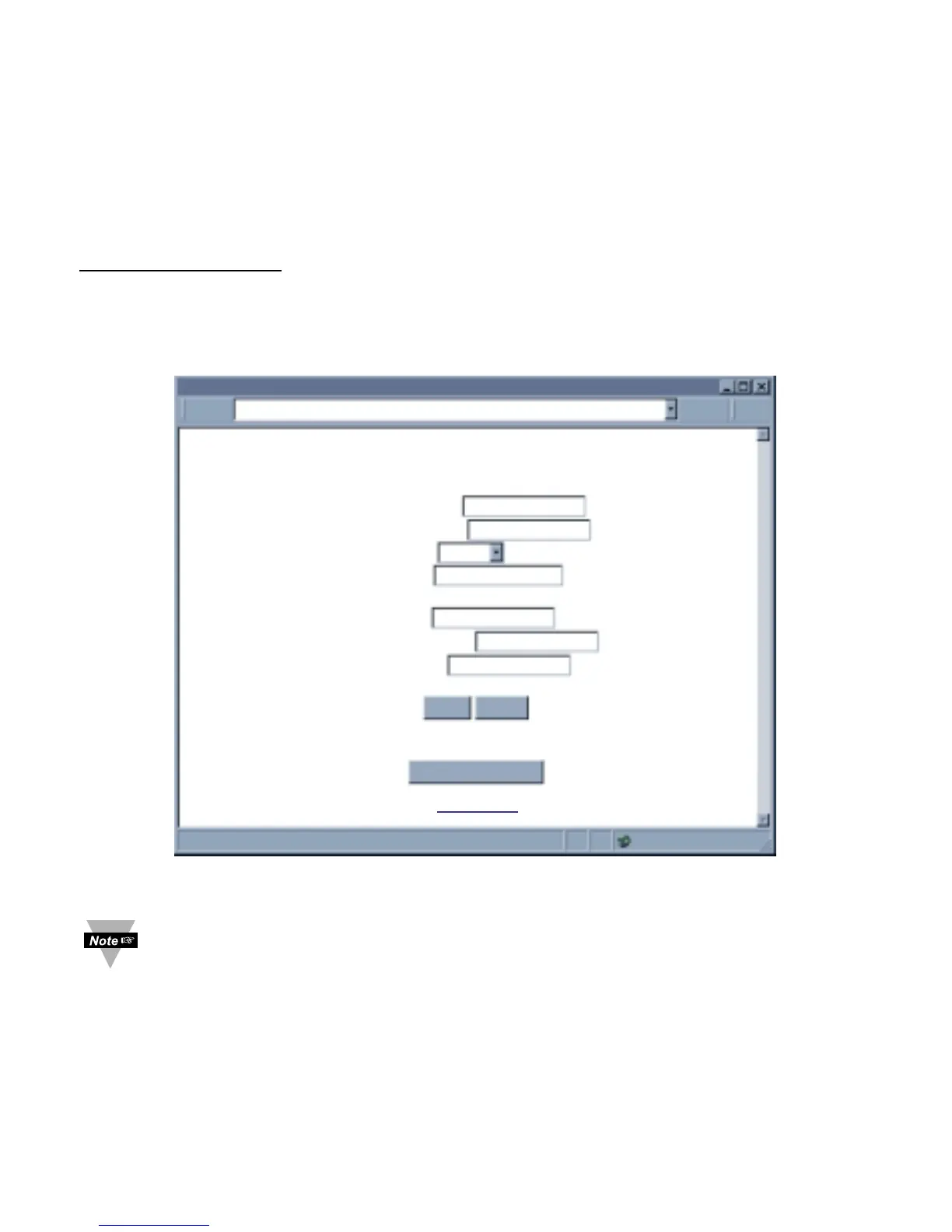
Select Access Control button, you’ll be asked for the password, refer to Section 4.2.5,
then you should be on the Access Control page were you can simply type in the desired
static IP address, and click Save.
Figure 4.16 Access Control
For the IP address to take effect the iServer needs to be turned OFF/ON or
press the Reset button.
Once all of this is done, you can connect the iServer to an Ethernet hub using a straight
through cable, power it up, and follow the ping routine mentioned in the previous section.



 To Next Page