37
4.11.2 Configurations (continued)
Timeout – This is the amount of time (in milliseconds) in which the iPORT keeps the
application software waiting before the device response is arrived. The default value is 5
seconds and it can be set between 0 to 10 seconds.
Status – This window shows the connection status as the iPORT makes connection to
the iServer or disconnects from the iServer. The connection status can be ideal,
connecting, connected, or disconnected along with the IP address of the iServer shown
in the Status window.
Apply button – To save the configuration for a selected COM port, click on the "Apply"
button and reboot your PC for settings to take place in your Windows registry.
Clear button – This button deletes the settings for a selected COM port.
Cancel button – This button closes the iPORT window without saving the settings.
In Figure 4.29, if a COM port number is dimmed and cannot be selected, it
means that the COM port is already used by another application or it could be a
physical serial COM port on that PC.
The serial communication settings (baud rate, data bit, stop bit and parity) of
your application software must be identical to the serial communication settings
of the iServer’s serial port and your serial device’s port connected to the iServer.
You can use a Web browser to log into the iServer and configure its serial port’s
settings (see the iServer’s manual for details).
4.12 Mail Notifier Software
The Mail Notifier Software can be used only with NEWPORT Electronics instruments.
For complete information of how to use the Mail Notifier software, click on the Help menu
of the main window.
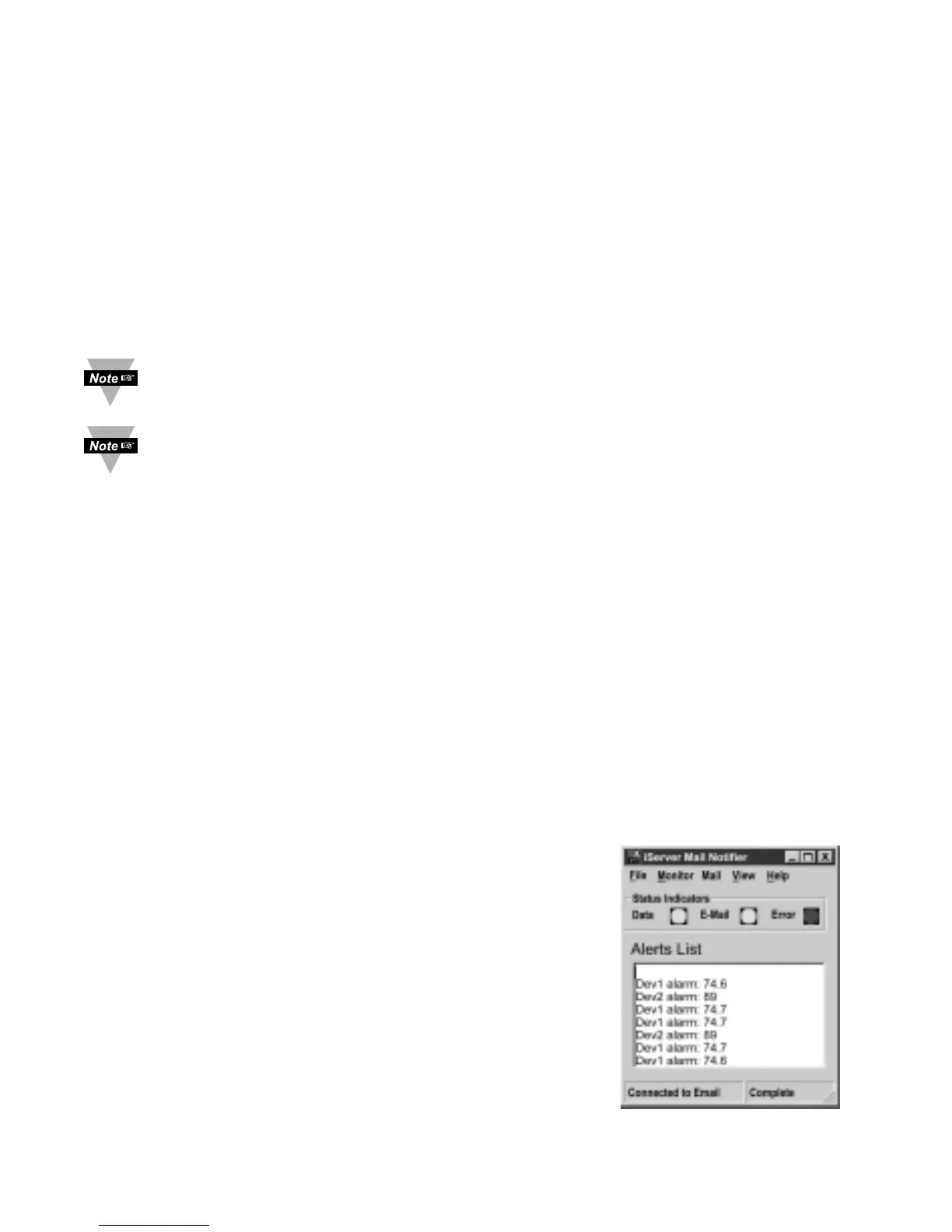
The Mail Notifier software generates email notifications for alarm conditions of the
devices with embedded iServer board or connected via the stand alone iServer units,
attached to measurement devices with RS232/485. Hence users/operators can be
notified automatically of alarm conditions monitored via internet connections throughout
the world. By use of the email forwarding of alarm conditions, alarm conditions can be
monitored on a network isolated from the internet and forwarded to connections on the
Internet.
The Mail Notifier utility operates under Windows 98, NT
4.0, 2000, and XP in conjunction with existing email that
supports the MAPI messaging interface. If MS Outlook
has been loaded, the MAPI support should be
available.
4.12.1 Installation
The Mail Notifier must be loaded on a computer running
Microsoft Windows (versions specified earlier) using an
email program that provides MAPI access. Network
access must be available between this computer and
the iServer. Network access must also be available
from this computer to the appropriate email server and
from the email server to the recipient’s email server
Figure 4.30 iServer
Mail Notifier Main Window



 To Next Page