25
4.5 Terminal Server Function
It is used to provide dedicated connectivity between computers and serial devices
through the iServer over the Ethernet, without dedicated wiring. The typical Internet
protocol consists of a request and a reply to that request. In this situation the server is
the Host that generates the request and receives the reply from the device, that gets
forwarded to the appropriate party on the network. But there are specific applications
where a message is generated by the device, and the server is simply passing the data
to the appropriate party on the network, in this situation the server acts as Slave.
Examples are the Attendance Time Clocks, Bar Code Readers, remote Displays or
Electronic signboards, etc.
For the iServer to pass the data back and forth between its Serial and Ethernet
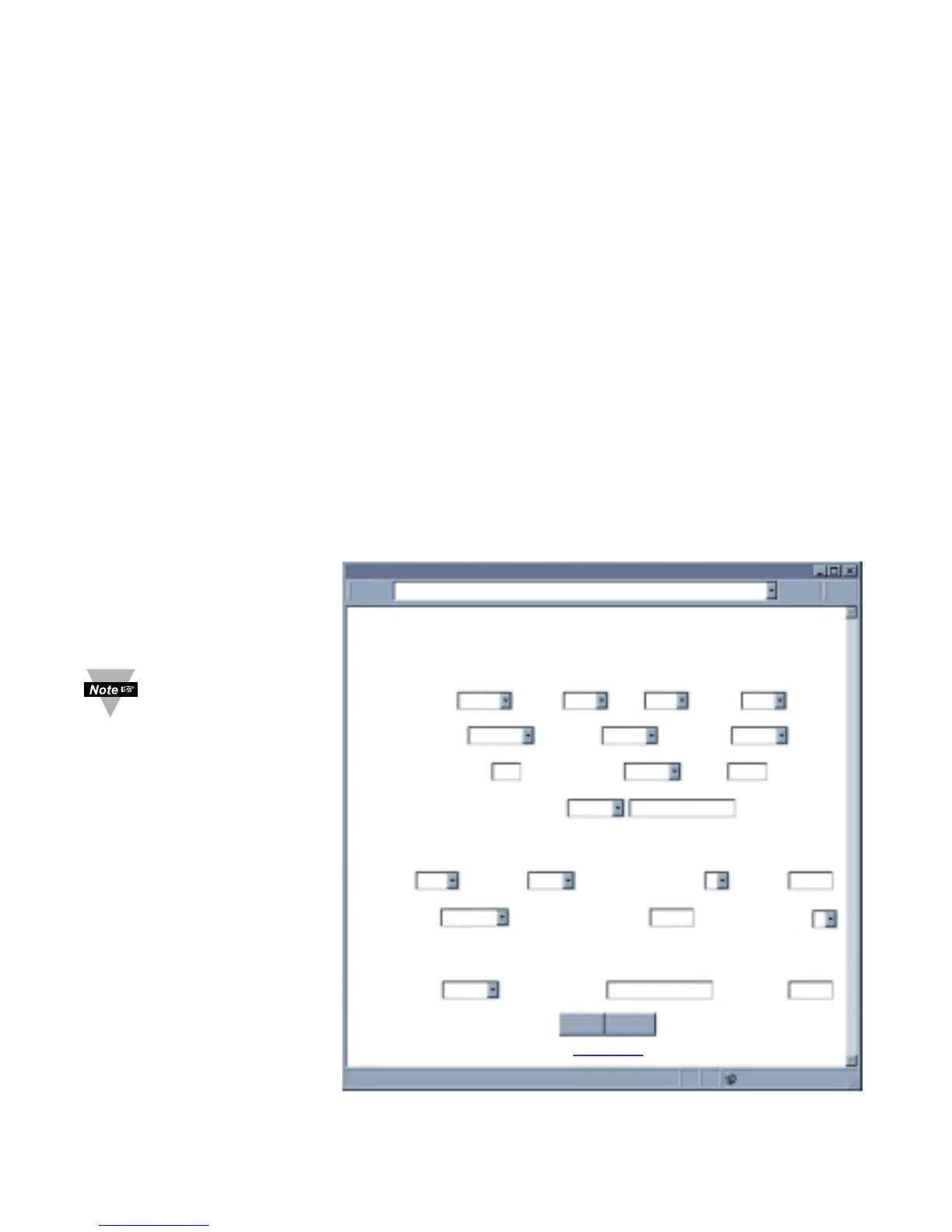
interfaces, the Terminal Server option needs to be configured as follows (Figure 4.17):
1. Set the Server Type to Slave
2. Set the Number of Connections to 1 or higher.
3. Set the Local Port number to any number from 599 - 9999, except numbers
1000 and 2002.
4. Press the Save button to store the new settings.
From your application software on the host machine, you can now point to the IP address
of the iServer and the assigned port number to establish a TCP connection to your serial
device connected to the serial port of the iServer.
Figure 4.17 Terminal Server Configuration
CONFIGURATION
CONFIGURATION
http://128.100.101.254
Address
Serial Communication
Remote Access (Tunneling)
Terminal Server
Main Menu
Save Reset
Baud Rate 9600 Data Bit 8 Bits Parity none Stop Bits 1 bit
Flow Control none Transciever RS-232
Modbus/TCP
disable
End Char (Hex) 00 Forward End Char enable Timeout 0 msecs
Serial Port Password disable 1234abcd
Connection Ctrl not used
Device No. 1
Connection Timeout 00100 msecs
TCP/UDP TCP Server Type slave Number of Connections 5 Local Port 02000
Remote Access
disable
Remote IP Address 0.0.0.0 Remote Port 02000
If DIP switch #4 is
“ON”, Terminal
Server function is
always enabled,
regardless of the firmware
configuration. By default,
this DIP switch is set to
“OFF” position. You have
the option to enable the
Terminal Server feature
either through the firmware
or the DIP switch #4.



 To Next Page