4.11.1 Overview (continued)
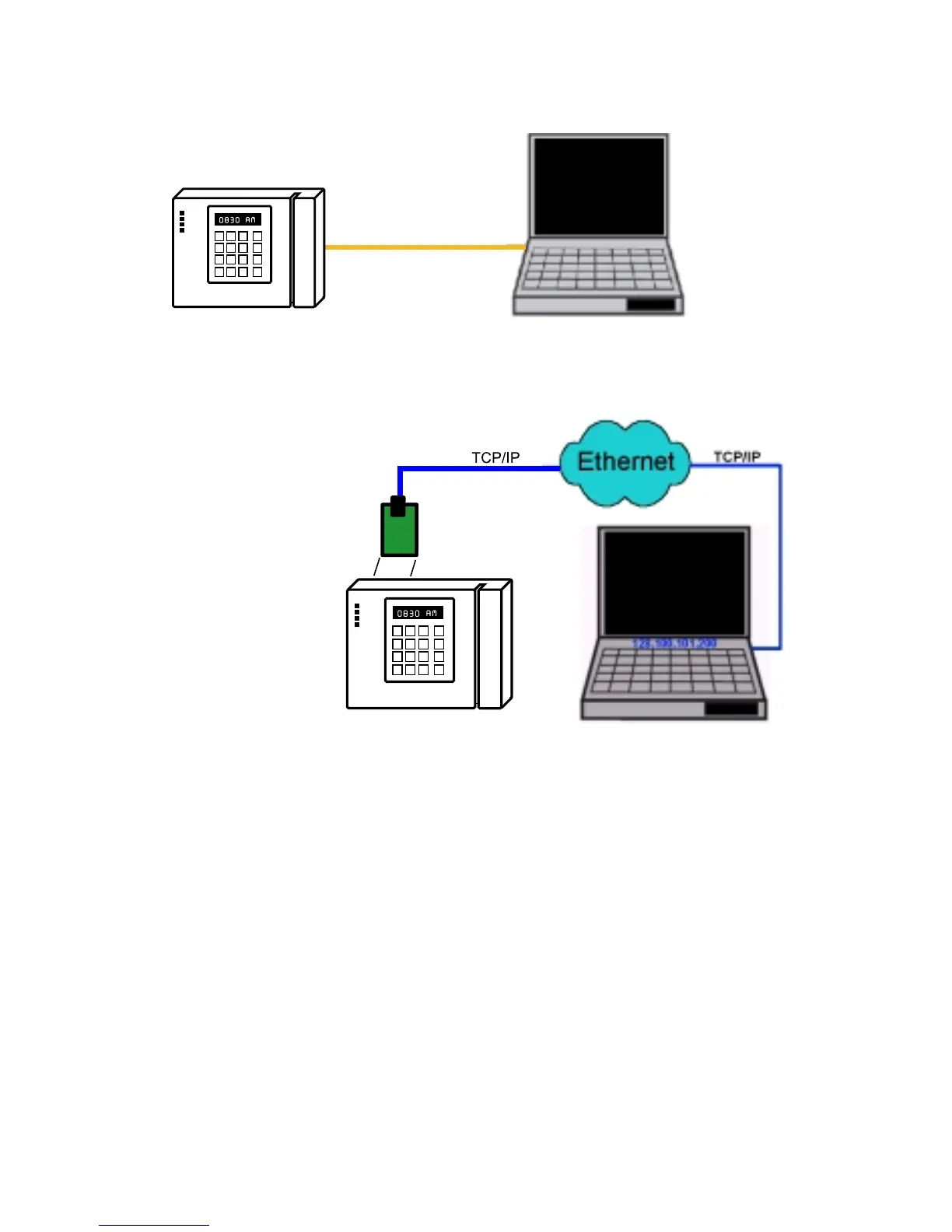
Figure 4.26 Direct Serial Connection
Figure 4.27 Redirect Serial Connection
4.11.2 Configurations
After the iPORT is successfully installed on your windows machine, you will have an
iPORT icon on your desktop and Control Panel window. By double-clicking on this icon,
you can start the application and the iPORT main window will appear on your screen
(Figure 4.28).
Click on "COM Ports" button and you will see the window on Figure 4.29. Select the
appropriate COM port (this should be the same COM port that your application software
uses). The selected COM port will then appear on the main iPORT window. By
highlighting the selected COM port, you will be able to add the IP address and the port
number to connect that COM port to the iServer on the network.
Up to 255 COM ports can be selected and each can have a different IP configuration
pointing to different iServers on the network. This enables users to simultaneously
redirect different application software to connect to serial devices attached to networked
iServers.



 To Next Page