Page | 122
The next entry (02) identified the second tag in the top row (Squires), and appended it to the
dataview.
Auto Advance kicked in again, moving us to the ACTION tab, where entering 03 added “foul” to
the dataview content.
Finally, pressing ENTER updated the selected Memo.
Tip: If you hold down SHIFT when pressing ENTER, the tag is sent to the Memo fields for all angles of the
current event, rather than just the current cell.
Experience has shown that the numbers of frequently entered tags soon become so familiar that it’s often
unnecessary to even have the TAGS pane open to add the desired metadata to clips.
13.3.3 SKIP
Suppose you want to bypass the TEAM tab in the steps above. You can move to a different tab using SHIFT
+ TAB (left or right) on the Control Surface. It will often be much faster, though, to simply punch the 0
(zero) button (once or twice, as dictated by the number of active rows in the tab).
This selects the SKIP cell at upper left in each tabbed pane and – with Auto Advance on – skips instantly
to the next tab, without pushing a tag to the dataview.
13.3.4 INPUT HINTING
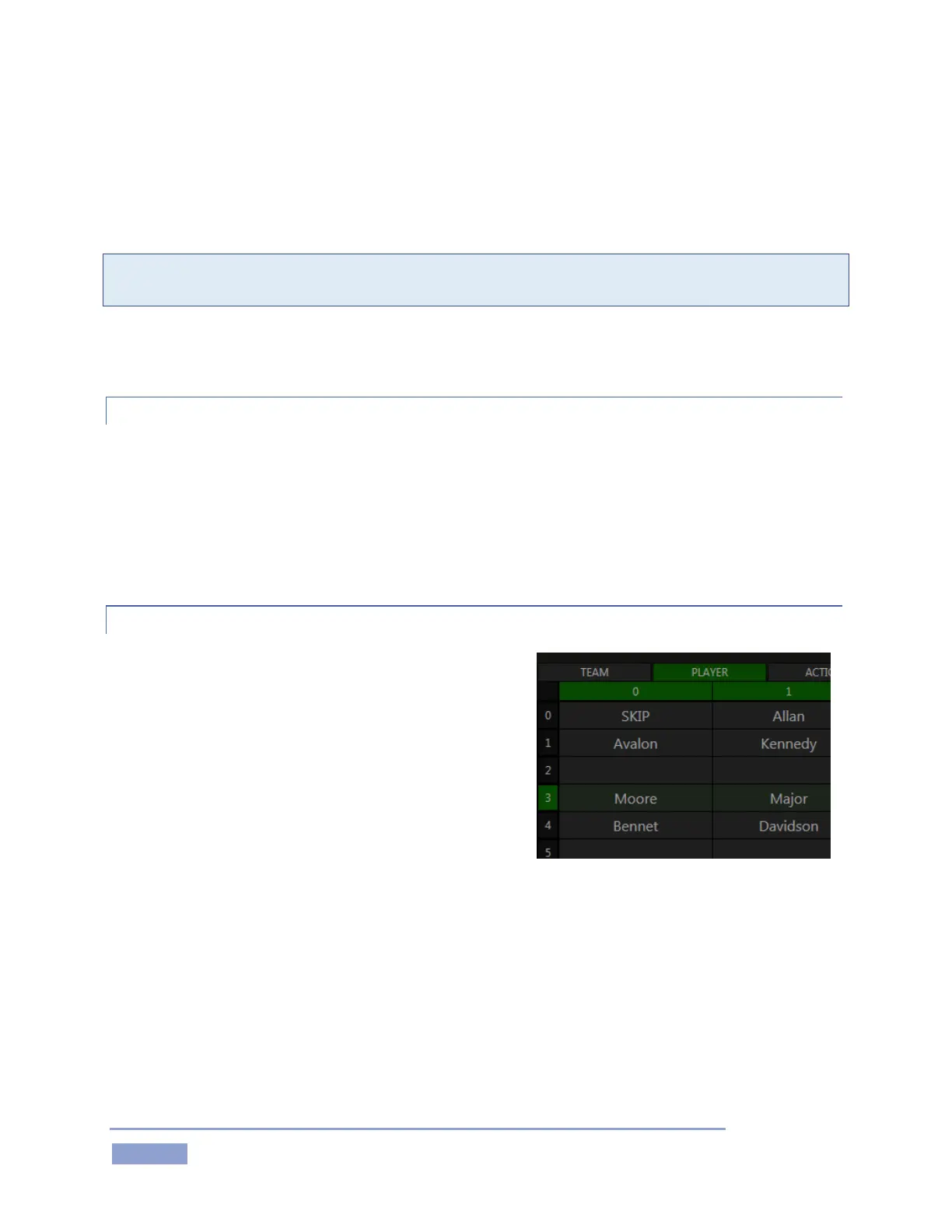
Notice that, while tagging, either the first column or first
row of the TAGS pane is displayed with a bright green
highlight.
As mentioned earlier, it’s not necessary to enter the row
number when entries in a TAGS tab only use the first row
(row 0).
A single digit suffices to identify the desired tag in this case.
Often, though, two digits are required to fully identify a
specific tag.
The green highlighting in the TAGS tables provide visual cues to tell you which number you need to enter
next. If the row numbers are highlighted, you know that a row number is required. After a row number
is entered, column numbers are highlighted. (In Figure 137, a row number – 3 – has been entered; the
TAGS pane patiently awaits a column number.)


 To Next Page