Page | 139
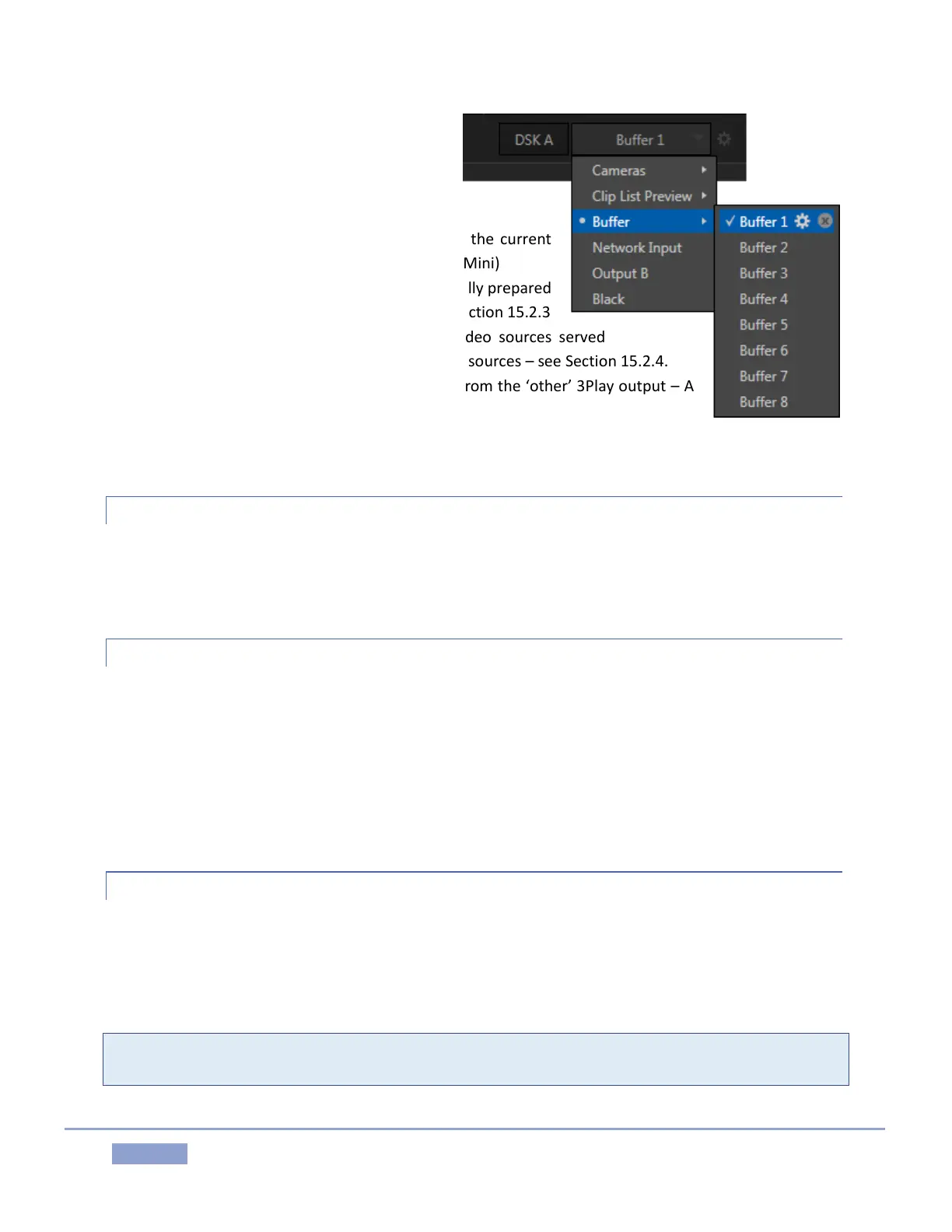
The various alternatives are accessed via drop-
down menus supplied for each DSK, and include
the following:
Cameras – any connected live video source
Clip List Preview – a selected angle from the current
CLIPS LIST selection (not available in 3Play Mini)
Buffer – Buffers can be either still or specially prepared
animated graphics overlay sources – see Section 15.2.3
Network Input – An array of optional video sources served
across a network can be configured as DSK sources – see Section 15.2.4.
Output A/B – The video program stream from the ‘other’ 3Play output – A
or B, as appropriate
Black – Not to be overlooked, the Black overlay option can serve as a handy
source for ‘fade to black’ operations.
15.2.1 CAMERAS
Select any connected live video source as a Buffer source, and you can (for example) employ it in a picture-
in-picture composition. You might use this, for example, to show a shot of a commentator overlaid on a
clip he is discussing – or vice versa.
15.2.2 CLIP LIST PREVIEW
Clip List Preview selections correspond to the different angles available for the currently select event row
in your CLIP LIST. This permits you, for example, to show different angles of an event as a picture-in-
picture composition scaled down in similar fashion.
Note that this selection actually displays the same (reduced resolution) clips shown in the small clip
preview monitors at the top of the CLIP LIST panel. Generally, they will be quite adequate for use in many
compositions, but may look ‘soft’ if used at larger sizes.
15.2.3 BUFFERS
3Play’s powerful Buffer system provides especially convenient graphics and animation sources for its two
DSK channels. Buffer content is retained in memory for immediate recall and display. Thus Buffers can
often be even more useful than similar imagery stored in CLIPS LISTS, since they free the CLIPS LIST up to
display other content.
Hint: Up to 8 different graphics or animated buffers can be loaded into the DSK source menu for quick
access later.


 To Next Page