Page | 78
Each output channel can function completely independently of
the other; either can be directed at any time to transmit any
available audio/video source, whether live or recorded.
Physically, these two channels are individually supplied to
connectors on the system’s backplate for output to downstream
devices. These comprise Output 1 (3Play’s Channel A output) and
2 (Channel B). During live production, both are represented on
the Replay Desktop by individual output monitors (Figure 79).
Tip: A third, special output is called Aux (for “Auxiliary”), and is
carried on Output 3 – more about Aux later.
8.1.1 CHANNEL DELEGATES
Transport (PLAY, STOP, etc.) and many other similar operations
normally affect just one channel. That selection is determined by
the active Channel Delegate button on the Control Surface.
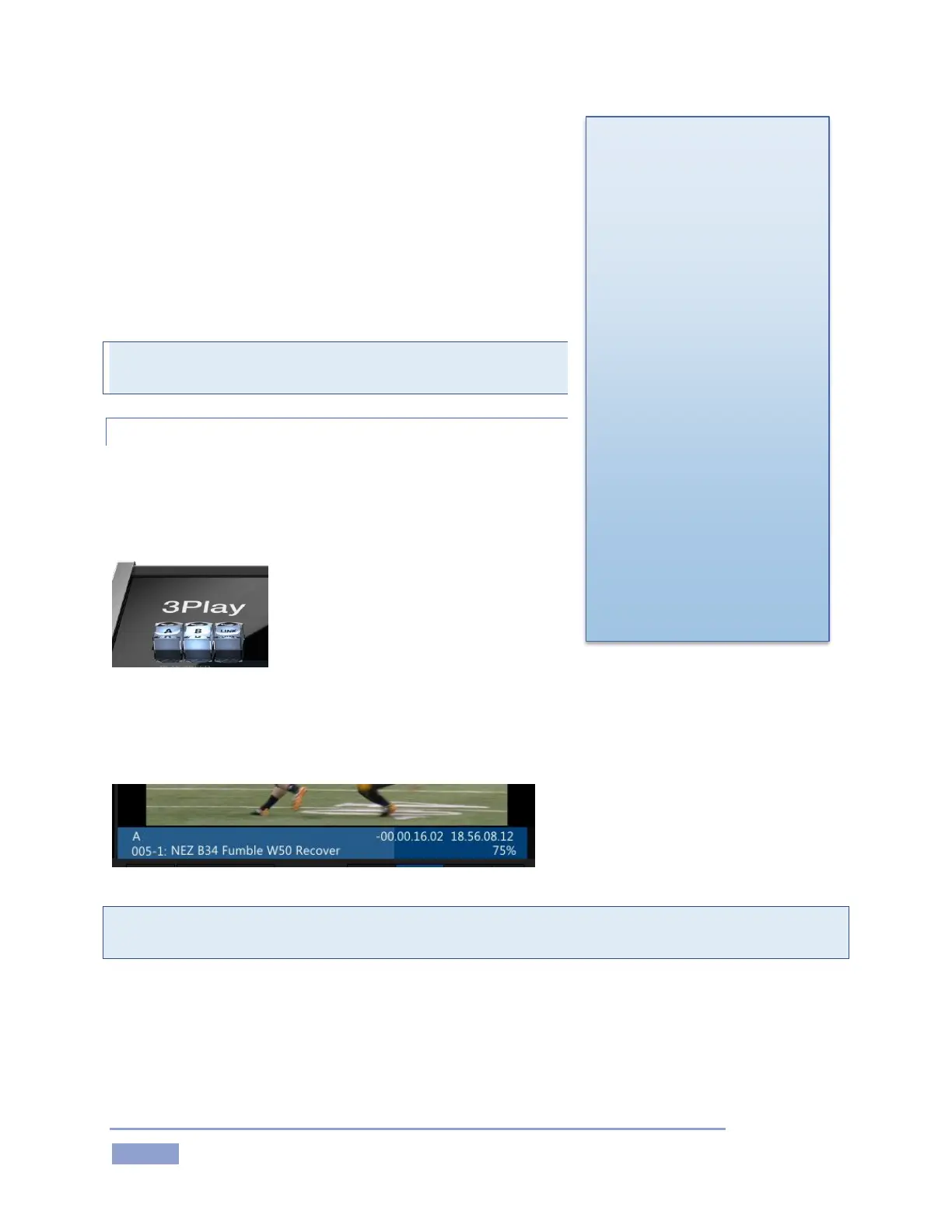
As you would expect, pushing the Control
Surface button labeled A directs
operations to Channel A; Likewise,
pushing B assigns control operations to
Channel B.
Only one Channel Delegate can be selected at a time, and all operations and
input are directed to that channel and its source (certain controls can affect both
channels when LINK mode is on – see Section 8.4.1).
Figure 81
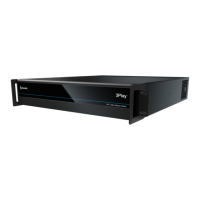
Tip: You can also choose the currently delegated channel by clicking the mouse in The Channel Info area
beneath the output monitor for Channel A or B.
The active Channel Delegate determines the following matters:
What is shown in the CLIP and PLAY LIST panes on the Replay Desktop
This includes the selections shown in the CLIP and PLAY LIST tabs
The state of various Control Surface and user interface buttons and settings.
The color in the Channel Info
area indicates the source
type sent to the channel:
blue for the CLIP LIST, gold
for PLAY LIST, and green for
Live (or Delayed sources.)
It also shows which channel
is delegated; normally, only
the delegated channel
displays a colored
background.
A thin white border marks
the delegated channel in
Link mode (since both panes
are colored - Figure 91).


 To Next Page