Page | 9
Figure 5
o Some very important features occupy prime visual real estate in small panes just beneath
the Channel Info displays.
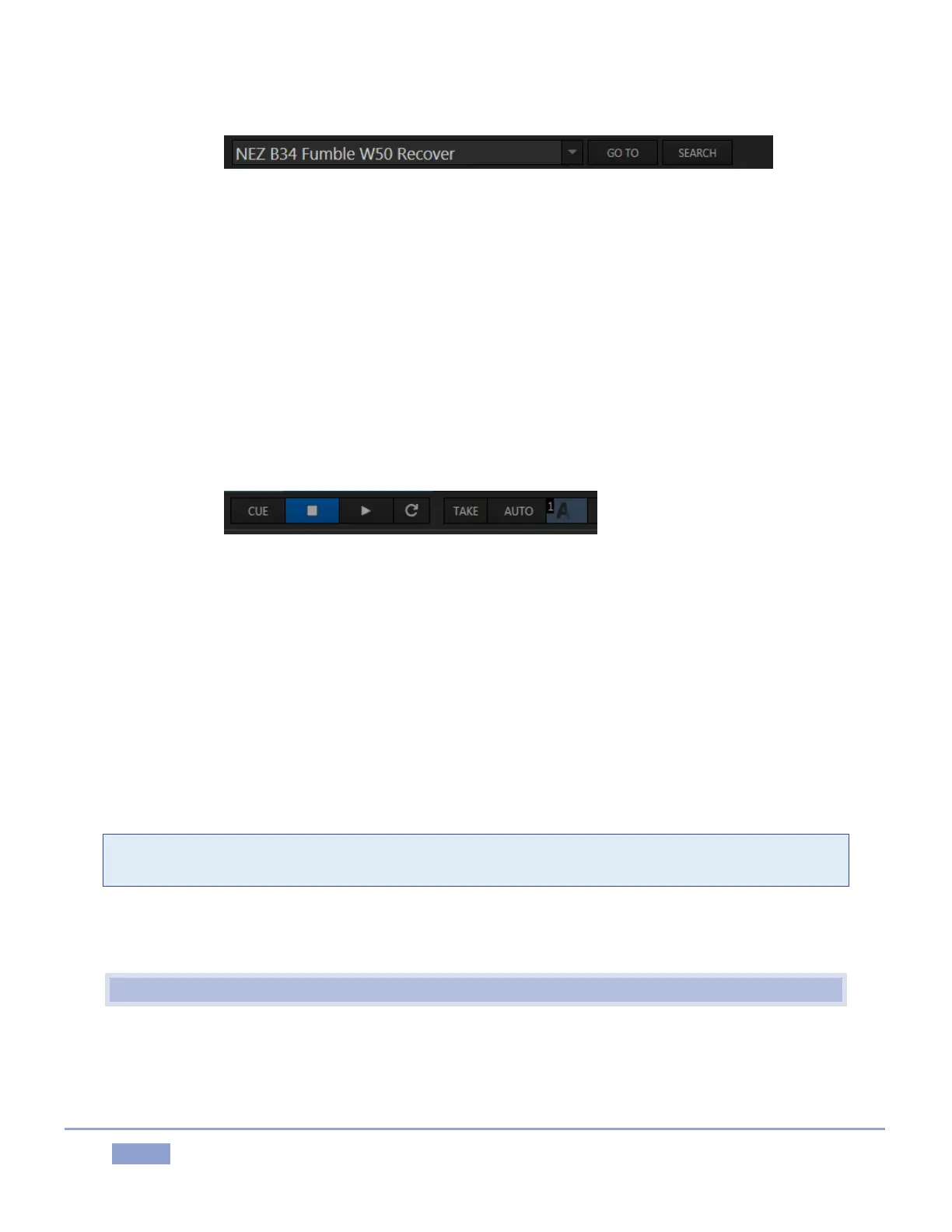
A large, high-visibility field at left in this zone is referred to as the FastClip toolbar (Figure 5).
o Selecting a data field in the CLIP LIST or PLAY LIST snaps its content (whether a Memo
entry, Event ID, or time value) into the dataview window in this pane. This value can then
be modified by keyboard or Control Surface operations.
o Dataview content can also be used as criteria for the nearby Go To and Search features
(and corresponding Control Surface buttons).
Figure 6
o Also beneath the monitors are and Transport (Play, Stop, etc.) and Transition controls
(Figure 6).
The spreadsheet-like CLIP LIST is centrally located (Figure 3). Its multiple tabs (including the Search
results tab) and columns help you identify, locate, manage and replay the huge amount of audio-
visual data 3Play captures.
Just below is the PLAY LIST (Figure 3). Here you can create and control more complex sequences
such as highlight reels. These can include imported graphic, animation and video elements, as
well as music and full color Animation Store transitions.
Hint: The optional Single Pane mode combines the CLIP LIST and PLAY LIST tabs in one pane capable of
displaying many more events at once (see Section 6.4.2).
The Tags pane at the very bottom of the Replay Desktop (Figure 3) makes entering values and
comments splendidly quick and convenient.
2.6 FEATURES
Here’s a brief overview of just some of 3Play’s key features:


 To Next Page