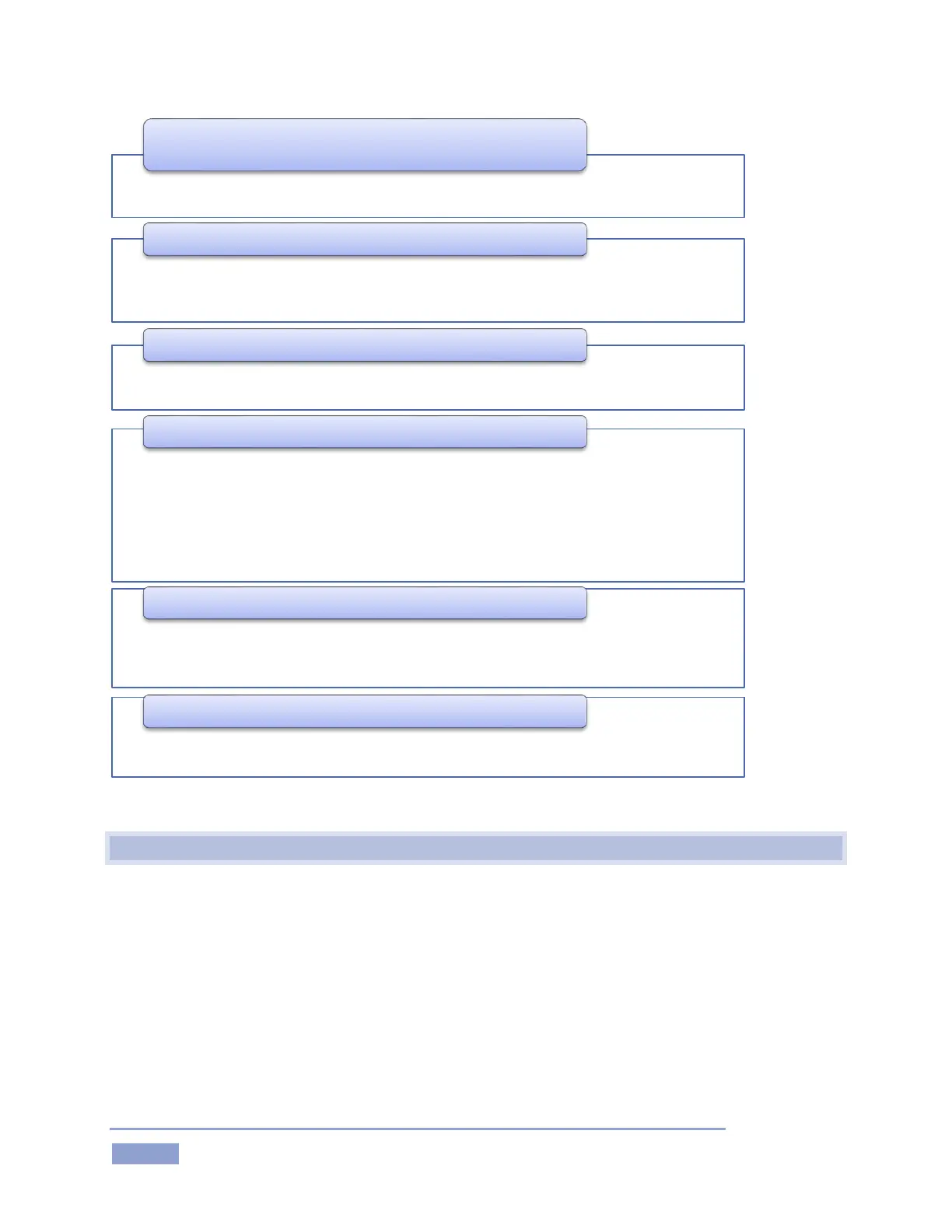
below. Several convenience features are associated with these controls.
orientation.
its factory default.
•Menus (settings and options), quick access to Grab, Record, and timecode are shown when
the mouse pointer is moved over this area of the screen.
1 - Dashboard
• Input Monitors - monitor all active inputs for the session
• Output Monitors - large full-time monitors for Output A and B, with Channel Info displays
• (Configurable Multiview display on secondary monitor)
2 - Monitoring
• FastClip toolbar - displays clip /event data and text input, includes Search tools
• Transitions, Overlays and Transport - playback, program-preview transitions and DSKs
3 - Toolbar
• Speadsheet style event management; lists marked events as rows with In Point, Out Point
and Duration
• Trim, re-order and organize events in renamable tabs
• Add unique comments for individual clips (angles)
• Select and play clips
• Integral clip monitors show all angles of the current event row simultaenously
• Search results tab
4 - CLIP LIST
•Add clips and other content to create highlights reels, complete with optional transitions
and music
•Export play lists, including transitions and sounds, as rendered clips
5 - PLAY LIST
• Powerful tagging system; quickly add pre-defined tags to the FastClip dataview for
commenting, Search and more
6 - TAGS


 To Next Page