Page | 54
5.3.1 FILE MANAGEMENT
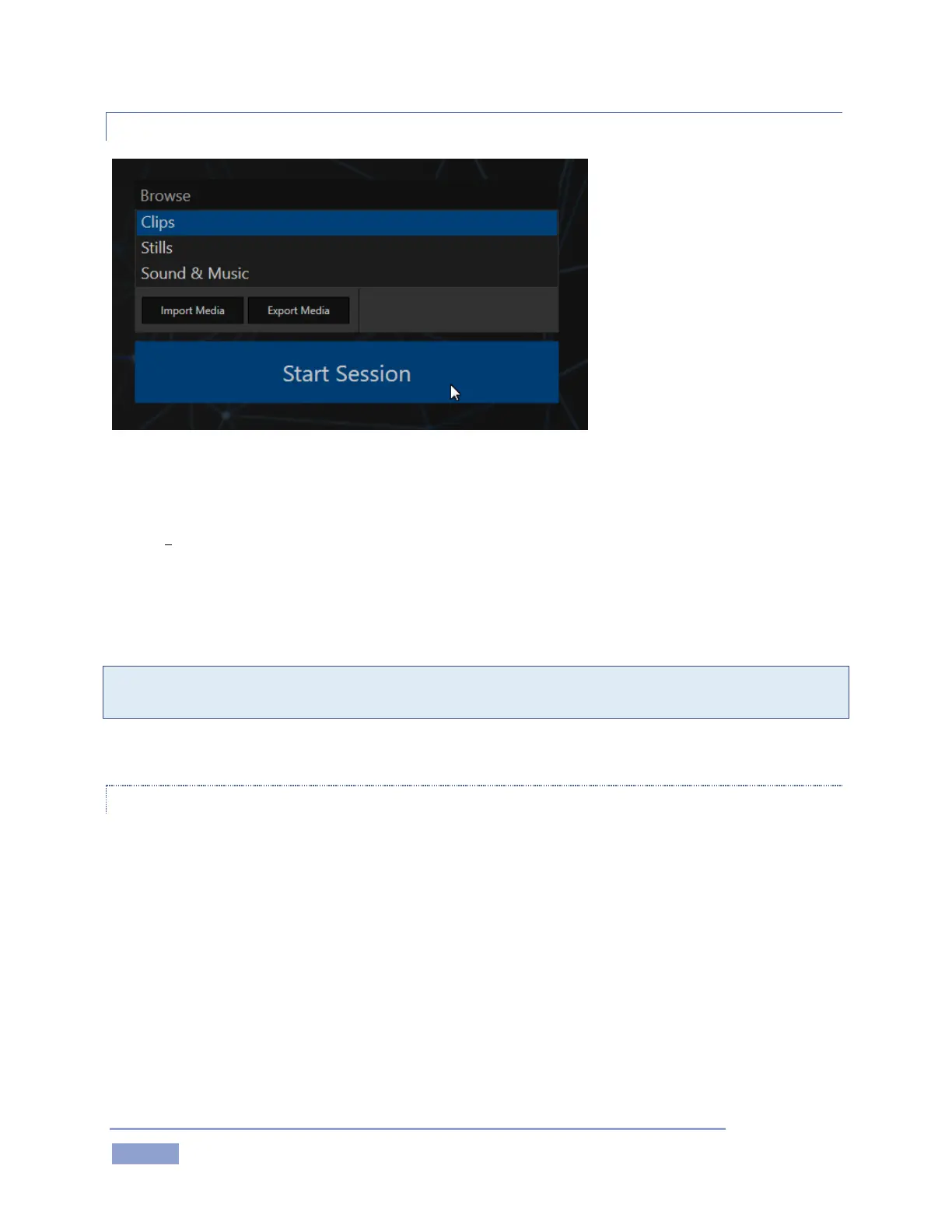
Figure 53
At times you may find it useful to be able to quickly access the various files associated with the current
session. The links at right on the Session page under the heading Browse provide access to default session
folders. Clicking one of these links (or selecting it with the up/down arrow keys and pressing Enter) opens
a system file explorer.
You can use the familiar features and shortcut keystrokes in these windows (Cut, Copy, Paste, Rename,
Delete and so-on) to manage session assets.
Tip: Of course, you can open several of these folders simultaneously, and navigate these file windows to
other locations as well. For example, you might copy files from one session into a folder for another.
Several other important features are found here, including Import Media as discussed next.
IMPORT MEDIA
Clicking the Import Media link opens a custom import panel offering batch import of files for use in 3Play’s
CLIP LIST and PLAY LIST. It even allows you to transcode files to appropriate high quality 3Play-friendly file
formats at the same time if you wish.
Import Media’s quick processing makes this the fastest and most convenient way to prepare production
assets for a session. Click Add to open a standard system file window, and select (or multi-select) items to
build a list in the Import Media file pane.


 To Next Page