Page | 124
TAGS feature lets you quickly populate the dataview with multiple terms perfectly suited to many
searches.
TAGS AS CRITERIA
Earlier in the chapter (Section 13.2), we detailed various aspects of the TAGS feature, showing how it can
quickly be used to build (simple or more) complex Memo entries.
Figure 139
The TAGS feature can also be used to quickly add simple or more elaborate search criteria to the dataview.
The workflow for adding tags is identical, the only change being that instead of pressing ENTER (which
would post a Memo entry) one presses the SEARCH or GO TO button instead as desired.
Of course, with the TAGS button on the Control Surface off, the Control Surface supports direct numeric
entry.
13.4.2 FINDING MATCHES
It’s helpful to know that 3Play’s search engine performs a logical OR operation using the criteria you
supply. Thus an exact match of every element of the search criteria is not required. Your search criteria
can include, for example, multiple words, or consecutive character strings, including numbers or common
symbols.
When a SEARCH operation is executed, event rows with are listed in the Search Result pane (CLIP LIST)
whenever of their cells contains elements matching any search criteria item tab.
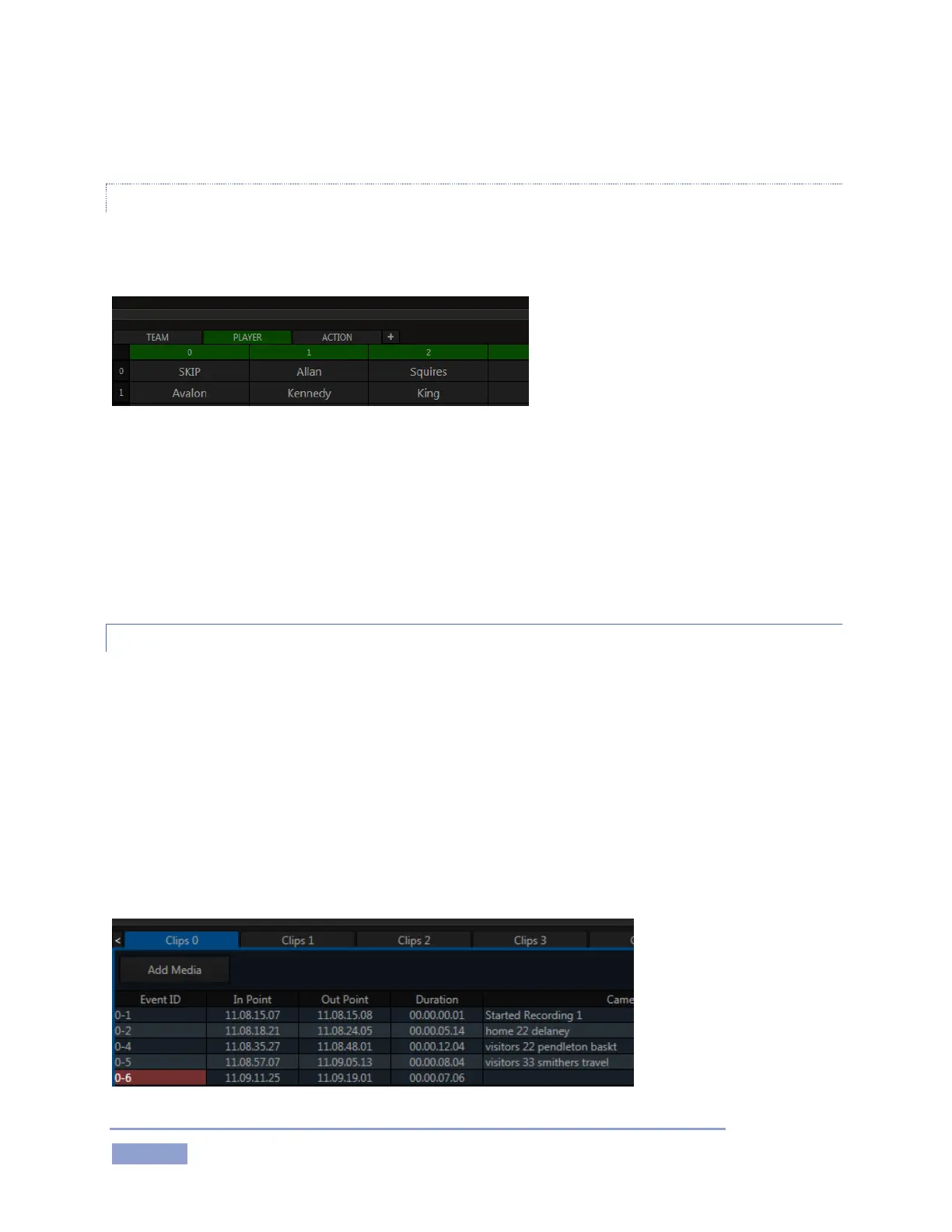
Let’s consider some simple examples. Suppose you have made the following into Memo entries (Figure
140):



 To Next Page