Page | 12
FASTCLIP TOOLS
Figure 9
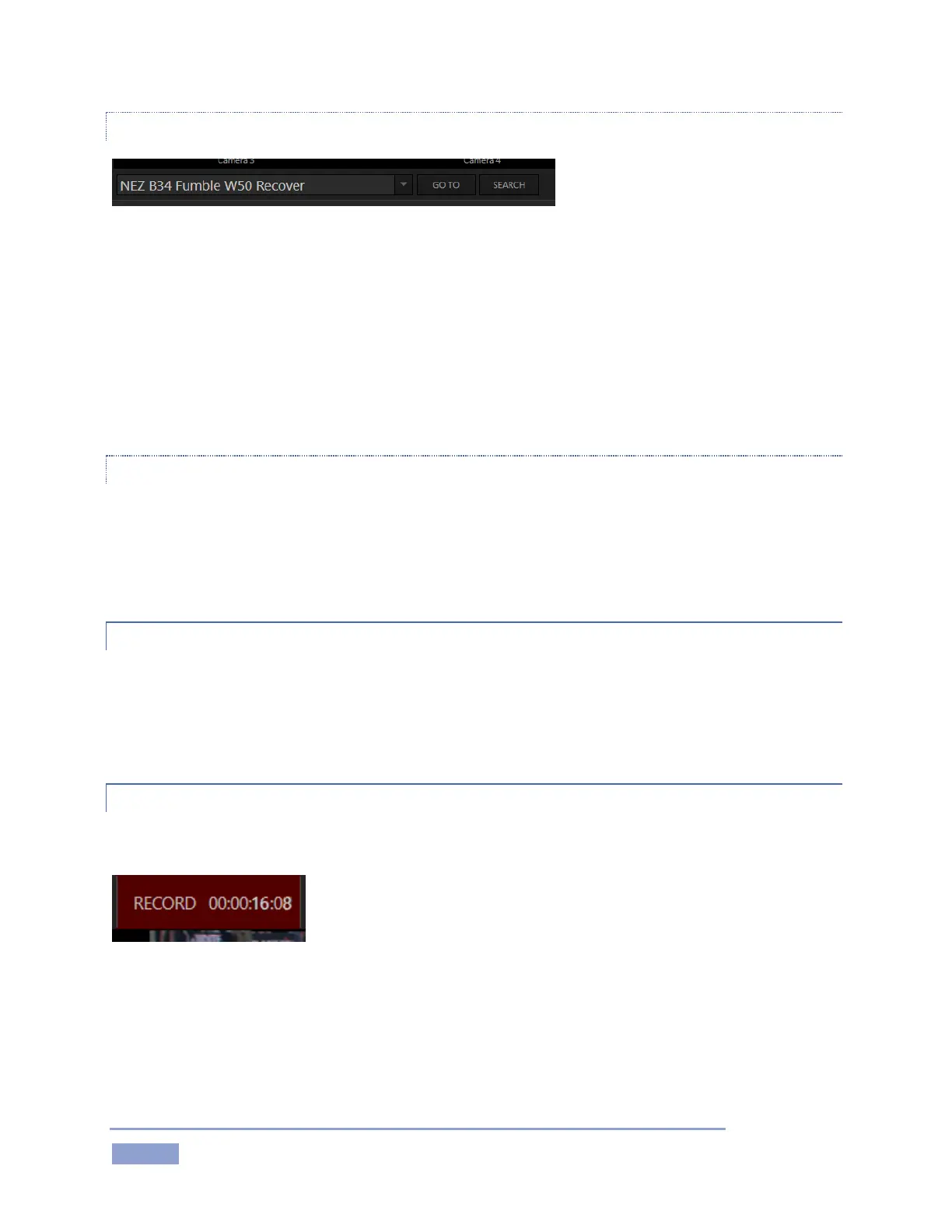
You’ll find additional and very important features occupying prime visual real estate just beneath the
monitor area (Figure 5). A large, high-visibility window at left in this zone is referred to as the FastClip
dataview.
Selecting a data field in the CLIP LIST or PLAY LIST snaps its content (whether a Memo entry, Event ID, or
time value) into the dataview. This value can then be modified by keyboard or Control Surface operations.
Keyboard and Control Surface entries can also be used as criteria for the nearby Go To and Search features
(and corresponding Control Surface buttons).
MULTIVIEW
3Play’s Multiview output commonly serves supplemental control room monitoring needs. External
Multiview Workspaces offer many alternatives, including numerous multi-bridge layouts, overlays and
Event Clocks. The Multiview layout output is configured using the Workspaces menu in the Dashboard at
the top of the Desktop (see Section 6.4.2 for a more thorough discussion).
2.6.5 VIDEO PROCESSING
Input Proc Amps allow you to adjust the video signal to harmonize color balance for all sources.
Separate controls are provided for Brightness, Contrast, Hue and Saturation for each video source,
along with White Balance and U and V Offset.
2.6.6 RECORDING
Apart from live throughput, virtually all replay output features depends on recorded data.
Figure 10
The Record button is located in the titlebar above the output monitors.
Valuable information about the recording and remaining space is displayed nearby.
Recording can also be enabled from the NewTek 3Play Control Surface.


 To Next Page