Page | 126
13.4.3 GO TO
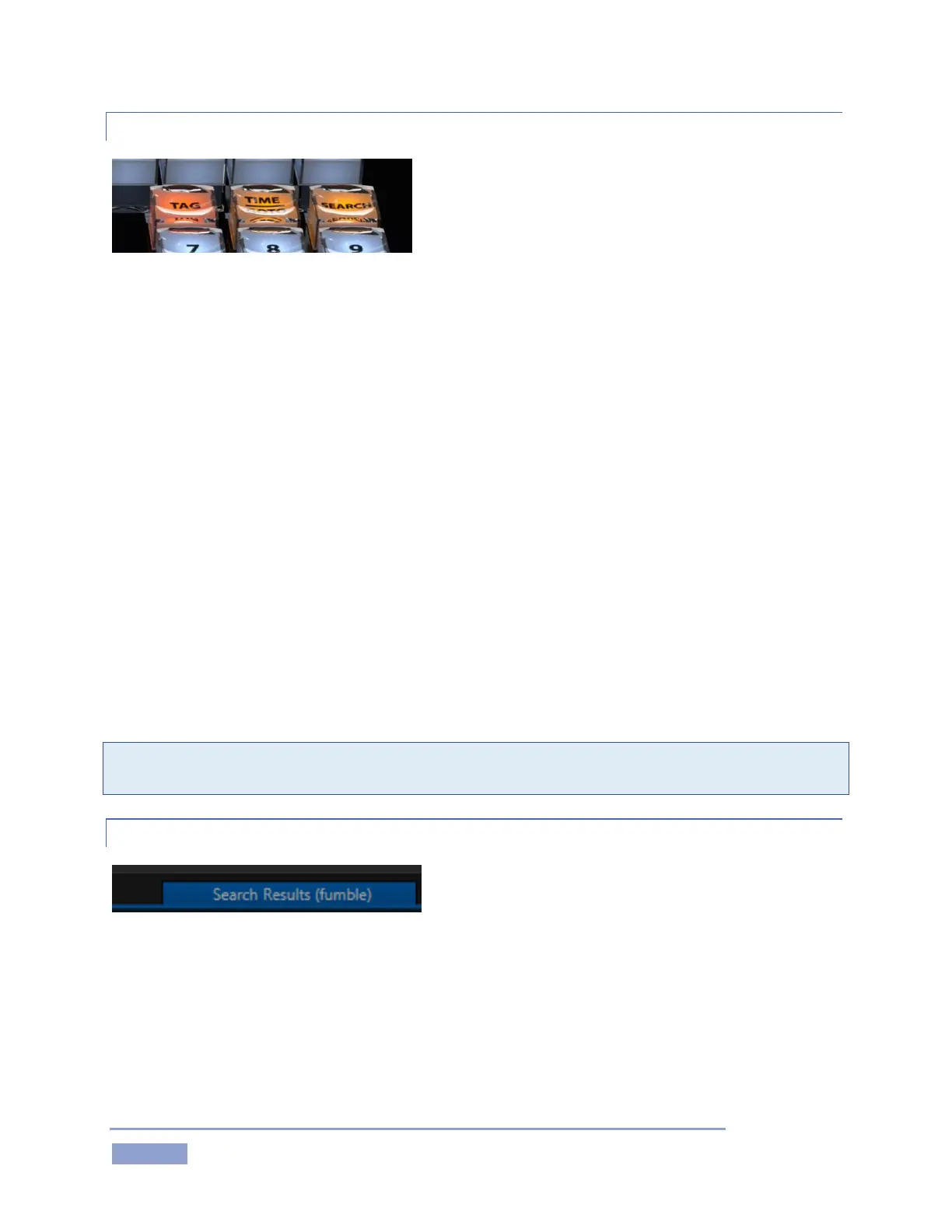
Figure 141
As discussed in Chapter 8 (The Control Surface), the GO TO button has several functions. Pressed alone,
GO TO takes an Event ID number as input, and takes you to the matching event row in the CLIP LIST when
successful.
It’s not necessary to enter hyphens for many GO TO operations to work correctly. Thus GO TO operations
with “0-4” and “04” as input criteria produce identical outcomes. Partial entries can be useful too; recall
that entering a single digit and pressing GO TO jumps to the corresponding CLIP LIST tab). Use hyphenated
digits with an added number to specify the clip angle (for example, press 2-034-4 followed by the GO TO
button jumps to the fourth angle for clip 034 in Clip tab 2).
Pushing SHIFT with GO TO performs a ‘go to timecode’ operation (which, you’ll recall, put 3Play into
Delayed playback mode). Timecode entries are properly formatted as hh.mm.ss.ff (hour, minute, seconds,
frames), but – just as hyphens can be omitted for GO TO (Event ID #) operations, so punctuation is optional
for timecode entries.
Omit digits thoughtfully for timecode operations, however. GO TO timecode operations parse the search
value right to left. The entry 1130 (or 11.30) will be assumed to represent the timecode value 00.00:11:20
(11 seconds, 20 frames), rather than 11.20.00.00 (11 hours, 20 minutes).
Tip: Remember that precise numeric entries can be ‘snapped’ into the dataview (and used for GO TO
operations) by simply selecting In/Out Point cells in the CLIP or PLAY LIST.
13.4.4 SEARCH RESULTS TAB
Figure 142
The Search Results tab appears at right in the header of the CLIP LIST. Matches from SEARCH operations
are listed in this pane.
Items shown in the Results tab can be added to other tabs using copy and paste techniques, as well as
(PLAY LIST only) using the ADD TO PLAY LIST button on the Control Surface, or simply by dragging them.


 To Next Page