Page | 53
time locating and assembling its sections before you can read it. How much better it would be to slide the
remaining books closer together, combining all the free space first. Unfortunately, computers are ‘foolish
librarians’. They tend to want to fill in all the gaps in their storage areas, even if it means literally shredding
your ‘book’ (in reality large video files from your sessions) into tiny fragments.
Defragmenting the storage volume has the same effect as sliding the books together, resulting in less and
larger gaps. The end result is that 3Play doesn’t have to frantically search in many different places to
assemble the video data you have recorded. This process (defragmentation) can take considerable time,
so it’s not something you want to begin just before an important event.
BACKUP OR RESTORE SYSTEM
A complete system restore function is available in the event of an unforeseen problem. This does not
merely restore the operating system, or other data files. Rather, it restores the system to an ‘as-shipped’
software state. Please refer to Section A.5.6 in Appendix A for full details and usage notes.
5.2.5 HELP
Click the 3Play User Guide link to open the manual.
Click the License Agreement link to review the 3Play end user license.
Click About 3Play to list version information, credits and acknowledgments.
5.2.6 ADD-ONS
The included Animation Store Creator add-on application permits you to create your own custom
Animation Store transitions (see Chapter 14).
5.3 THE SESSION PAGE
Opening a session from the Home page (whether using Open or New) takes
you to the Session Page (, providing a new set of options as links at right.
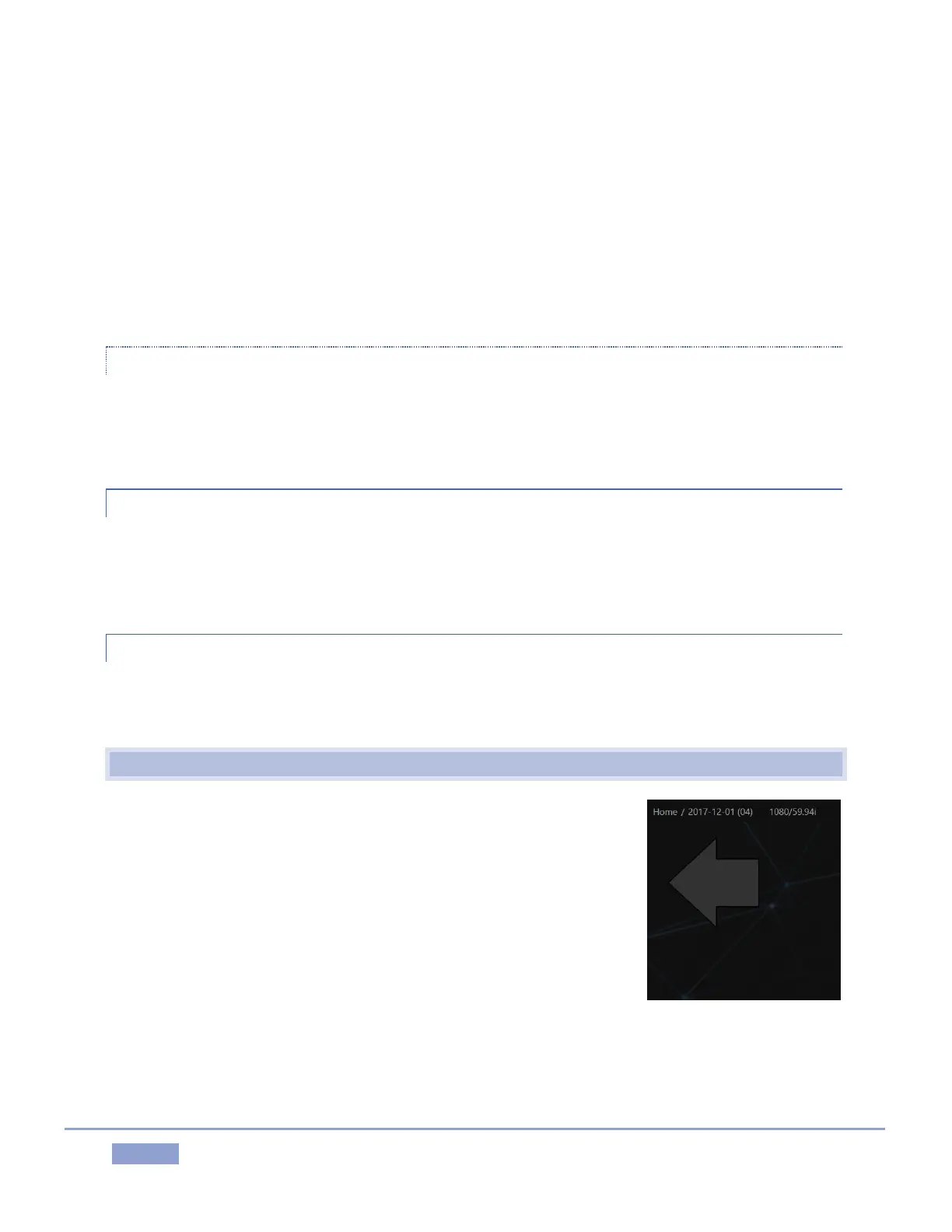
The name of the current session is shown in the top-left corner of the screen
(Figure 52). The session is displayed in the form “Home/session name”.
If you wish to leave the current session and return to the Home page, you
can click the large Back Arrow displayed beneath the session name, or the
word “Home” in the session name label.


 To Next Page