Page | 36
38. Use the keyboard to type “touchdown” (without quotes). Observe that your text entries appear
immediately in the FastClip dataview (Section 2.6.4), but are not immediately added to the
selected Memo cell (Section 2.6.8).
39. Press the ENTER key on the Control Surface (or keyboard). Note that this pushes your input
(touchdown) into the currently highlighted Memo field.
Let’s do this again, with a twist:
40. With the same Memo entry selected, type “field goal”. Your new entry will replace the previous
content of the dataview, but to this point, the
existing Memo (“touchdown”) is not modified.
41. This time, hold down SHIFT before pushing the
ENTER button on the Control Surface (or
keyboard).
The use of SHIFT with ENTER produced a different result.
Rather than merely replacing the current Memo entry with
the new value from the dataview into the only, it pushed
“field goal” into all Memo cells for the current event row.
The SHIFT plus ENTER combination supports one other very
useful outcome, too:
42. Hold down SHIFT, and use the Arrow keys to multi-
select several Memo cells (whether in the same
event rows or not).
43. Type “foul” into the dataview, then hold SHIFT
down and punch ENTER. Note that all selected
cells are updated.
Let’s try one more trick while we’re at it (you’ll discover
many more as you come to fully appreciate the FastClip workflow).
44. Select a single Memo cell that already has content. The value from the Memo is automatically
snapped into the dataview.
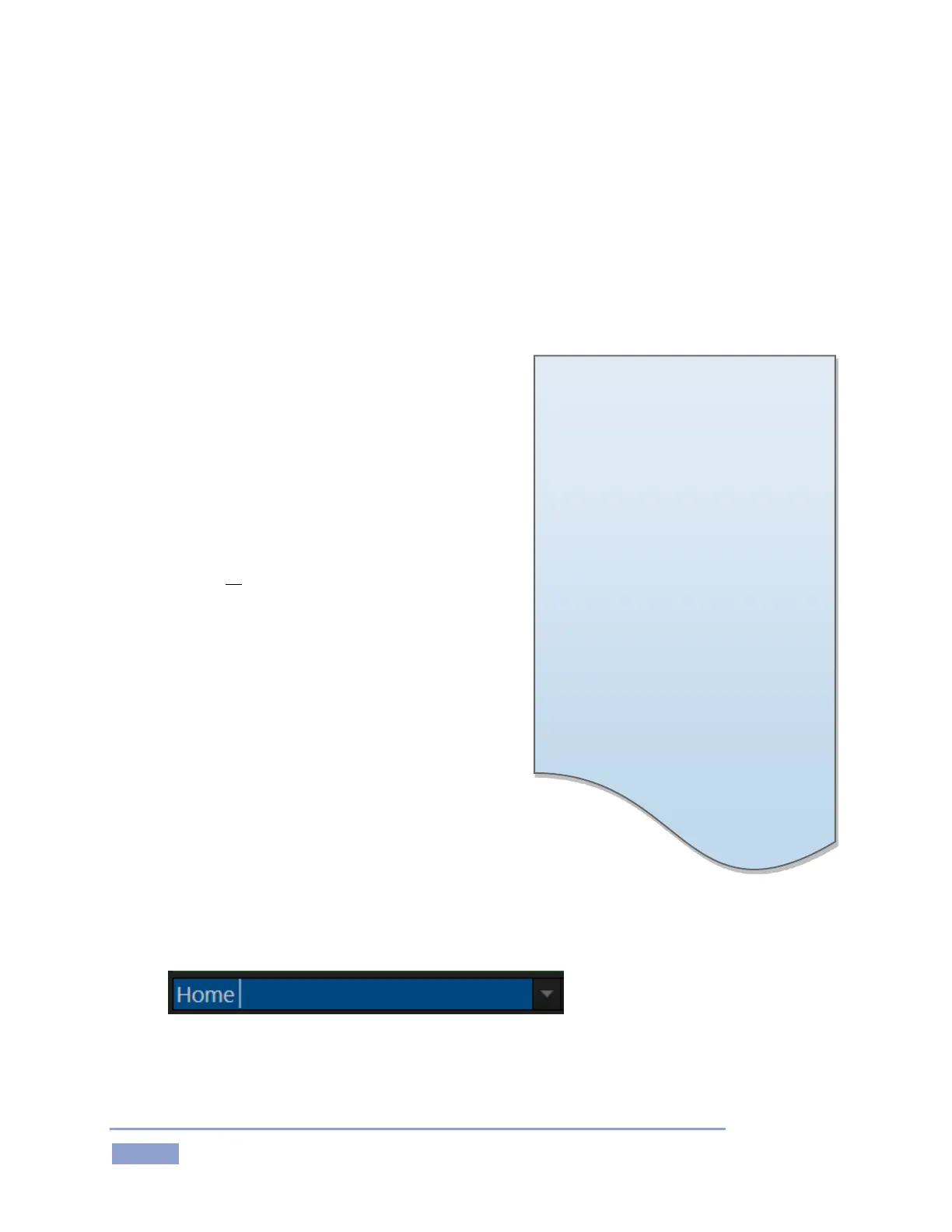
Figure 36
45. Now, punch ENTER (Control Surface or keyboard), then look at what happened in the dataview.
The FastClip dataview:
The dataview displays cached textual
data. Think of it as a simple ‘box’. You
put ‘stuff’ in the box. Afterward, you ‘do
things’ with the box contents.
What makes this ‘box’ special is that
there are so many ways to quickly and
easily put ‘stuff’ into it; and so very
many different and useful ‘things’ you
can do with its content afterward.
For full details, please see Sections
2.6.4, 8.14, 8.15, 11.3.1, 11.3.2, 11.3.3



 To Next Page