Copyright © 2014 NEXCOM International Co., Ltd. All rights reserved
91
VMC 1100 User Manual
Appendix E: Auto Backlight Setting
aPPendIx e: auto baCKlIght settIng
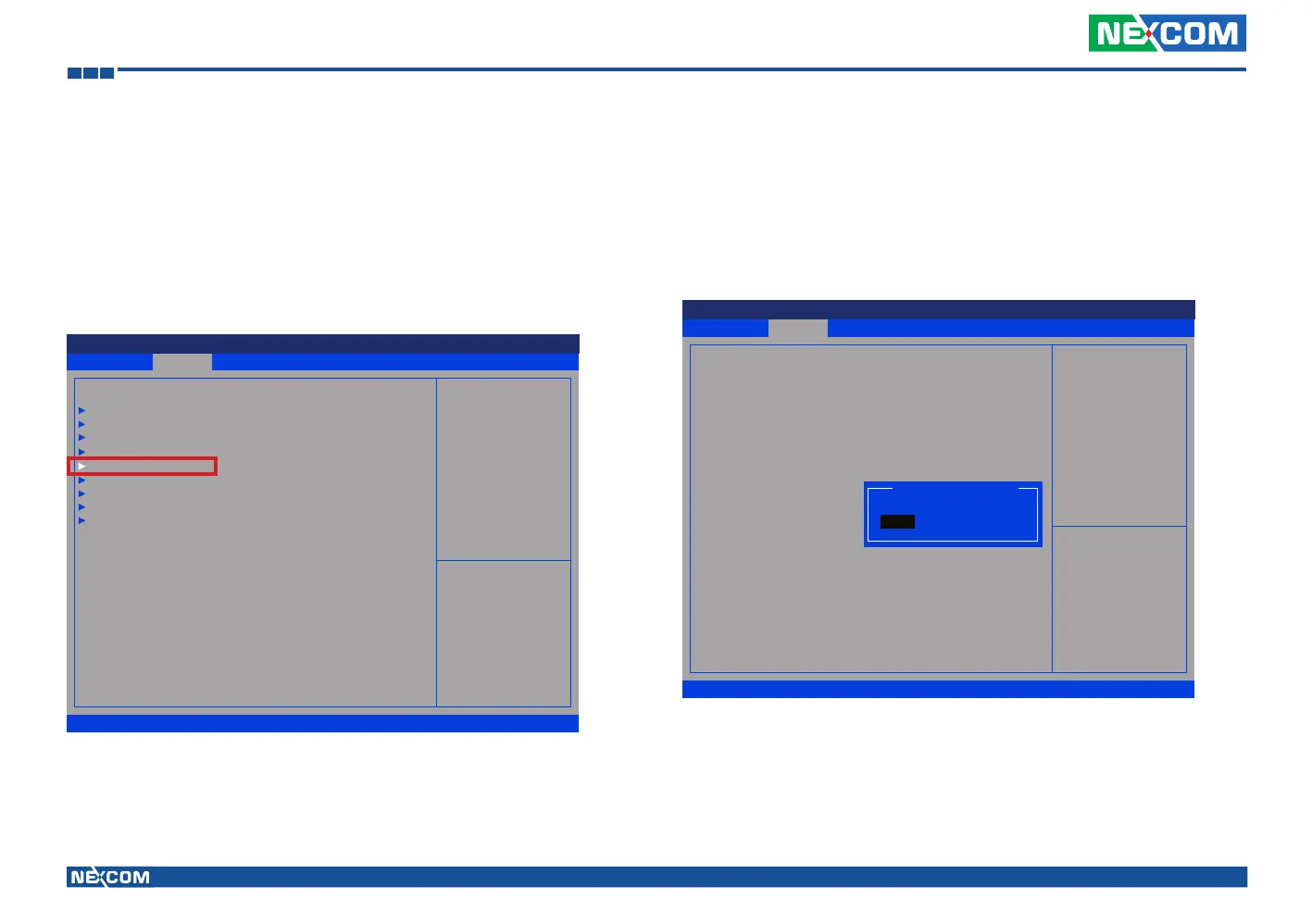
(1) Press <Enter> on “Advanced” of the main menu screen.
(2) Select “Intel IGD Configuration.”
(3) Change the value to “Enable” for “Auto-BackLight Select.”
Advanced Boot Security Save & ExitMain
Version 2.14.1219. Copyright (C) 2011 American Megatrends, Inc.
Aptio Setup Utility - Copyright (C) 2011 America Megatrends, Inc.
→←: Select Screen
↑↓: Select Item
Enter: Select
+/-: Change Opt.
F1: General Help
F2: Previous Values
F3: Optimized Defaults
F4: Save & Exit
ESC: Exit
Cong Intel IGD Settings.
ACPI Settings
CPU Conguration
Power Management Conguration
Module Management
Intel IGD Conguration
SATA Conguration
USB Conguration
W83792D H/W Monitor
Super IO Conguration
Advanced
Version 2.14.1219. Copyright (C) 2011 American Megatrends, Inc.
Aptio Setup Utility - Copyright (C) 2011 American Megatrends, Inc.
→←: Select Screen
↑↓: Select Item
Enter: Select
+/-: Change Opt.
F1: General Help
F2: Previous Values
F3: Optimized Defaults
F4: Save & Exit
ESC: Exit
Enable or Disable
Auto-BackLight function.
Intel IGD Conguration
Auto-BackLight Select
[Disabled]
Auto-BackLight Select
Enable
Disable
(4) After you have finished with the Setup, press <ESC> to go back to the
main menu and then press “Enter” on “Save Changes and Reset.”
After the setup procedure is completed, the light sensors can auto-adjust a
display’s backlight.


 To Next Page