Copyright © 2014 NEXCOM International Co., Ltd. All rights reserved
38
VMC 1100 User Manual
Chapter 5: Touchscreen Driver Installation
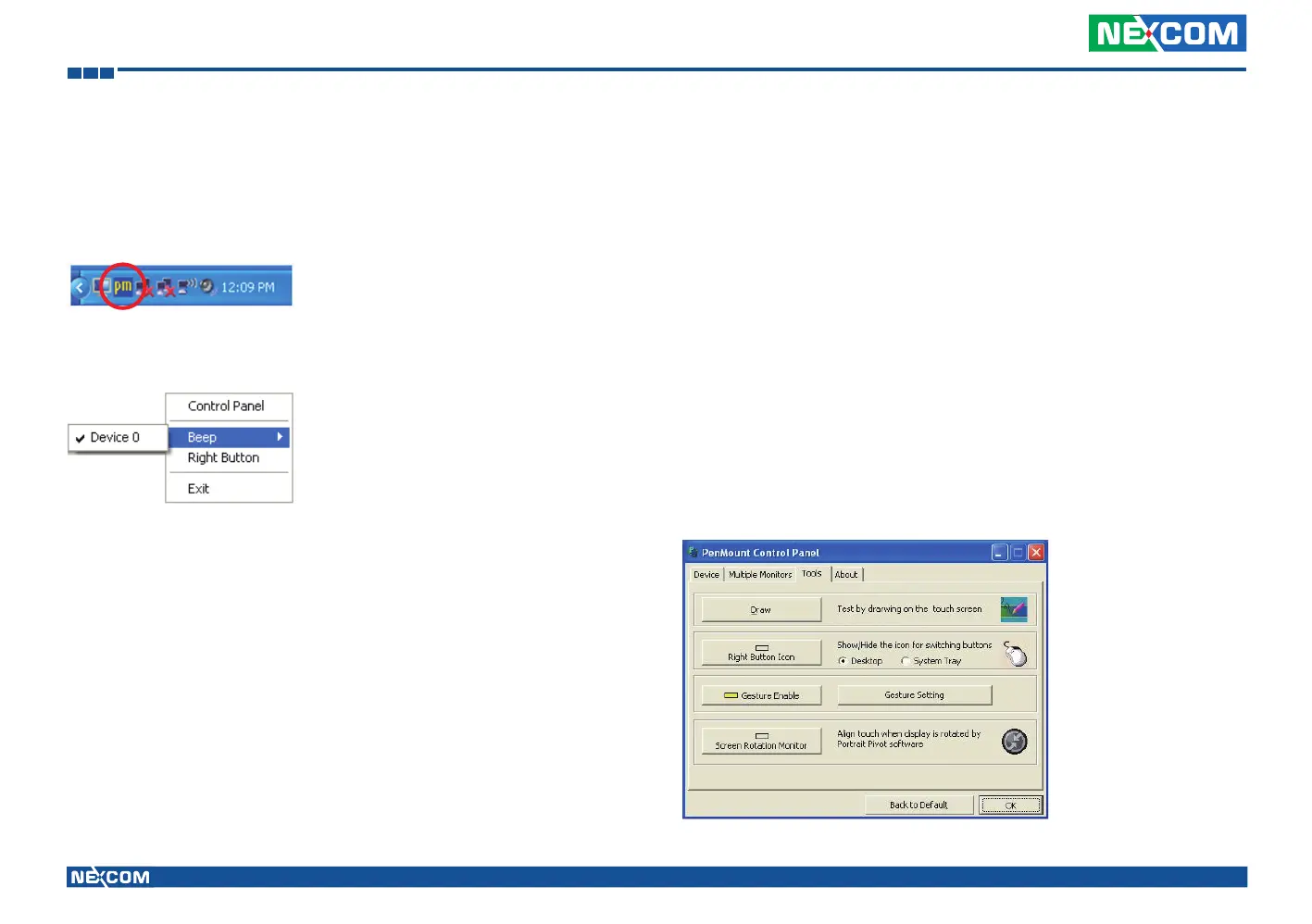
PenMount Monitor Menu Icon
PenMount Monitor icon (PM) appears in the notification area of Windows
system when you turn on PenMount Monitor in PenMount utility.
PenMount Monitor has the following functions:
Control Panel Open PenMount Control Panel.
Beep Setting Beep function for each device.
Right Button When you select this function, a mouse icon appears
in the right-bottom of the screen. Click this icon to
switch between Right and Left Button functions.
Exit Exits the PenMount Monitor function.
PenMount Rotating Function
PenMount Windows Universal Driver supports several display rotating
software packages and auto-detects rotate function (0°, 90°, 180°, 270°).
The display rotating software package supported in Windows 2000, XP
32bit, Vista 32/64bit are:
1. Intel Display Driver Rotate Function.
2. ATI Display Driver Rotate Function.
3. nVidia Display Driver Rotate Function.
4. SMI Display Driver Rotate Function.
5. Portrait’s Pivot Screen Rotation Software.
Configure Rotate Function in Windows XP 64bit
1. There is a “Screen Rotation Monitor” button that appears only in the
PenMount driver utilities for Windows XP 64bit system.


 To Next Page