Need help?
Do you have a question about the NextBase 380 GWX and is the answer not in the manual?
Explains how the dash cam records video and manages storage.
Details the dash cam's automatic power management with vehicle ignition.
Provides guidance on camera positioning for optimal video quality.
Offers recommendations for memory card formatting and maintenance.
Outlines steps for complying with CCTV regulations for dash cam use.
Warnings regarding water exposure, servicing, and potential choking hazards.
Guidelines for cleaning, airbag clearance, and device handling.
Details on radio frequency bands, power, and RF exposure compliance.
Details of the applicant, product, and applied standards.
Information on FCC marking and regulatory responsibilities.
Formal authorization from the applicant.
Contact information for the responsible party in the United States.
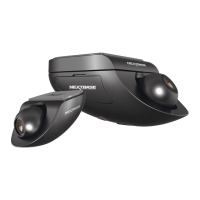
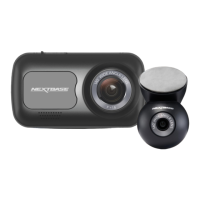
Includes dash cam, mount, and rear camera module.
Car power cable, USB cable, and security pack.
Quick start guide, manual, CCTV, and software disk.
Details of locking pins, DC-IN sockets, and cable lock.
Information on the adhesive pad and windscreen mounting advice.
Standard and locking covers for the dash cam's side.
Thread for inserting anti-tamper screws for security.
Button to restart the dash cam if it becomes unresponsive.
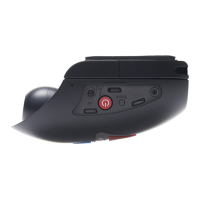
Controls for powering on/off and starting/stopping video recording.
Secures the camera to the mount to prevent removal.
Built-in microphone for audio recording.
Port for connecting USB data cable to a computer.
Slot for inserting the MicroSD card for recording.
Explains LED colors for battery, power, and GPS status.
Sounds for recording status and SD card issue alerts.
Button to protect current recording and its indicator light.
Button to enable Wi-Fi and its indicator light.
Points where the camera attaches to the mount.
Compartment for optional battery pack for parking mode.
Wide-angle lens for capturing the road ahead.
USB-C port for connecting the rear camera.
Wide-angle lens for capturing the road behind.
Cable for connecting the rear camera to the front camera.
Indicates when a file is protected.
Pad for mounting the rear camera to the window.
Step to remove the side cover to access the SD card slot.
Correct orientation and insertion of the MicroSD card.
Step to reattach the side cover after SD card insertion.
Step to detach the camera from its mount.
Step to release the cable lock securing the power cable.
Connecting the car power cable to the dash cam mount.
Reattaching the cable lock to secure the power cable.
Reattaching the camera to the mount.
Connecting the rear camera's cable to the dash cam.
Running the rear camera cable through the vehicle's lining.
Tips for neatly stowing the cable to avoid obstruction.
Final connection of the rear camera to the routed cable.
Connecting the power cable to the vehicle's supply.
Connecting the power cable to the dash cam mount.
Instructions for downloading and installing the Nextbase Cam Viewer app.
Enabling the dash cam's Wi-Fi function.
Pairing the smartphone/tablet with the dash cam via Wi-Fi.
Peeling off the protective layer from the adhesive pad.
Using the app's live view to find the optimal camera position.
Pressing the mount firmly onto the windscreen for adhesion.
Fine-tuning the camera lens angle for the desired view.
Advice on avoiding driver obstruction, airbag zones, and wipers.
Tips for windscreen cleaning and safe operation while driving.
Peeling off the protective layer from the rear camera's adhesive pad.
Placing the rear camera on the rear window, considering wiper zone.
Using the app's live view for rear camera positioning.
Pressing the rear camera mount firmly onto the rear window.
Fine-tuning the rear camera lens angle for optimal view.
Visual confirmation of front and rear camera placement and view.
Information on the number and types of files recorded with a rear camera.
Explanation of how audio is recorded with the rear camera setup.
Lists items included in the security pack for tamper-proofing.
Securing the power cable to prevent disconnection.
Securing the camera to the mount using screws.
Replacing standard covers with locking covers for enhanced security.
Steps to connect the mobile device to the dash cam's Wi-Fi network.
Explanation of the main screen elements and available options.
Accessing and viewing recorded videos stored on the dash cam.
Accessing and playing videos previously downloaded to the mobile device.
Displaying the live feed from the dash cam on the mobile app.
How the rear camera view appears and interacts within the live view.
Steps for downloading video files on iOS devices.
Steps for downloading video files on Android devices.
Options to download, protect, or delete selected video files.
How to share recorded videos online via social media or Nextbase Private Share.
Adjusting the video recording resolution for front and rear cameras.
Controlling the camera's light sensitivity for optimal image quality.
Enabling or disabling the microphone for audio capture.
Entering the vehicle's registration number for display on video files.
Setting the duration of individual video recording files.
Setting up parking mode for continuous recording or motion detection.
Enabling or disabling time and date overlays on recordings.
Enabling or disabling speed overlays on recordings.
Enabling or disabling GPS coordinate overlays on recordings.
Enabling or disabling model number display on recordings.
Adjusting the sensitivity of the G-sensor for collision detection.
Changing the Wi-Fi password for enhanced security.
Erasing and preparing the SD card for optimal performance.
Manually setting or synchronizing time and date.
Configuring time zone and country for accurate timekeeping.
Choosing between MPH and KMH for speed display.
Enabling or disabling device sounds and spoken announcements.
Choosing the language for spoken announcements.
Automatically enabling Wi-Fi when the dash cam starts up.
Viewing dash cam model, firmware, and SD card details.
Restoring the dash cam to its factory default settings.
Connecting to PC to view files in read-only mode.
Connecting to PC to update firmware using Nextbase Replay 3.
Steps for connecting the dash cam to a computer using a USB cable.
Advice on using Nextbase branded SD cards for optimal performance.
Specific SD card requirements when using a rear camera.
Troubleshooting common issues with faulty or incompatible SD cards.
Solutions for the dash cam mount detaching from the windscreen.
Guidance on inserting and removing the MicroSD card correctly.
Addressing issues with limited recording time or saving files to computer.
Troubleshooting no power, rapid battery drain, or charging issues.
Steps for resolving issues when the dash cam cannot read the SD card.
Solutions for jumpy playback or unsynchronized audio/video.
Addressing issues with sound recording or parking mode activation.
Resolving incorrect or changing time/date settings.
Troubleshooting app opening, device connection, and error messages.
Steps to take if the Wi-Fi password is forgotten.
Explanation of the CE mark and its meaning for product compliance.
How to distinguish correct CE marks from false ones.
Details on what the warranty covers, exclusions, and limitations.
Procedures for obtaining warranty service and product support.
Information on warranties for international sales and online auction purchases.
 General
| Brand | NextBase |
|---|---|
| Model | 380 GWX |
| Category | Digital Camera |
| Language | English |

 To Next Page