8 Configuring various settings
58
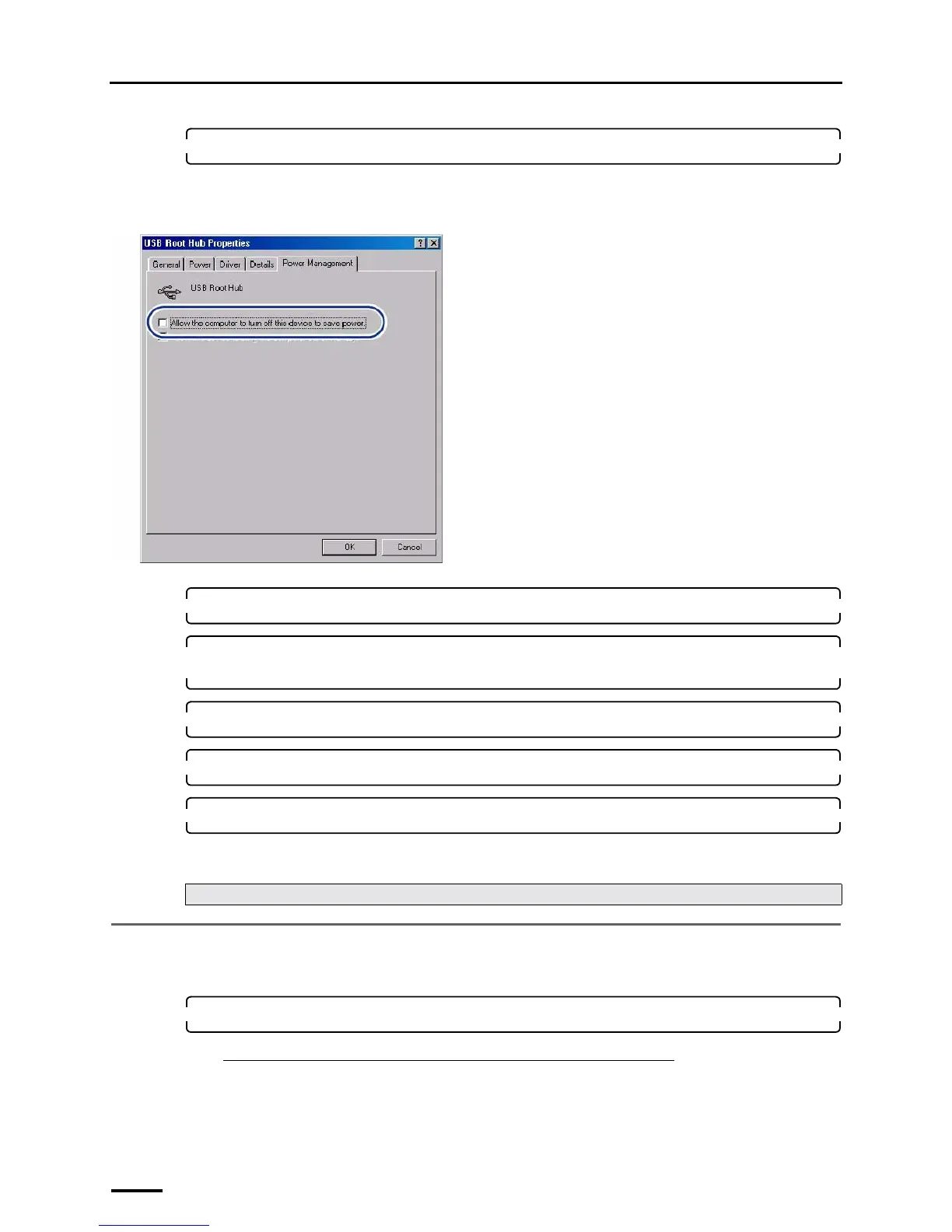
5. Select the Power Management tab.
Clear the check box of Allow the computer to turn off this device to save power.
Example: USB Root Hub properties display
6. Click OK.
7. Perform Step 4 and Step 5 to configure the Power Management setting for all displayed USB
Root Hub.
8. Click × in the upper-right corner of the Device Manager display to close it.
9. Click OK to close the System Properties display.
10. Click the close button in the upper-right corner of the Control Panel display to close it.
This completes configuring the USB power management settings.
8.2 Configuring the installation date and display settings
Enter the installation date or select the displayed language.
1. Access the Menu display.
If connecting the scanner to the PC on which the controller is installed
Bringing up the display
Click F on the Controller Main Display. → Management Tool → System management → Input Media → Select
Film Scanner in Input Media. → Click OK. → Select the model name. → Click Maintenance.
Next, go to ☞8.2 Configuring the installation date and display settings.
G089282


 To Next Page