10 Quick reference
66
10 Quick reference
10.1 If installing TWAIN driver or SYSTEM PROGRAM failed
This section explains the procedure to be performed if the scanner software does not start correctly because installing the
TWAIN driver or SYSTEM PROGRAM was failed.
If the system does not start normally even though Operation A is performed, go to Operation B.
Operation A
1. Install the TWAIN driver or SYSTEM PROGRAM again.
• Reinstall the software following the procedure of ☞5 Installing the TWAIN driver.
IMPORTANT
• Although some displays may not be shown during reinstallation because some steps are skipped,
continue installing the software.
If the Menu display is normally shown after the reinstallation, this completes installing the software.
Bringing up the display
On the Windows desktop display, click Start. → All Programs → Click LS-600 or LS-1100.
If it does not start normally, go to Operation B.
Operation B
This section uses Windows XP displays, but the procedures are the same for Windows Vista.
1. Access the Add or Remove Programs display or Programs and Features display.
For Windows XP
Bringing up the display
Start → Control Panel → Add or Remove Programs
For Windows Vista
Bringing up the display
Start → Control Panel → Programs → Programs and Features
IMPORTANT
• Be sure to follow the procedure below to uninstall the program.
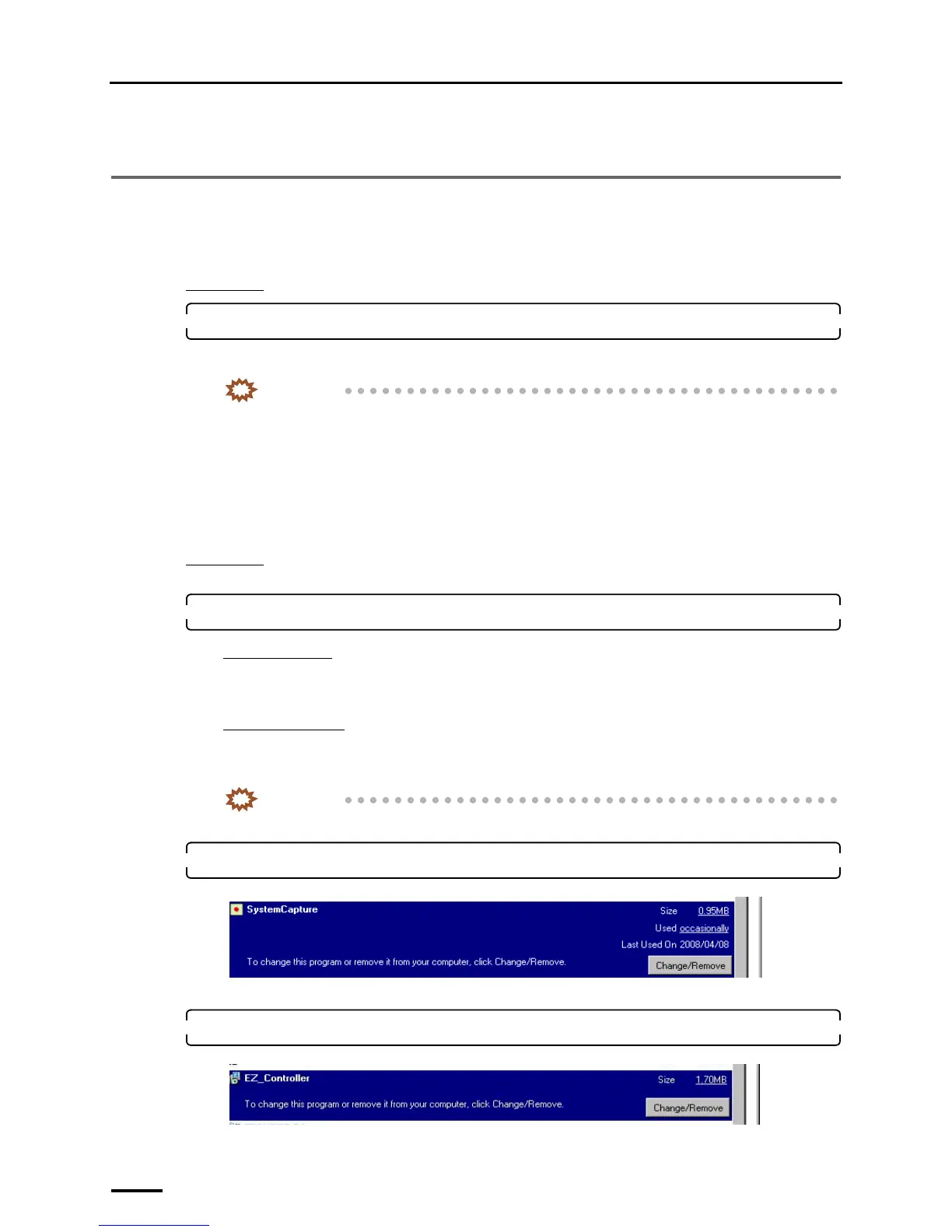
2. Select SystemCapture and click Change/Remove or Uninstall and Change.
Uninstallation of the SystemCapture starts.
3. Select EZ Controller and click Change/Remove or Uninstall and Change.
Uninstallation of EZ Controller starts.
S091122
S089526


 To Next Page