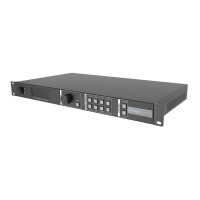
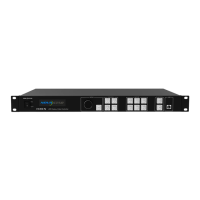
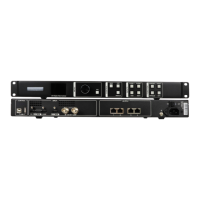
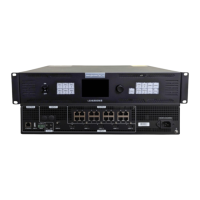
VX600 All-in-One Controller User Manual
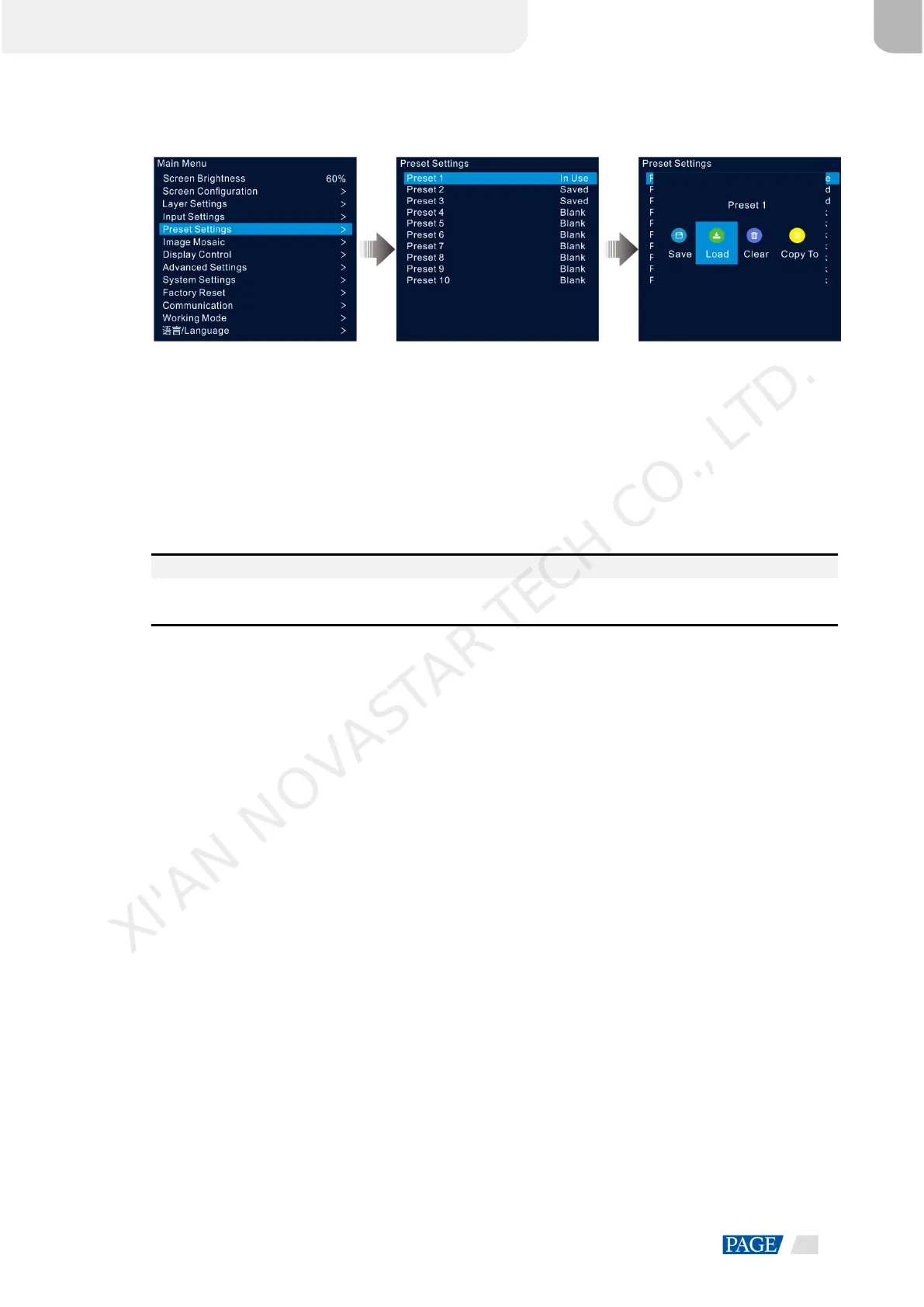
Figure 5-21 Preset settings
5.5.1 Save Presets
After the layer settings, you can save those settings as a preset.
Step 1 On the preset settings screen, rotate the knob to select a preset.
Step 2 Press the knob to open the preset operations window.
Step 3 Rotate the knob to select Save and press the knob to save the layer settings to this preset.
After a preset is saved, the preset status on the right side changes to Saved.
Note:
The layer settings data include the layer status, input source, size, initial position, priority, input cropping,
opacity and input source color.
5.5.2 Load Presets
This operation allows you to send a saved preset to an LED screen.
Step 1 On the preset settings screen, rotate the knob to select a saved preset.
Step 2 Press the knob to open the preset operations window.
Step 3 Rotate the knob to select Load and press the knob to load the preset.
After a preset is loaded, the preset status on the right side changes to In Use.
5.5.3 Clear Presets
This operation allows you to clear the data saved in the preset. The preset name will not be cleared. After a
preset is cleared, the preset status on the right side changes to Blank.
Step 1 On the preset settings screen, rotate the knob to select a saved preset.
Step 2 Press the knob to open the preset operations window.
Step 3 Rotate the knob to select Clear and press the knob to open a confirmation window.
Step 4 Rotate the knob to select Yes and press the knob to clear the preset.
5.5.4 Copy Presets
This operation allows you to copy the layer data in a saved preset to another preset.
Step 1 On the preset settings screen, rotate the knob to select a saved preset.
Step 2 Press the knob to open the preset operations window.
XI'AN NOVASTAR TECH CO., LTD.



 To Next Page