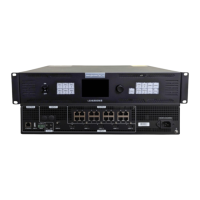
VX600 All-in-One Controller User Manual
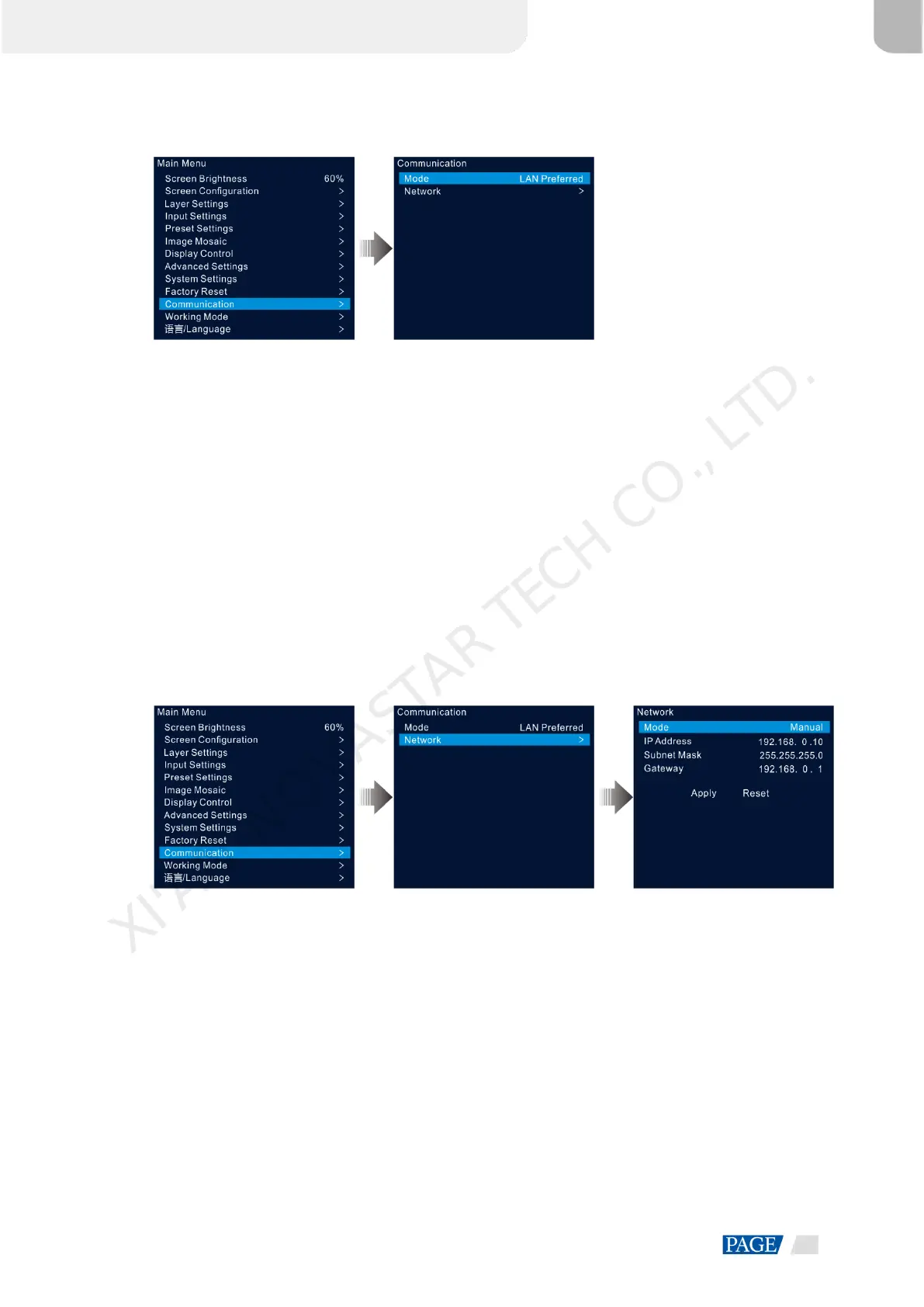
Figure 5-44 Communication mode
Step 2 Rotate the knob to select Mode and press the knob to confirm. Rotate the knob again to select the desired
mode and press it to confirm.
The options include LAN Preferred and USB Preferred.
LAN Preferred: The device communicates with the control PC via the Ethernet cable.
USB Preferred: The device communicates with the control PC via the USB cable.
5.11.2 Set Network Parameters
When the LAN Preferred option is selected, you must set the device IP address, subnet mask and gateway.
Ensure that the device and the control PC are on the same network segment and the device IP address must
not conflict with the IP address of the control PC.
Step 1 On the main menu screen, rotate the knob to select Communication and press the knob to enter the
communication settings screen.
Step 2 Rotate the knob to select Network and press the knob to enter the network settings screen.
Figure 5-45 Network settings
Step 3 Select Mode and press the knob to confirm.
The options include Manual and Automatic.
Manual: Set the device IP address, subnet mask and gateway manually.
Automatic: The system automatically assigns an IP address for the device. When the device and control
PC are connected to the same router or switch, set this option to Automatic.
Step 4 When the Manual option is selected, you must manually set the device IP address, subnet mask and
gateway.
Step 5 Rotate the knob to select Apply to make the settings take effect; otherwise, select Reset to reset the settings
to defaults.
XI'AN NOVASTAR TECH CO., LTD.



 To Next Page