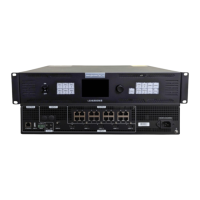
VX600 All-in-One Controller User Manual
5.3.2 Switch Layer Input Sources
Button Operations
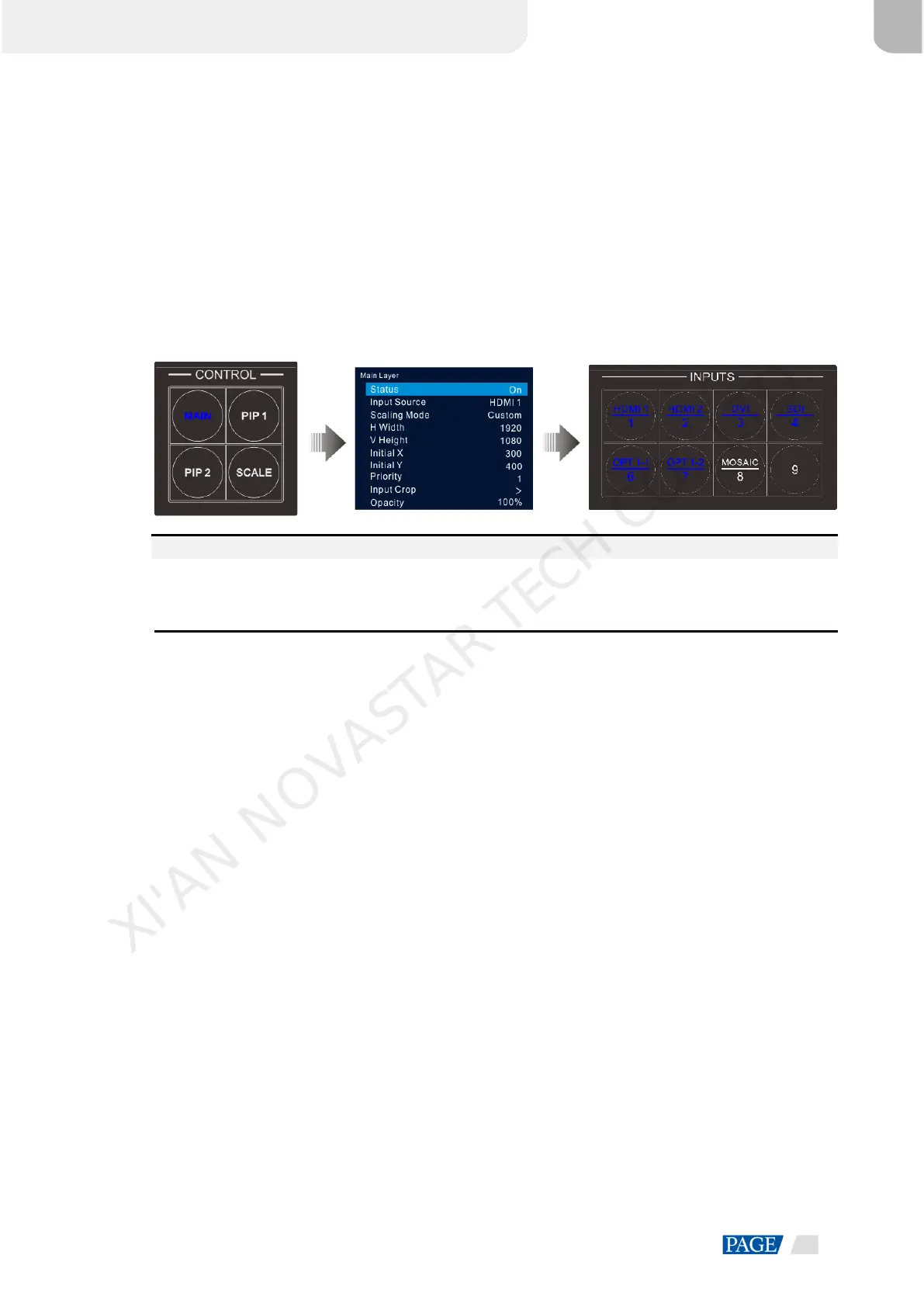
Step 1 Press the MAIN, PIP 1 or PIP 2 button in the CONTROL area on the device front panel to quickly open the
layer and the device screen displays the corresponding layer settings screen.
After pressed, the layer button becomes flashing.
Step 2 Press an input source button in the INPUTS area to quickly switch the layer input source.
Figure 5-12 Switch layer input sources
Notes:
When switching the input source of the main layer, you do not need to press the MAIN button first. Press
an input source button directly.
Press the SCALE button to make the bottom layer fill the whole screen quickly.
Menu Operations
Step 1 On the home screen, press the knob to enter the main menu screen.
Step 2 Go to Layer Settings > Main Layer/PIP 1/PIP 2 > Input Source to enter the input source settings screen.
Step 3 Rotate the knob to select the target input source and press the knob to confirm.
5.3.3 Input Crop
This function allows you to crop the input source image and make the cropped part display on full screen.
Step 1 On the home screen, press the knob to enter the main menu screen.
Step 2 Go to Layer Settings > Main Layer/PIP 1/PIP 2 > Input Crop to enter the input source cropping screen.
Step 3 Select Status and press the knob to confirm. Rotate the knob again to select On and press the knob to
confirm.
Step 4 Rotate the knob to select other cropping parameters and set them if needed. The cropping parameter
descriptions are shown in Table 5-2 and Figure 5-14.
XI'AN NOVASTAR TECH CO., LTD.



 To Next Page