Instruction Manual CON 11/110
28
7 PRINT FUNCTION (FOR CON 110 ONLY)
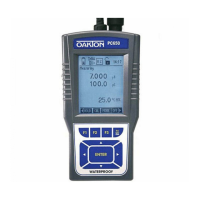
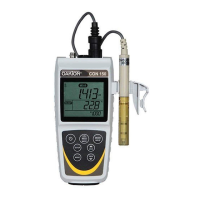
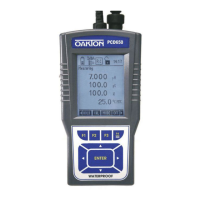
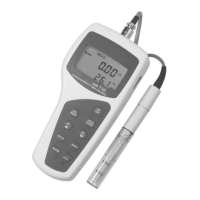
The CON 110 meter is equipped with an RS232 communication port and a PRINT
( ) key that facilitate the printing of data from the meter to a printer or computer.
7.1 Using CON 110 Meter with Printer or Computer
1. To use the CON 110 directly with a printer, the printer should have either
a 9 pin or a 25 pin RS 232C serial port.
2. Communication settings of the printer or computer’s data acquisition
software (CyberComm Portable DAS) MUST match the following
parameters:
a. Baud Rate: 9600
b. Parity Bit: None
c. Stop Bit: One
d. Data Bit: 8
e. Flow Control: None
Please refer to your printer’s or computer’s instruction manual for more information
on its communication setup protocol.
3. Use 9-pin cable (Refer to section –List OF Accessories on page 68) to
connect the meter to the printer. If the printer has a 25 pin connector, use
the 9 to 25 pin cable or make your own cable taking note of the
connection parameters as described in section 3.6- Connecting the
RS232C Cable (Only for CON 110) on page 9.
4. Turn on CON 110 meter and note the following:
a. For printer, ensure it is powered on and paper is loaded.
b. For computer, ensure that Eutech Instruments’ CyberComm
Portable Data Acquisition Software is installed and activated. See
section 9.3- Running CyberComm Portable on page 59.
5. To send data to the printer or computer, press the PRINT ( ) key.


 To Next Page