28
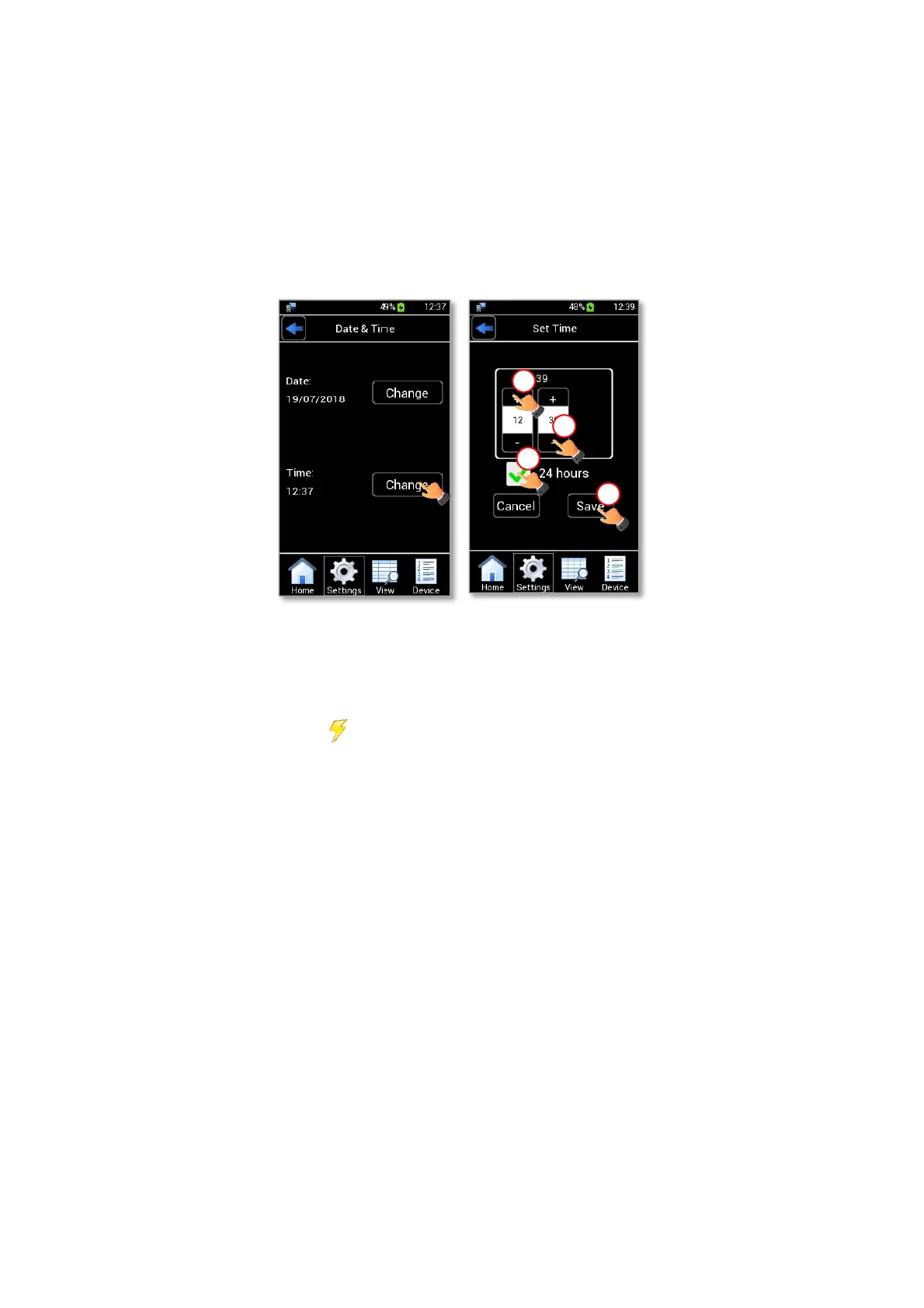
5. Press Change (see Figure 35 a) to enter the Set Time page.
Note ►The default time format is a 24-hours style clock.
6. Change the time using + and – (1 and 2 in Figure 35 b).
7. Select/deselect the 24 hours checkbox to have a 24 or 12 hours style clock. (3 in Figure 35 b).
8. Press Save to confirm (4 in Figure 35 b).
Figure 35. Set Time (a – b).
9.3.5.2 Power Saving
Press the Power saving icon (see Figure 36 a) to set Low brightness feature and Stand By feature.
Low brightness feature is enabled by default. Set the time period after which LEO will reduce the display’s
brightness by 15%.
Note ►Display’s brightness is automatically reduced when the remaining battery power is less than 5%.
The Stand By feature is disabled by default. Enable the Stand By feature by flag the checkbox. Set the time-
out period after which LEO’s display switches off.
Press Save to confirm settings, see Figure 36.
Note ►The Stand By time range is 1-30 minutes.
Note ► Press the power button to turn the display on.



 To Next Page