Operating Image Panel
6
6-8 d-Color MF360/280/220
6.3
6.3.3 Reading a document
Scan a document, retrieve a document from a User Box or external memory, and send data from a cellular
phone or PDA.
Scanning a document
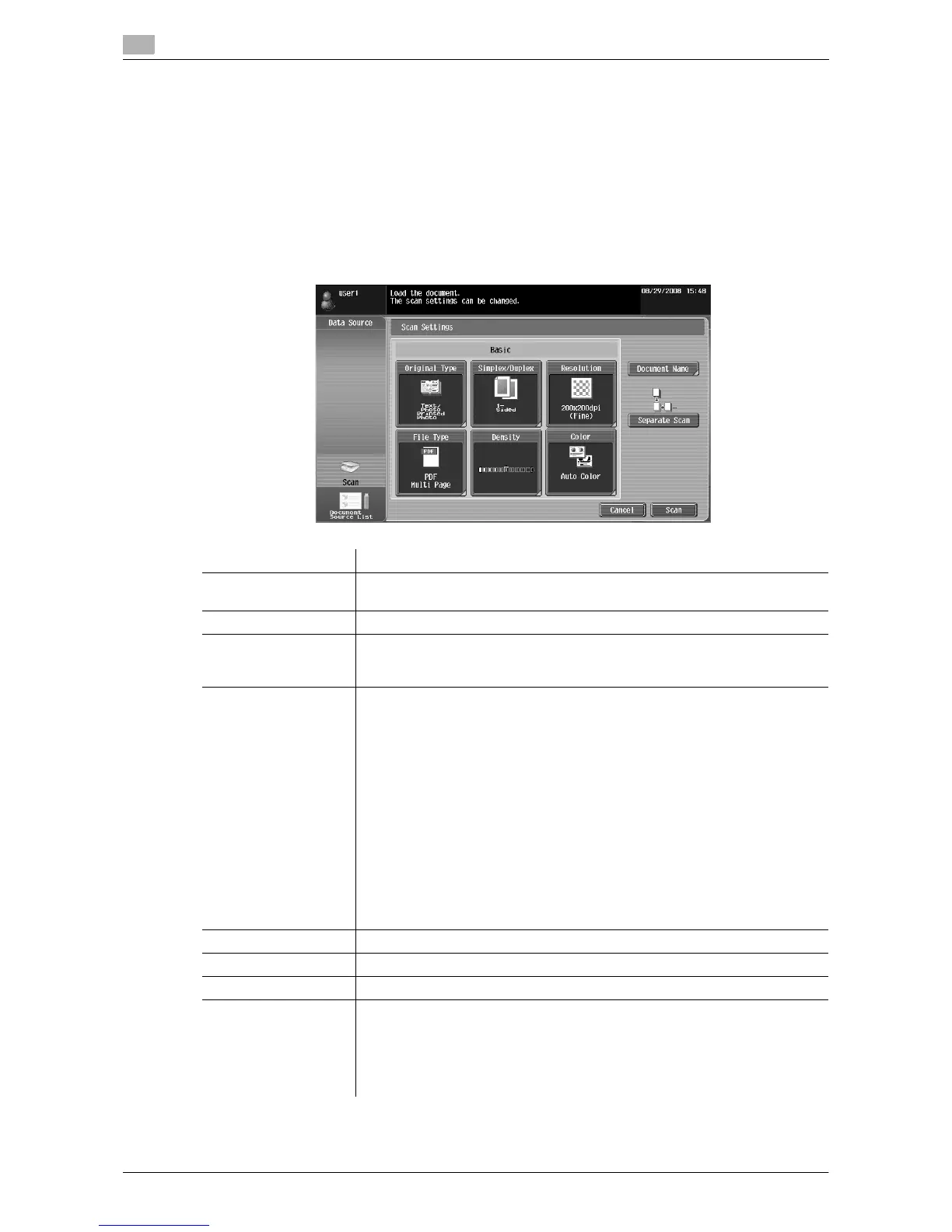
Press [Scan] to display the Scan Settings screen. Configure the scan settings as needed, and then press
[Scan].
Reference
- Only one document can be scanned.
Item Description
[Original Type] Select the image quality from [Text], [Text/Photo], [Photo], [Dot Matrix Original]
and [Copied Paper] according to the contents of the original to be scanned.
[Simplex/Duplex] Select either to scan a 1-sided original or 2-sided original.
[Resolution] Select the scan resolution from [200 e 100dpi (Standard)], [200 e 200dpi
(Fine)], [300 e 300dpi], [400 e 400dpi (Super Fine)] and [600 e 600dpi (Ultra
Fine)].
[File Type] Select a file type from [PDF], [Compact PDF], [TIFF], [JPEG], [XPS] and [Com-
pact XPS].
Select whether to save the whole scanned pages as one file, or to divide a file
in specified number of pages in order to save data. You cannot select [Multi
Page] if [JPEG] is selected for file type.
To send divided files by attaching them to an E-mail, specify [E-mail Attach-
ment Method]. Select [All Files Sent as one (1) E-mail] to attach all divided files
to one E-mail message. Select [One (1) File per E-Mail] to send E-mail messag-
es for each divided file.
Selecting [Compact PDF] for file type allows you to specify [Outline PDF].
If i-Option LK-102 is registered in the MFP, selecting [PDF]or [Compact PDF]
for file type allows you to specify [Encryption] and [PDF Document Properties].
For details on the function, refer to page 7-3.
If i-Option LK-105 is registered in the MFP, selecting [PDF]or [Compact PDF]
for the file type allows you to specify [Searchable PDF]. For details on the func-
tion, refer to page 8-3.
[Density] Adjust the density for scanning.
[Color] Select the scan color from [Auto Color], [Full Color], [Gray Scale] and [Black].
[Document Name] Specify the document name.
[Separate Scan] Press this button to divide scanning of the document into several times. It is
useful for the following cases.
• When the number of pages of a document is too many, and it cannot be
loaded into the ADF
• When placing the originals on the original glass
• When 1-sided originals and 2-sided originals are mixed


 To Next Page
 Loading...