14
DIVIDED PAYMENT AND EXTRA INVOICE
MESSAGE
You can personalize up to 5 lines of a maximum 24
characters each for the additional divided payment
invoice, requested and issued when a restaurant bill is
divided between the persons at a table.
1. Control lock key position: PRG. Caption
programming keypad installed.
2. Press repeatedly until the message is
displayed indicating the first customizable line of
the additional divide payment invoice. To jump to a
determined line number, type the number [1 to 5]
and press .
3. Enter the letters or characters of the string you wish
to define and press .
4. Press to exit.
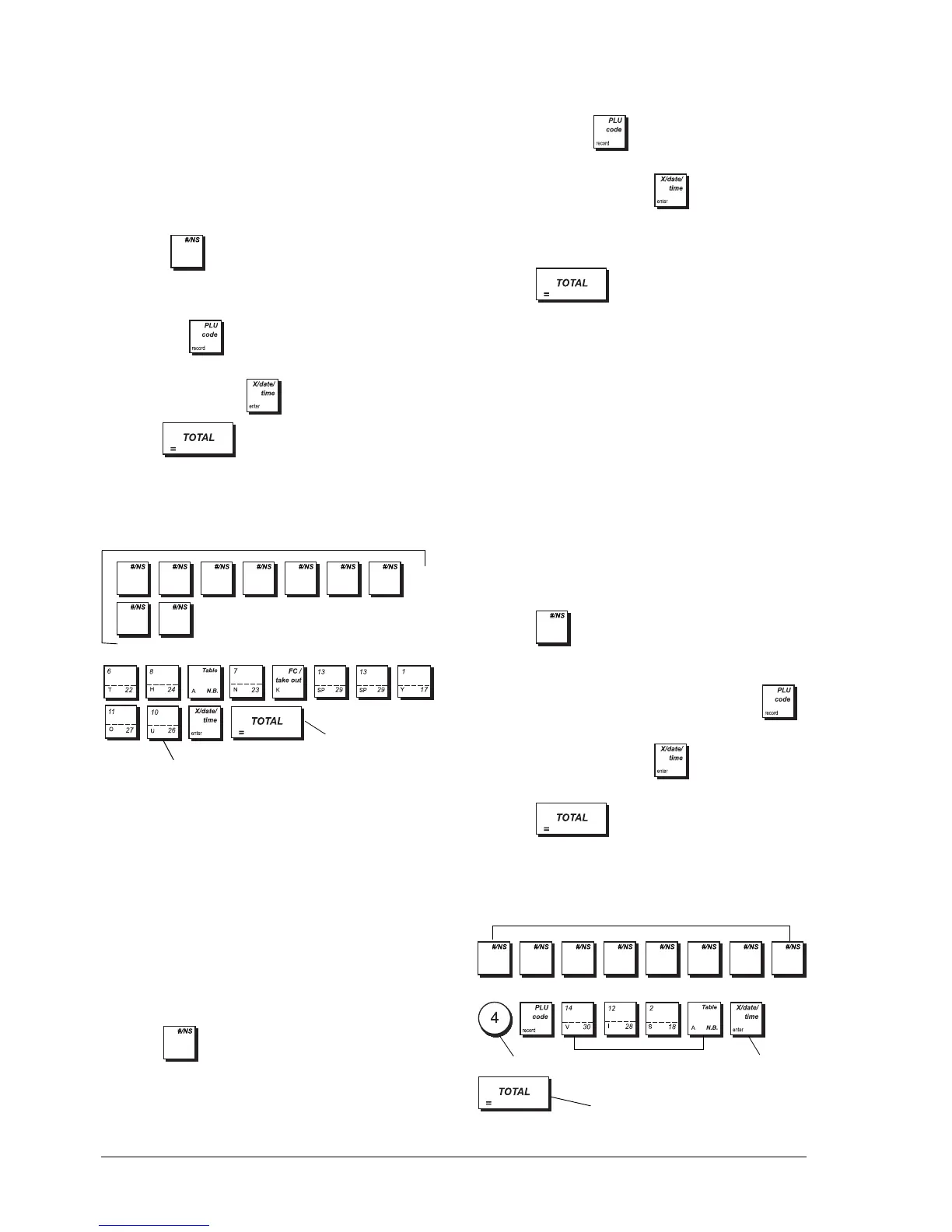
Example: Write "THANK YOU" on the first line of the
divide payment invoice message.
Type/Press:
BUSINESS RECEIPT (ABR) MESSAGE
At the end of a sales transaction, after the normal
receipt is issued, the customer can also request to be
given a Business Receipt. This is normally required in
restaurants where business meetings take place over a
meal, and the customer needs to obtain reimbursement
of expenses. The Business Receipt consists of a form
which the customer can fill in later by hand and submit.
You can personalize the standard details appearing on
the form such as place, date and customer name, using
this procedure:
1. Control lock key position: PRG.
2. Press repeatedly until the first ABR message
line is displayed.
3. To jump to another message line to personalize,
type the number [1 to 7] on the numeric keypad
and then press .
4. Enter the letters or characters of the string you wish
to define and then press . You are prompted
to personalize the next line.
5. Repeat steps 3 and 4 for all the message lines you
want to enter.
6. Press to exit.
PAYMENT MEDIA IDENTIFIERS
You can assign a name of up to 12 characters in length
to each of the media types that can be used for
payment. In caption programming, the number
identifying each media type is as follows:
The media names you define are printed on the
customer receipts, journal reports and on all
management reports.
1. Control lock key position: PRG.
2. Press repeatedly until the message indicating
the first payment media is displayed.
3. Using the numeric keypad, type the number of the
media type you want to program and press .
4. Enter the letters or characters of the string you want
to define and then press . You are prompted
to enter the name for the next credit card.
5. Press to exit.
Example: Identify credit card 1 as "VISA" using the
CAPS character table.
Type/Press:
1 = Cash 4 = Credit card 1
2 = Check 5 = Credit card 2
3 = Charge card
Switch to additional divide payment invoice definition mode
Exit
Confirm entered string
Switch to credit card string definition mode
Select media
String letters from
Captions Table
Confirm caption
string entered
Exit



 To Next Page