ENGLISH
27
CASH REGISTER PROGRAMMING REPORTS
This section explains how to print the different reports
that show how your cash register is programmed. These
reports are all taken in the PRG mode.
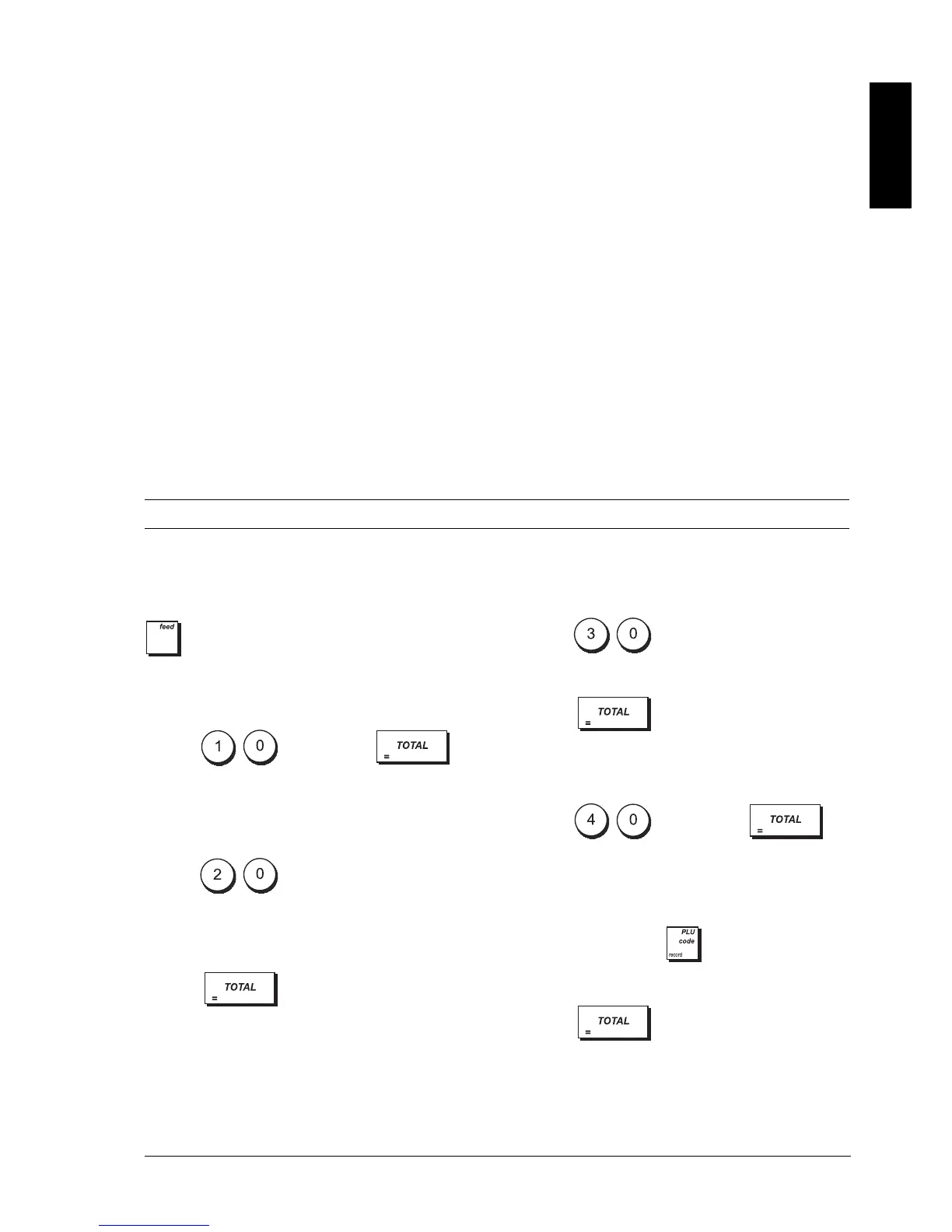
To stop the printing of a report, press and hold down
.
Department Programming Report
1. Control lock key position: PRG.
2. Type and then press .
Department Range Programming
Report
1. Control lock key position: PRG.
2. Type .
3. Type the department number [01 - 99] that you
want to start from.
4. Type the department number [01 - 99] that you
want to end at.
5. Press .
Department-Department Group Link
Report
1. Control lock key position: PRG.
2. Type .
3. Type the department group number [00 - 10] for
which to view a list of the associated departments.
4. Press .
PLU Programming Report
1. Control lock key position: PRG.
2. Type and then press .
PLU Range Programming Report
1. Control lock key position: PRG.
2. Type the PLU number (max. 14 digits) you want to
start from and press .
3. Type the PLU number (max. 14 digits) that you want
to end with.
4. Press .
94 Reserved
WARNING: When the following system options
are changed, the cash register performs a "Full
Reset - New Language Entry Excluded"
operation after which you need to reprogram
the cash register.
95 Cash register features configuration
0 = 1,500 PLUs, 9,000 EJ lines and TABLE
TRACKING system enabled
1 = 500 PLUs, 12,000 EJ lines and TABLE
TRACKING system enabled
2 = 1,500 PLUs, 11,000 EJ lines and TABLE
TRACKING system disabled
3 = 500 PLUs, 13,000 EJ lines and TABLE
TRACKING system disabled
96 Language selection
0 = English
1 = Spanish
2 = French
3 = German
4 = Programmable (free text)



 To Next Page