2 Operating the System
2-28 AS-Series Operator Manual August 2010
Starting a new batch
There are three ways to start a new batch:
• Press the New Batch button while the job is running to begin a new batch with the
next scanned document.
• Press the Close Batch button, then scan the new batch ticket or the first document
of the new batch.
• Scan a batch ticket. If the New Batch Mode parameter is set to Auto, scanning a
batch ticket will start a new batch.
NOTE: The New Batch button will only be available if activated for the current job.
Ending the job
When you have finished scanning documents, press Stop to put the system in
standby mode. From standby mode, you can restart the job, Delete the last scanned
document, view thumbnails, or Exit the job and return to the Scan screen.
NOTE: You can also press the Close Batch button to close the current batch and exit
the job when prompted.
Viewing/editing the batch
Use the Batch Editor to:
• Display previous document images (by batch)
• Delete images from prior batches
• Void/un-void documents from prior batches
• Assign page sub-types
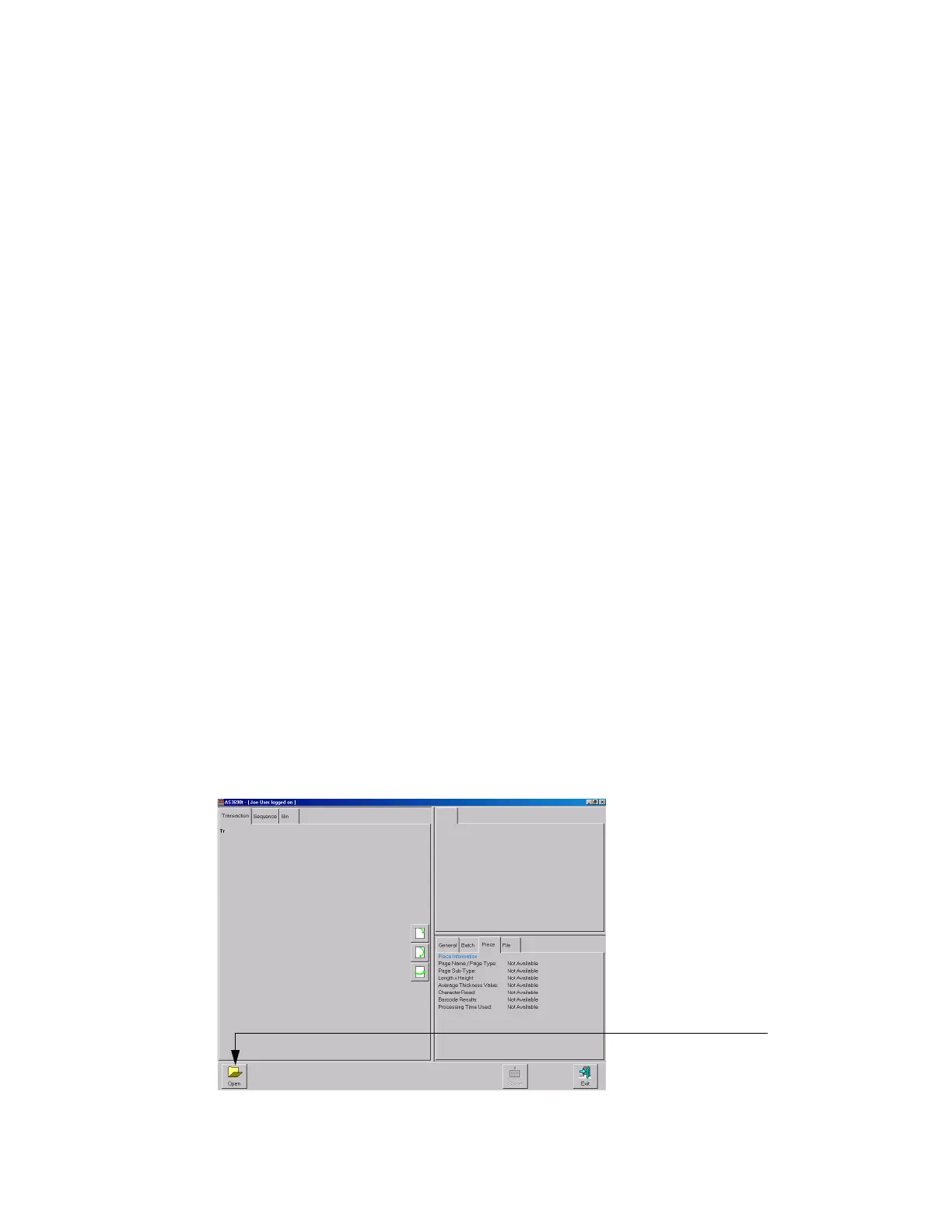
To access the Batch Editor:
1 Select Main in the menu bar and Batch Editor in the options bar.
FIGURE 17: Batch Editor


 To Next Page