2 Operating the System
August 2010 AS-Series Operator Manual 2-23
Assigning a page type
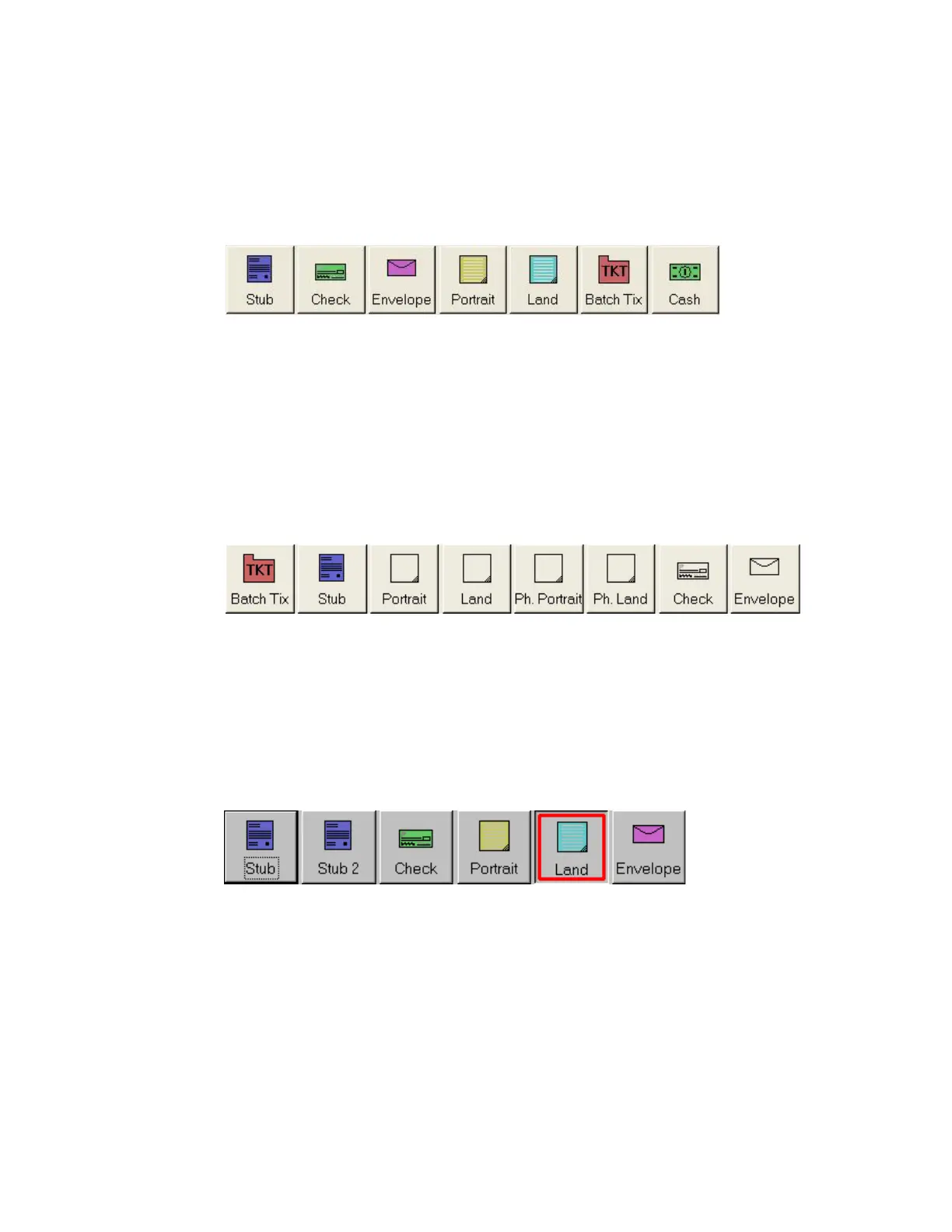
You can manually assign a page type to a document by pressing the appropriate
page type button. These buttons are only available if they have been activated in the
current job. Press a page type button to assign the page type to the next document
you scan.
FIGURE 11: Sample page type buttons (unstructured job)
NOTE:
Depending on the job’s settings, you may have to assign a page type to some
(or all) documents you scan. In this case, the page type button will stay
depressed until you click another button, and the system will process each
document as this page type.
In a structured job, the page type buttons will also indicate which page types the
system expects to see next. For example, if the job expects to see either a batch ticket
or a stub to start a transaction, their corresponding page type buttons will appear in
color (as shown in Figure 12).
FIGURE 12: Sample page type buttons (structured job)
Page type locking
Depending on the job setup, the operator may also have the ability to apply a page
type override to several documents. With page type locking enabled, the operator can
press the page type button twice and “lock” the page type button down. Once the
button is “locked,” all the subsequent pieces will be classified as this page type until
the end of the transaction or when the lock is released.
FIGURE 13: “Locked” page type button
A red box around a page
type button indicates
that the lock is in place.


 To Next Page