2 Operating the System
2-34 AS-Series Operator Manual August 2010
Clearing Paper Jams
During normal operation of the machine, you may encounter an error message
halting the scanner. The prompt on the machine will offer you two options: to
CONTINUE or to CANCEL. The error message is informing you of a paper jam or a sensor
error. In this case, check the machine for paper jams as described here. After you
clear the jam or ensure that the track is clear, press the Continue button.
NOTE: The scanner may also reject documents that are misfed, skewed, or because
the document was not properly identified. In these cases, the scanner will stop
after all the paper in the track has been sent to the reject bin. If the paper
doesn’t clear into the reject bin after selecting Continue, then you need to open
the cover(s) and remove the paper(s).
To open the scanner cover:
1 Place your left hand on the latch.
2 Depress the latch to release the cover. The cover will swing to the open position.
3 Clear any jammed papers in this area.
To close the scanner cover:
Hold the cover and press the latch back to the closed position until you hear the
cover latches click into place.
NOTE: Close the scanner cover gently. Slamming the cover down can damage the
image sensors.
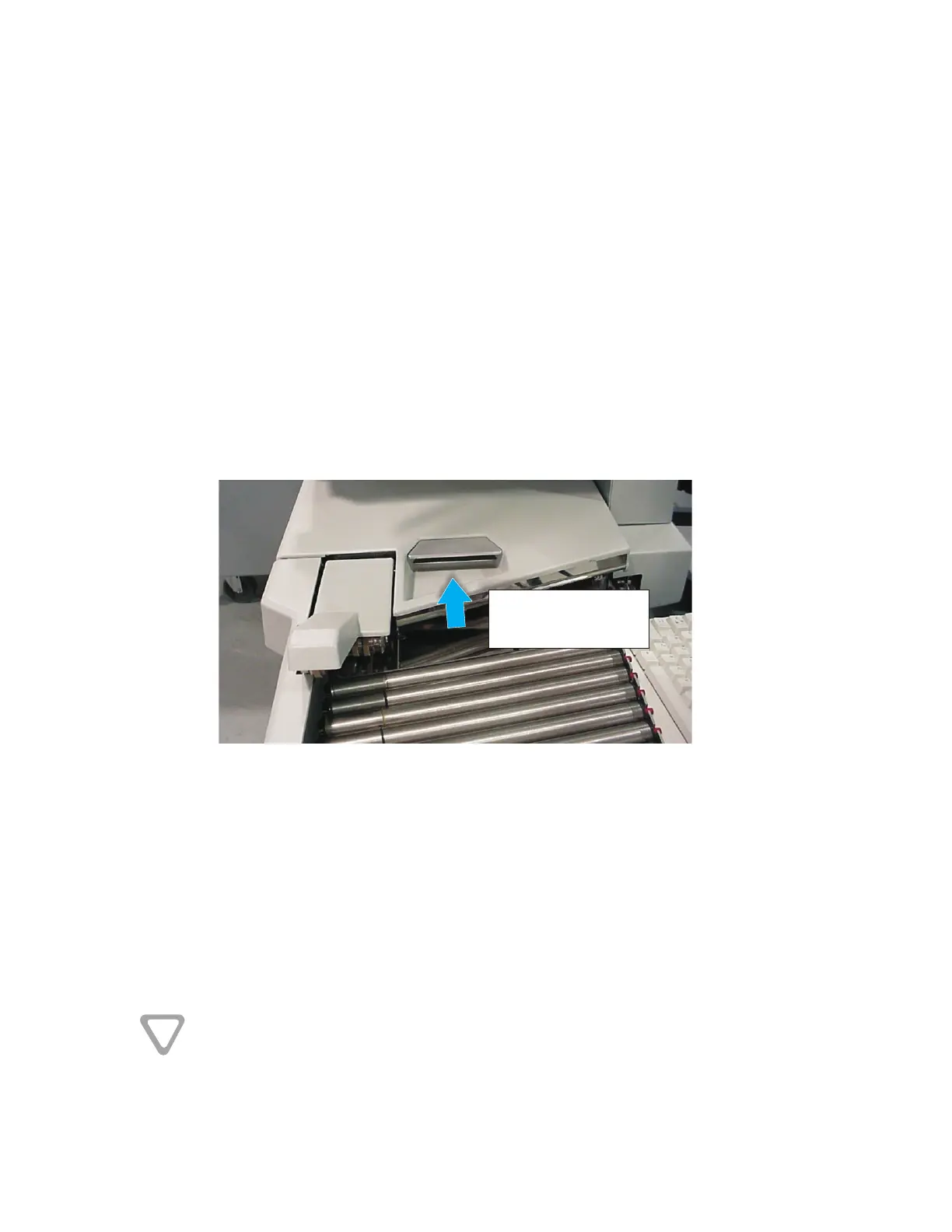
To open the stacker transport cover:
1 Place your left hand on the latch and turn it counterclockwise.
Depress the latch
to release the cover
DO NOT OPEN OR CLOSE THE COVER BY APPLYING PRESSURE TO THE STACKER COVER.


 To Next Page